Setting up Payroll Exports
Last updated: April 2, 2026
🎥Tutorial: Zingage Payroll Exports Feature
When setting up Payroll Exports in Zingage, you'll need to configure specific pay codes in your payroll system first and then add them to Zingage to properly export reward payments and overtime adjustments from Zingage. Here's how to set up the integration:
Step 1: Set up Pay Codes in your Payroll System
In your payroll system, you (or your payroll administrator) will need to create two earning codes:
Reward Paycode → for caregiver gift card/redemption amounts
OT Adjustment Paycode → for overtime adjustments that Zingage calculates when rewards affect a caregiver's blended overtime rate
You can name these codes whatever works best for your system (e.g., RWD for rewards, OTADJ for overtime adjustment), as long as they match what you'll enter into Zingage.
Step 2: Enter Pay Codes in Zingage
Once your pay codes are set up in your payroll system:
In your Zingage dashboard, go to Reporting → Payroll Export → Settings
Enter the exact same pay codes you created in your payroll system under "Reward Paycode" and "OT Adjustment."
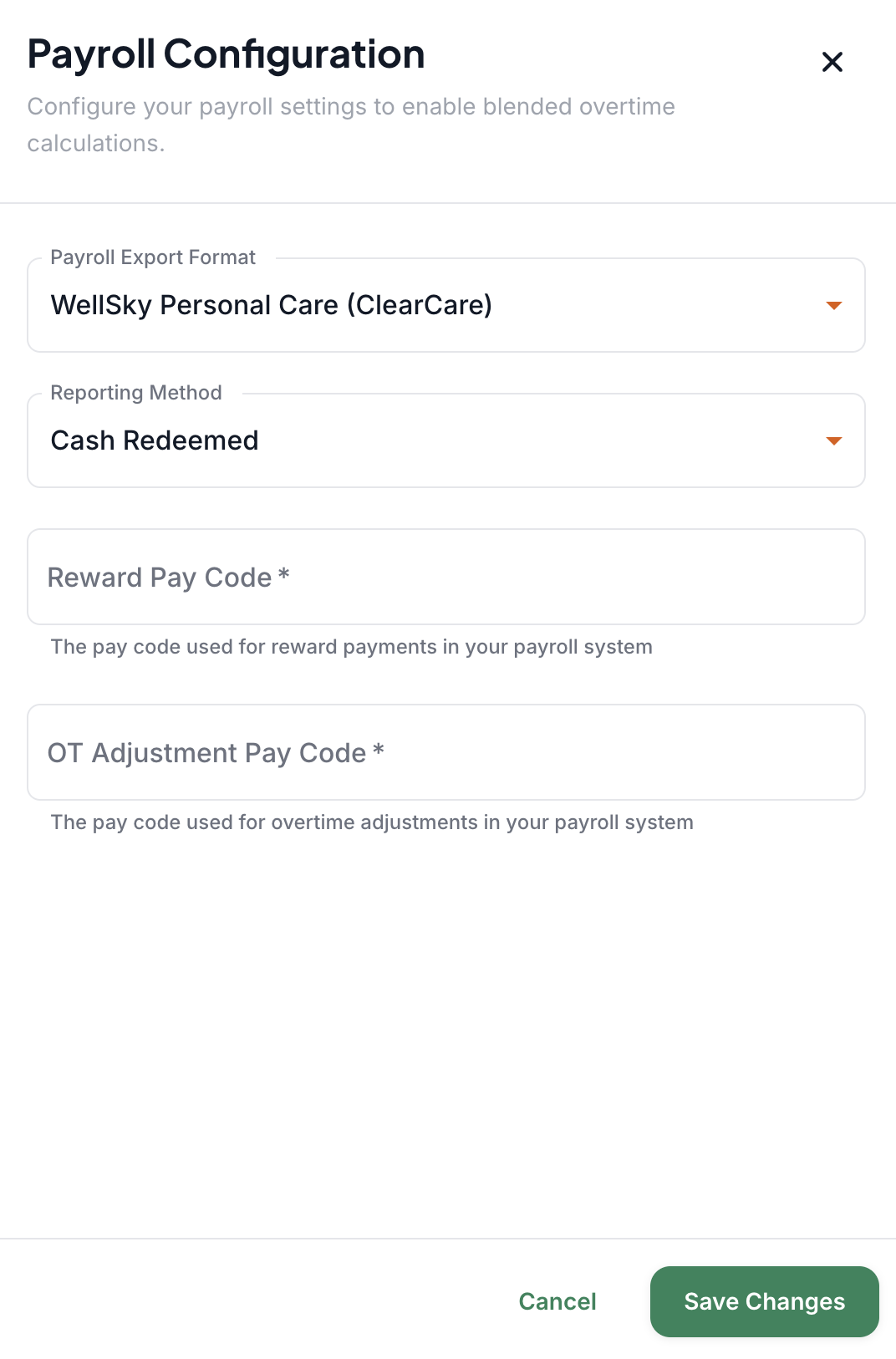
This ensures that when you export from Zingage, the file matches payroll system codes and can be uploaded without manual edits.
Step 3: Run and Export Your Payroll Report
In Zingage, go to Reporting → Payroll Ready Exports
Select the correct pay period and upload your payroll timesheet (the same one you usually export from your EMR)
Make sure the columns in your export are correct based on the payroll system that you use, please see this help article (Required Columns For Payroll-Ready Exports) to ensure yours are accurate.
Zingage will automatically merge the timesheet with rewards data and calculate any overtime adjustments
Step 4: Upload to your Payroll System
Download the completed export file from Zingage
Upload it directly into your payroll platform, just like you would with any other payroll import file
This process ensures that your payroll system receives a file that already includes the caregiver's base pay, reward redemptions, and any overtime adjustments — all under the correct earning codes.
What Payroll Platforms are Supported:
ADP
WellSky Personal Care (ClearCare)
WellSky Home Health (Kinnser)
PayPlus
Viventum
Paychex
Any other platforms are regrettably not supported, and clients are encouraged to download the Rewards Only exports to use when calibrating Payroll data.
For additional payroll resources, visit our articles: