Reporting in Zingage: Payroll Ready and Rewards-Only
Last updated: March 18, 2026
Track caregiver rewards in payroll — either automated or manual
Every caregiver reward needs to be accounted for in payroll — the only question is how you want to handle it. Zingage gives you two ways to track this: one automated (Payroll-Ready), one manual (Rewards-Only).
⚙ Settings
Before doing anything else, go to the Settings tab inside Payroll Exports.
Here’s where you’ll complete the two pieces of required setup:
Payroll Configuration – Choose whether you want to track points earned, redeemed, or both.
Employee Mappings – Match each caregiver in Zingage to their payroll ID.
🟢 Option 1: Payroll-Ready Settings
This is the semi-automated option.
After you export your timesheets from your EMR, you can upload them to Zingage. We’ll enrich that timesheet with any caregiver rewards based on your configuration, and then you download the full report and upload it to your payroll provider. Zingage handles the math, so rewards show up cleanly in your payroll file.
Use this if:
You want to include reward data alongside your regular timesheets
You want help calculating totals, including overtime
You’re exporting to a payroll system like ADP, Viventum etc.
What Payroll Platforms are Supported:
ADP
WellSky Personal Care (ClearCare)
WellSky Home Health (Kinnser)
PayPlus
Viventum
Paychex
Any other platforms are regrettably not supported, and clients are encouraged to download the Rewards Only exports to use when calibrating Payroll data.
🟠 Option 2: Rewards-Only Settings
This is the more manual, lightweight option.
You can export a CSV that shows redemptions — either once or on a recurring schedule. This is great if your payroll process is already established and you prefer to manage how and when rewards are paid out.
Use this if:
You only want to track what was actually redeemed
You handle all calculations and compliance yourself
You want a simple rewards log for manual input or record-keeping
Here's how to use the feature:
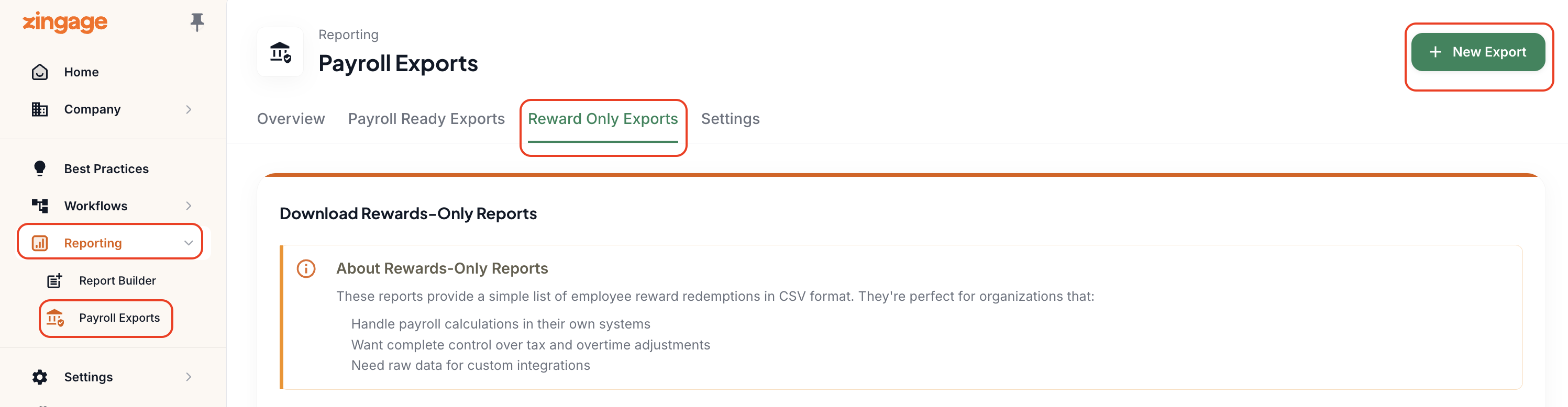
Click New Export in the top right corner of the screen
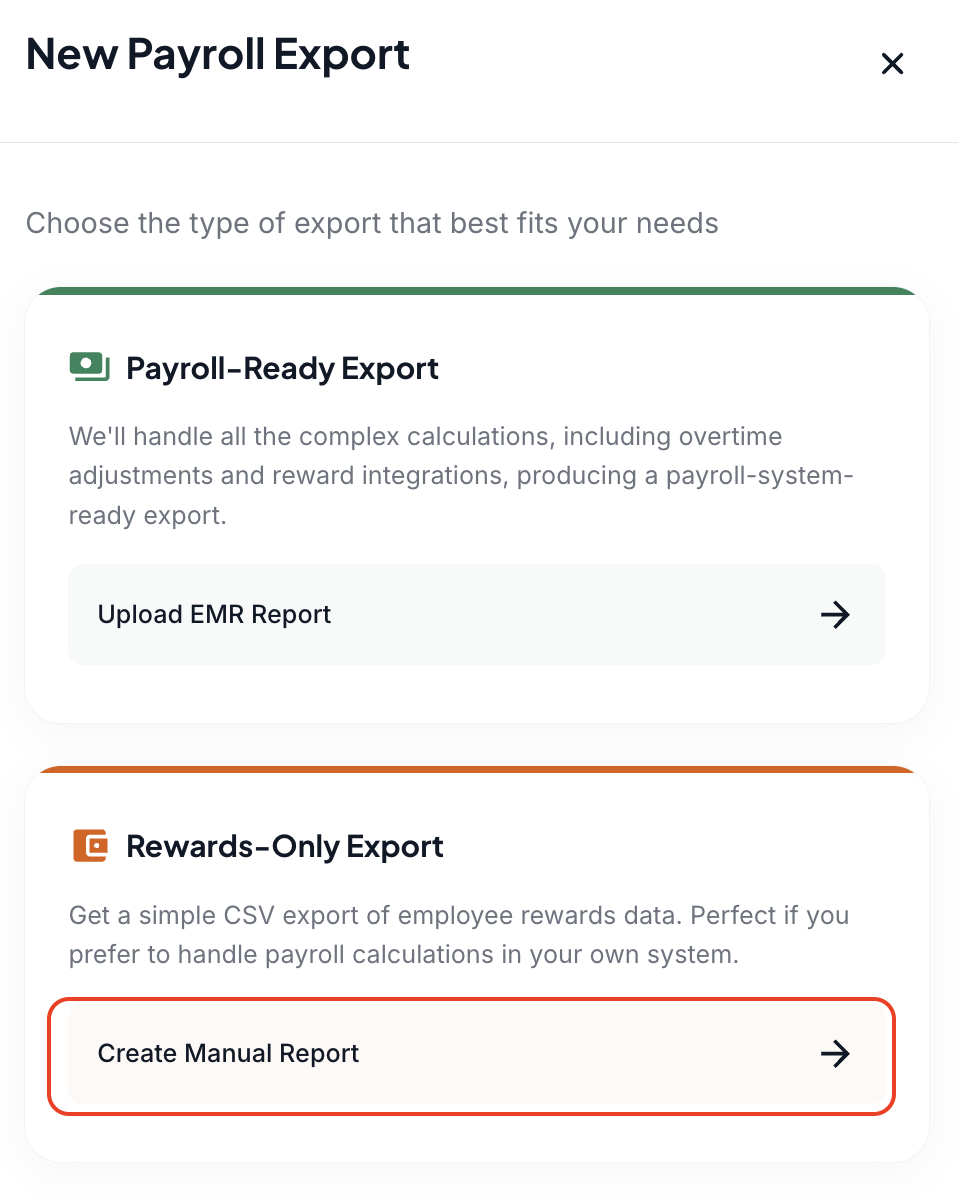
Create Manual Report
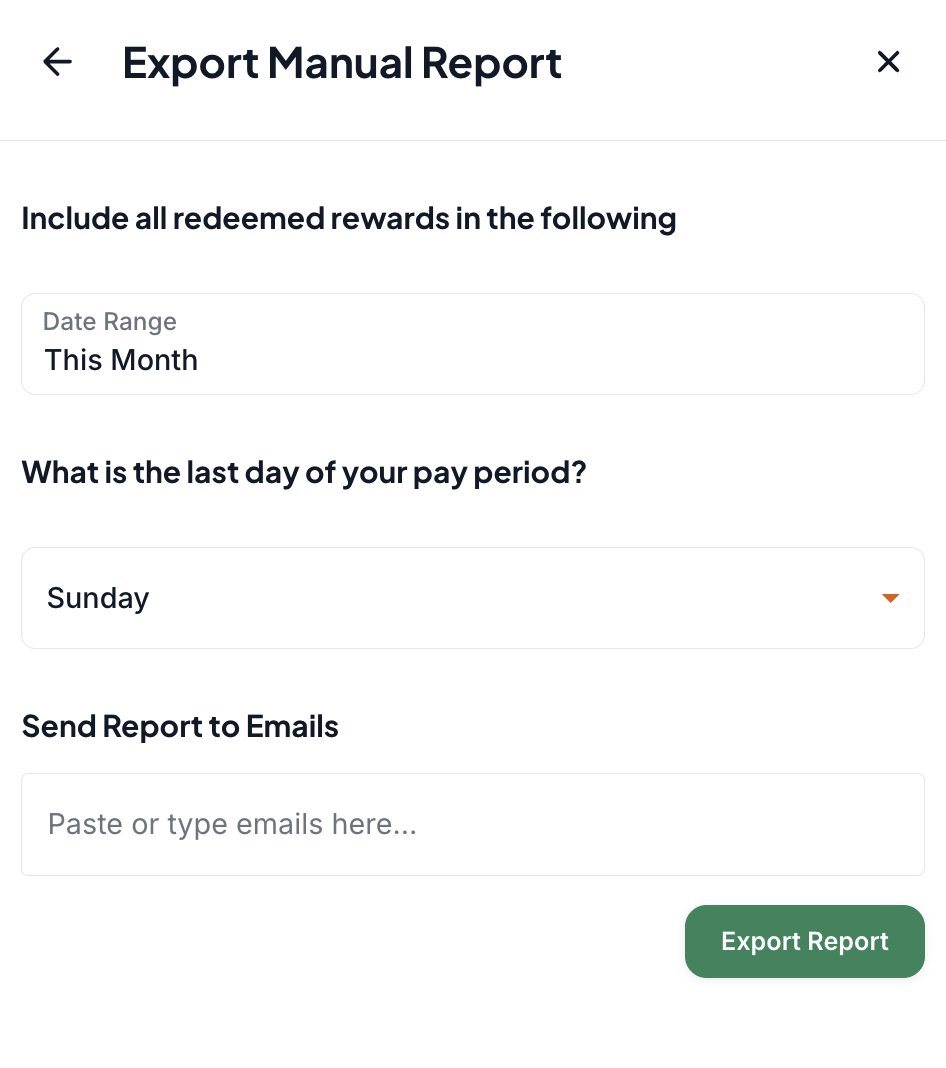
Enter your date range, the last day in your pay period, and the email addresses you'd like the report to go to, and
Export Report
You can also automate this based on your payroll cycle by going to Reporting > Payroll Exports > Settings. Click Configure Reports fill the data and Save Settings.