Getting the Most Out of Surveys on Zingage Perform
Last updated: October 27, 2026
Surveys are one of the most powerful tools in Zingage for hearing directly from your caregivers. Used well, they help you catch problems early, spot retention risks, celebrate what's working, and show caregivers that their feedback leads to action.
This 4-part guide walks through every part of the survey experience, from setup to reviewing and sharing results, with to-dos and tips for each feature.
Who this is for: agency admins, schedulers, recruiters, HR and onboarding coordinators, and leadership who manage or review caregiver surveys.
Quick Reference
Feature | Where to find it | Best for |
|---|---|---|
Survey settings (anonymous, escalations, expiration, reminders) | Workflows > Surveys > New Survey (left panel) | Setting a survey up for strong response rates and fast follow-up |
Survey results page | Workflows > Surveys > click a survey | Reviewing all responses to one survey |
Individual Responses | Workflows > Surveys > click a survey > Individual Responses tab | Reviewing one caregiver's answers (non-anonymous surveys) |
Response Feed | Workflows > Surveys > Response Feed | Reviewing and replying to responses across all surveys |
Auto-Email | Survey results page > Auto-Email (top right) | Sending results to team members on a schedule |
Survey Summaries | Workflows > Surveys > Survey Summaries | AI-generated themes, sentiment, and recommended follow-ups |
Export Responses | Survey results page > Export Responses (top right) | Spreadsheets for reporting, printing, or recordkeeping |
Part 1: Setting Up Your Survey
To create a survey, go to Workflows > Surveys and click New Survey in the top right. The left panel holds your survey settings, and the right panel is where you pick a template or build your questions from scratch.
The settings below can determine how caregivers respond, how honest their answers are, and how quickly your team hears about problems. It's worth taking a few extra minutes here.
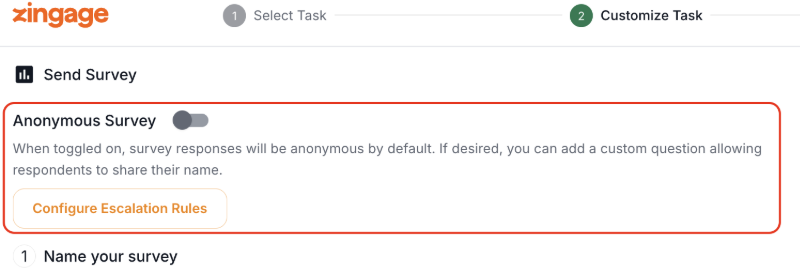
Anonymous Survey toggle
When the Anonymous Survey toggle is on, caregiver submissions do not show the respondent's name or any identifying information. This also carries through to Survey Summaries, where anonymous surveys won't reveal names in the highlights or quotes.
To-dos
Decide the purpose of the survey before building it: is it for honest feedback (anonymous) or for individual follow-up (named)?
Turn on Anonymous for satisfaction, culture, and management feedback surveys
Leave Anonymous off for onboarding check-ins, 30/60/90-day surveys, and anything where you'll want to follow up one-on-one
Mention in your custom message that the survey is anonymous so caregivers know it's safe to be candid
Tips
Caregivers are much more open about scheduling issues, pay, and supervisor relationships when they know their name isn't attached.
The tradeoff: you can't follow up with a specific person. Plan to act on anonymous feedback at the group level, such as an announcement saying "You told us X, here's what we're changing."
Consider running both types: a named check-in for new hires and a quarterly anonymous pulse survey for everyone.
Configuring Escalation Rules
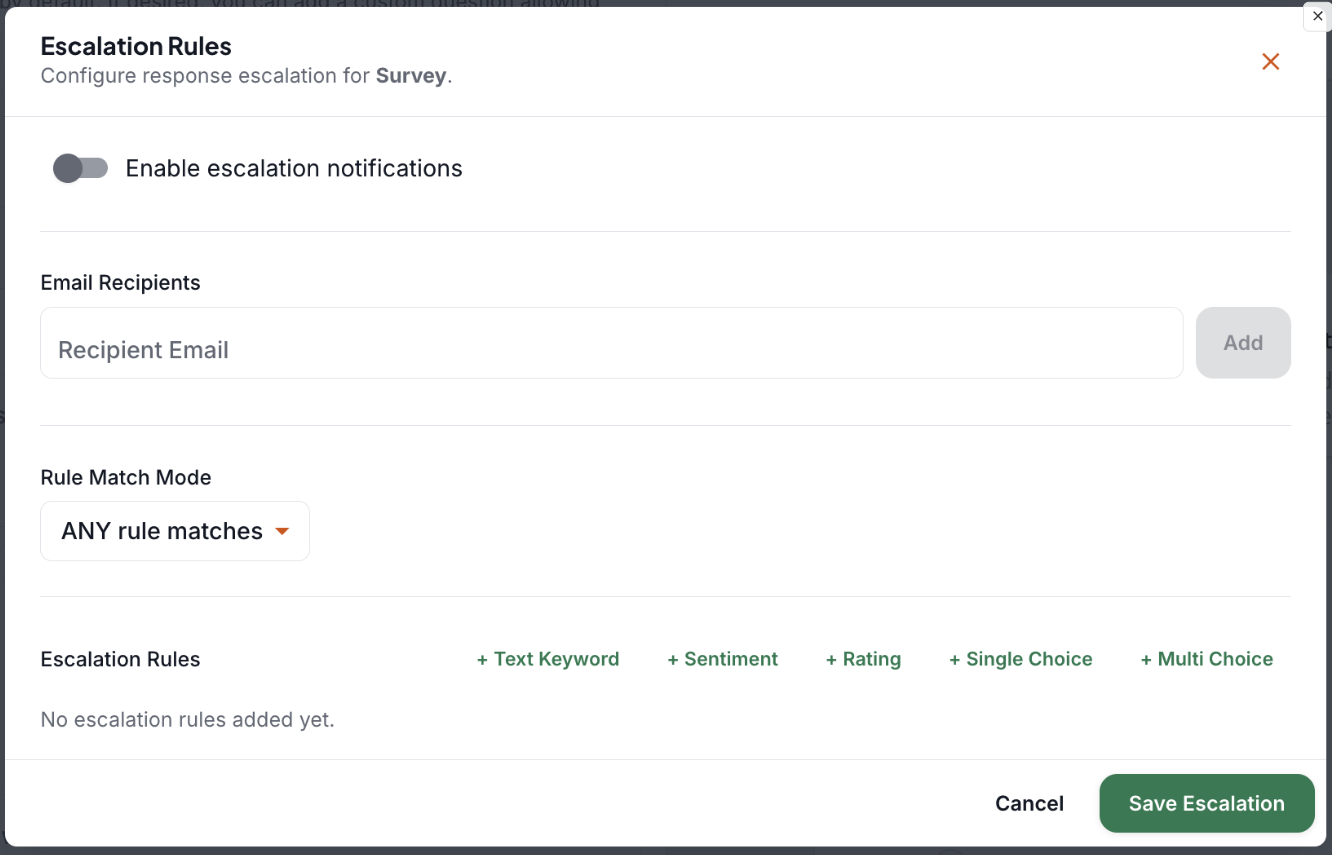
Enabling escalation rules can automatically email designated team members when a response meets a condition you set, such as a low rating or a specific keyword. Instead of waiting for someone to review results, the right person hears about a concern as soon as it comes in.
To-dos
Identify which questions signal a risk (overall satisfaction, likelihood to stay, "how supported do you feel")
Set a rating threshold that triggers an escalation (for example, any rating at the low end of your scale)
Add keyword triggers for words like "quit," "leaving," "unsafe," "harassment," "no hours," or "pay"
Choose who receives escalations: the caregiver's coordinator, HR, or a retention lead
Agree internally on how quickly someone will follow up after an escalation (for example, within 24 hours)
Tips
Route escalations to the person who can actually act on them. A scheduling complaint should reach a scheduler, not just the owner's inbox.
Start with a few high-signal triggers. If escalations fire too often, people start ignoring them.
Escalations are your early-warning system for turnover. A quick phone call after a low score can save a caregiver.
Custom Message
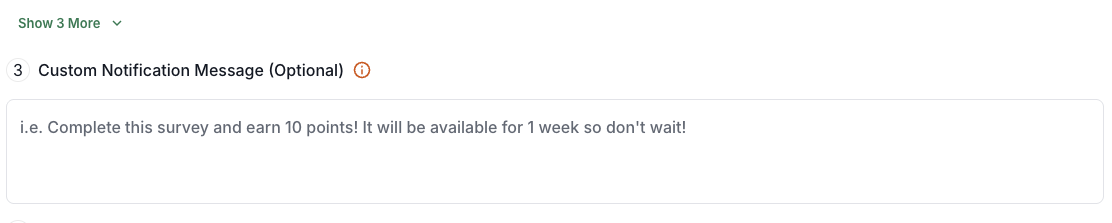
The custom message is what caregivers see when they receive the survey. A clear, warm message improves response rates.
To-dos
Explain why you're asking and what you'll do with the feedback
Mention the reward (if any) and how long they have to complete it
Keep it short and personal, using your agency's voice
Tips
Something like "We read every response and use your feedback to improve how we support you" goes a long way.
If the survey is anonymous, say so in the message.
Expiration Timeline (how long the survey is available)
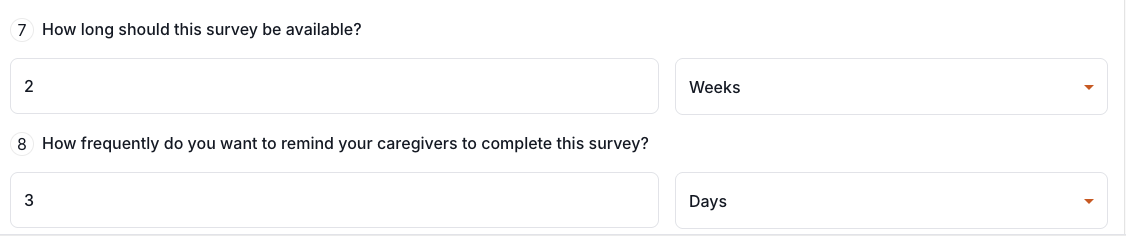
The Expiration timeline controls how long caregivers have to complete the survey before it closes.
To-dos
Match the window to the survey's purpose: shorter for time-sensitive pulse checks, longer for in-depth feedback surveys
Make sure the window fits caregivers' schedules, including those who work weekends or overnight shifts
If you plan to use Auto-Email with When the Survey Closes, confirm the expiration date lines up with when your team needs the results
Tips
Too short and you'll miss caregivers who only check their phone between shifts. Too long and responses trickle in and lose urgency.
For recurring surveys, keep the window shorter than the repeat interval so surveys don't overlap.
Reminder Timeline (caregiver reminders)
The Reminder timeline sets when caregivers are reminded to complete a survey they haven't finished yet.
To-dos
Turn on reminders for every survey you want a strong response rate on
Time the reminder so it lands partway through the expiration window, not on the last day
Review response rates after the first send and adjust the reminder timing if needed
Tips
Most non-responses aren't refusals. Caregivers simply forget. A single well-timed reminder often makes the biggest difference in response rates.
Pair reminders with a reward for the strongest results.
You can also manually remind an individual caregiver. See How to Remind a Caregiver to Complete a Survey in Zingage.
Completion Reward
Rewards are optional. You set the amount caregivers receive for completing the survey.

To-dos
Mark key questions as Required when a reward depends on completion
Size the reward based on survey length, urgency, and how quickly you need responses
Tips
A small reward for a short survey shows caregivers you value their time.
The longer a survey is available, you can have a smaller reward as more caregivers have the opportunity to take it
A shorter availability period to take the survey could have a higher reward to encourage demand for completion
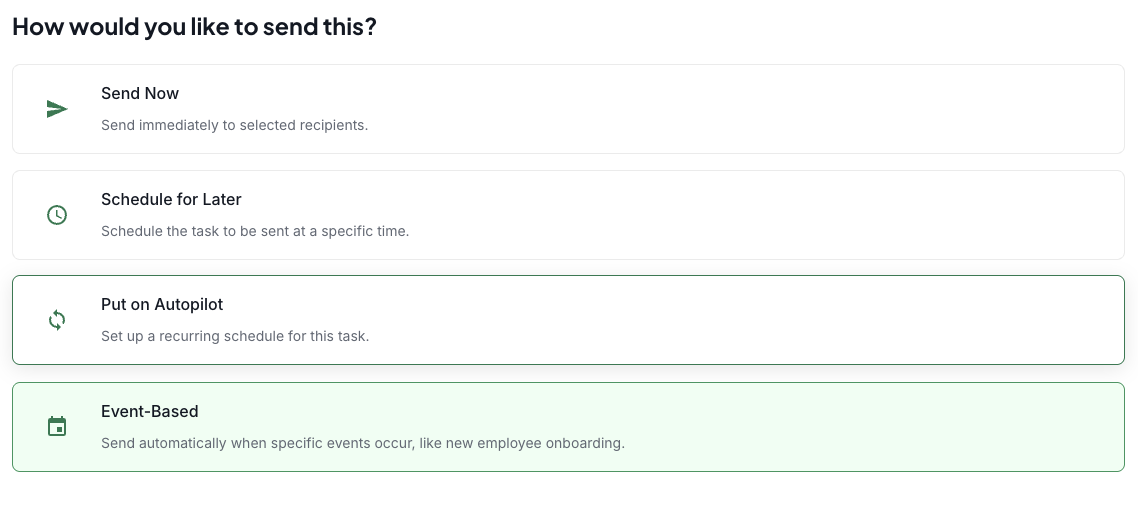
Sending Methods
Send Now: sends immediately to the chosen recipients
Schedule for Later: sends on a specific future date and time
Put On Autopilot: sends on a recurring schedule (e.g. weekly, monthly, quarterly)
Event-Based: sends automatically when a caregiver hits a trigger, like a hire-date milestone or a period without shifts
To-dos
Set up at least one Event-Based survey for new hires (30/60/90-day check-ins)
Set up a recurring Autopilot pulse survey for your broader team
Consider a "no shifts in 2 weeks" event-based survey to catch disengaged caregivers early
Use Employee Groups to target the right caregivers (Company > Employee Groups)
Tips
Automated surveys run without extra effort from your team, so feedback never falls through the cracks during busy weeks.
System-generated groups like "New Hire Within 30 Days" can't be edited. Create a custom group if you need a different audience.
Part 2: Reviewing Responses
There are several ways to review survey responses in Zingage. Each is suited to a different job.
Survey Results Page (full responses)
Go to Workflows > Surveys and click a survey to see all of its submitted responses. From here you can review the high-level response summary, including sentiment, recommendation scores, and response trends where available.
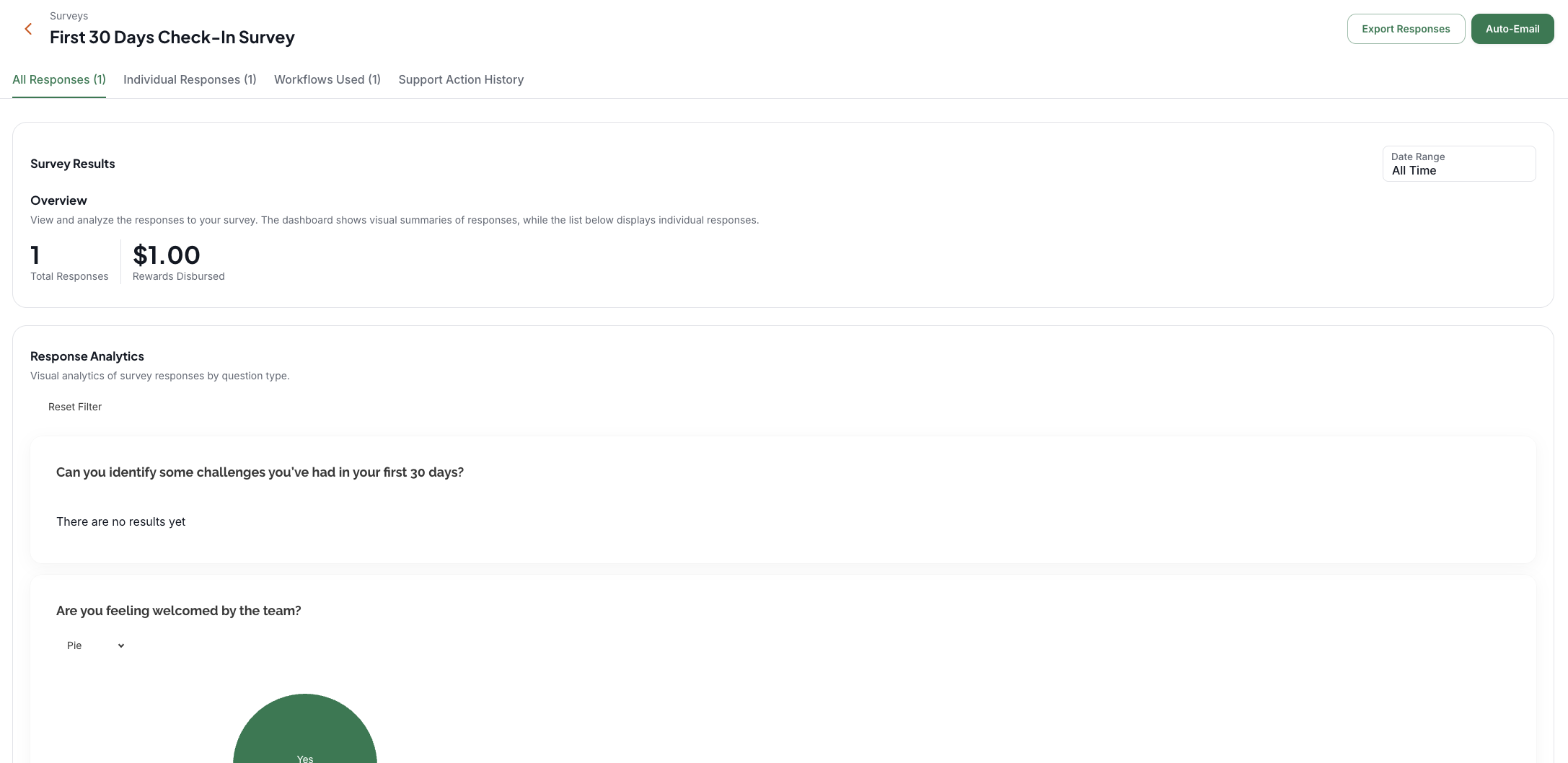
Use the Time Range Filter at the top of the responses view to narrow results to Today, This Week, This Month, or a Custom Range. The active filter also determines what's included when you export or send results manually by email.
To-dos
Review each active survey's results at least weekly
Use the Time Range Filter to compare this month against last month and spot trends
Note any recurring complaints or praise to share with your team
Tips
Filtering to "This Week" is a quick way to see only what's new since your last review.
Before sending results manually, check that the right time range is selected.
Individual Responses
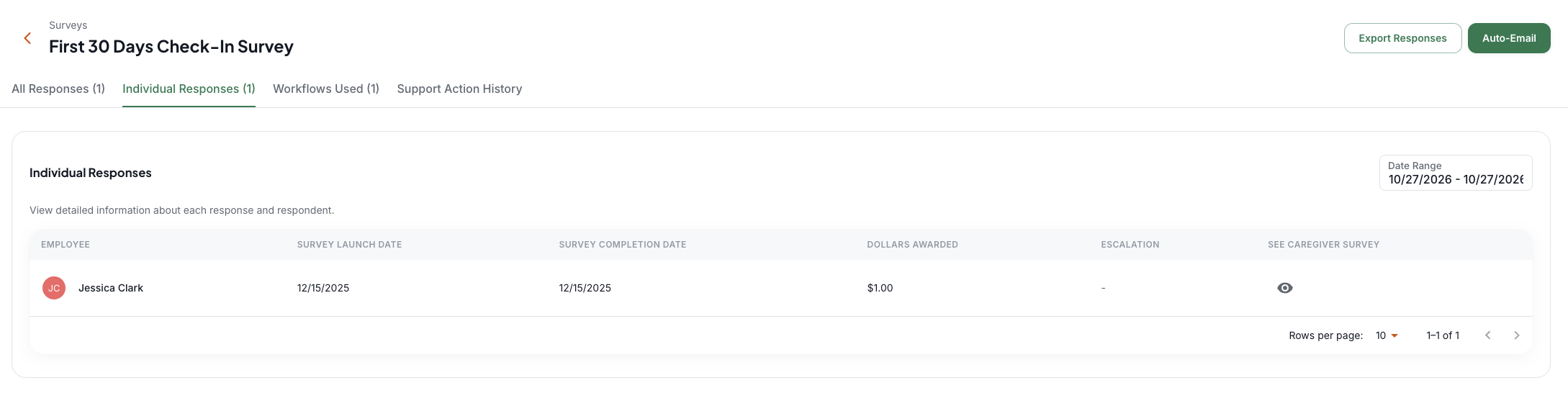
The Individual Responses tab on a survey's results page lets you see each caregiver's answers. Click the eye icon next to a name to view that person's full response. This tab is only useful for non-anonymous surveys.
You can also see a caregiver's survey history from their Employee Scorecard: go to Company > Employees, click the caregiver's user icon, and open the Surveys tab.
To-dos
Review individual responses before one-on-ones, check-ins, or performance conversations
Follow up personally with caregivers who gave low scores or raised concerns
Use the Employee Scorecard to see how a caregiver's feedback has changed over time
Tips
Pulling up a caregiver's responses during a check-in, with no spreadsheet needed, shows them you actually read what they wrote.
A drop in one caregiver's scores between their 30-day and 90-day surveys can be an early retention warning.
Response Feed
The Response Feed (Workflows > Surveys > Response Feed) lets you view, search, filter, export, and reply to caregiver responses across all your surveys in one place. By default it shows responses from all time.
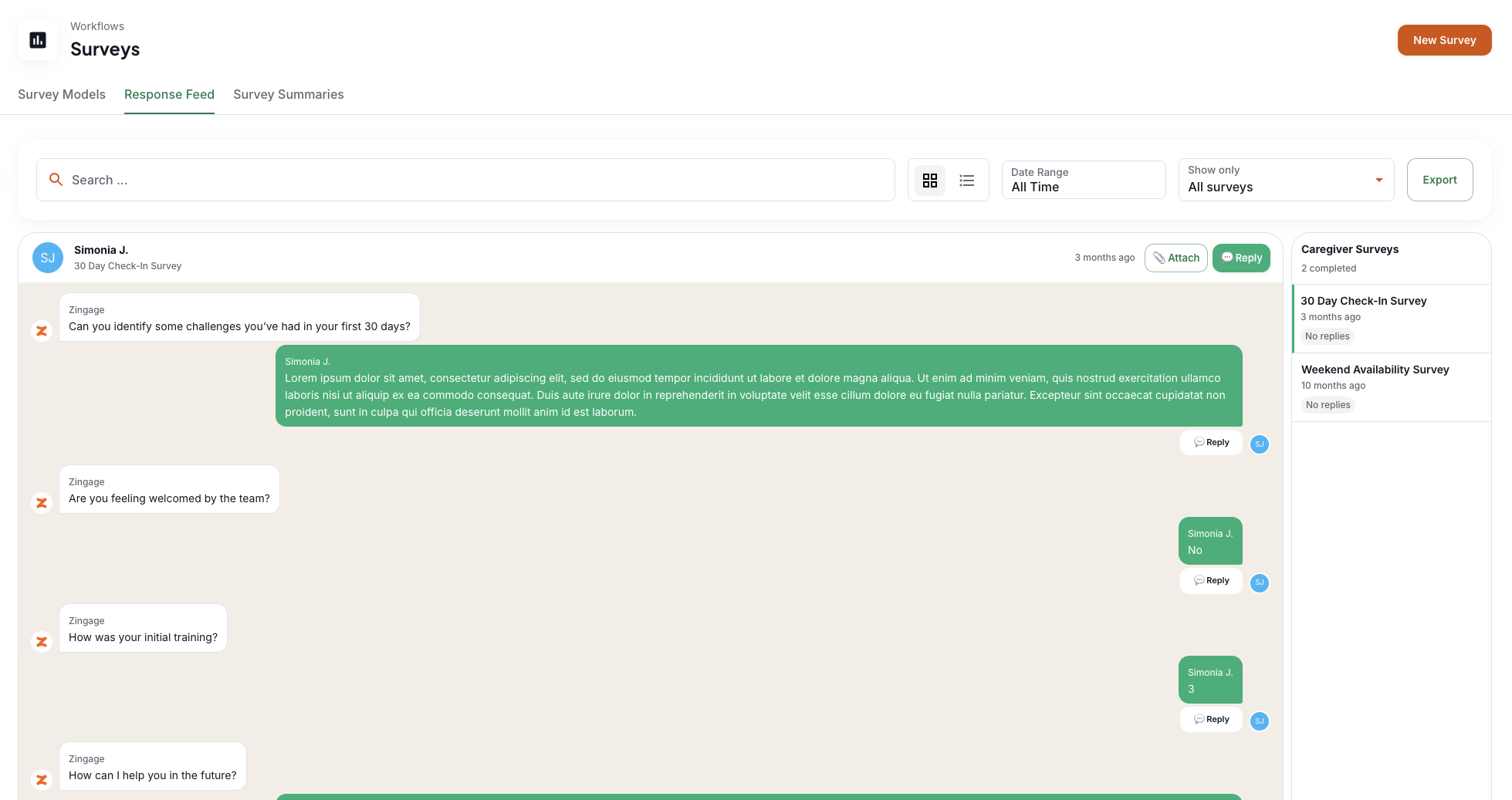
What you can do in the Response Feed:
Filter by date range or by a specific survey
Search for a caregiver by name to see every survey they've completed
Switch views with the toggle to review responses by caregiver
Reply to a specific answer, or send a general reply to the whole survey. Replies appear on the caregiver's side as a note and can include formatting, images, and attachments
Attach a document to a reply, such as a form to complete or information about next steps
Export responses for reporting or recordkeeping
Note: you can add one general reply per survey and one reply per individual answer. The same limit applies to attachments.
To-dos
Make the Response Feed part of your weekly routine so you see everything in one place
Reply to caregivers who share concerns, ideas, or praise
Use attachments to send helpful resources in response to questions (for example, a policy, a training guide, or a form)
Search by caregiver name before a check-in to see their full feedback history
Tips
Replying closes the loop. Caregivers who see a response to their feedback are more likely to keep giving it.
Use specific-answer replies for targeted follow-up ("Thanks for flagging the scheduling issue, here's what we're doing") and general replies for a thank-you.
Since you only get one reply per answer, make it count: acknowledge the feedback and include a clear next step.
Exporting Responses
On any survey's results page, click Export Responses in the top right to generate a spreadsheet with all survey data. You can also export from the Response Feed.
To-dos
Export results at the end of each quarter for your records
Use exports to build reports for leadership meetings or compliance needs
Tips
If you just need to discuss responses with a caregiver, the Individual Responses tab or Employee Scorecard is faster than exporting.
Part 3: Sharing Results with Auto-Email
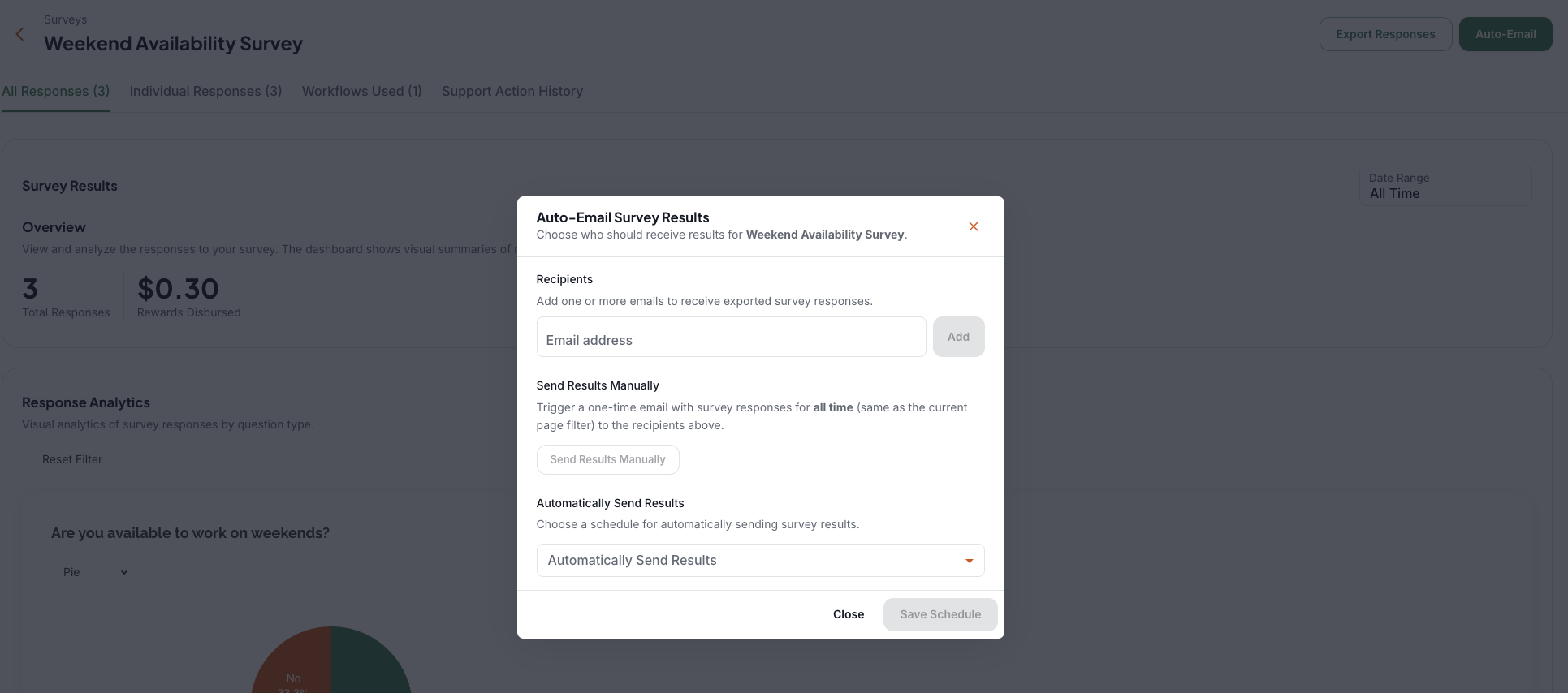
Auto-Email sends survey results to specific team members, like a recruiter, HR coordinator, or onboarding specialist, either on demand or on a recurring schedule.
How to set it up
Open the survey's results page and click Auto-Email in the top right corner
Enter the email addresses of the team members who should receive results and click Add (you can add several)
Choose how to send:
Send Manually: a one-time email with responses from the currently selected time range
Weekly: best for recurring surveys like a weekly pulse survey
Monthly: best for surveys that run over a longer period
When the Survey Closes: best for one-off surveys with a set end date
Click Save Schedule
Auto-Email settings are saved per survey, so each survey can have its own recipients and schedule.
To-dos
Set up Auto-Email on every active survey so results never sit unread
Route onboarding and new hire surveys to your onboarding or recruiting team
Route pulse and satisfaction surveys to management or leadership
Pick a schedule that matches how often the team will actually act on the results
Tips
Auto-Email gets feedback to people who don't log in to Zingage regularly, like owners, office managers, and regional directors.
Use escalation rules for urgent issues and Auto-Email for the regular roundup. Together they make sure nothing is missed.
Part 4: Survey Summaries
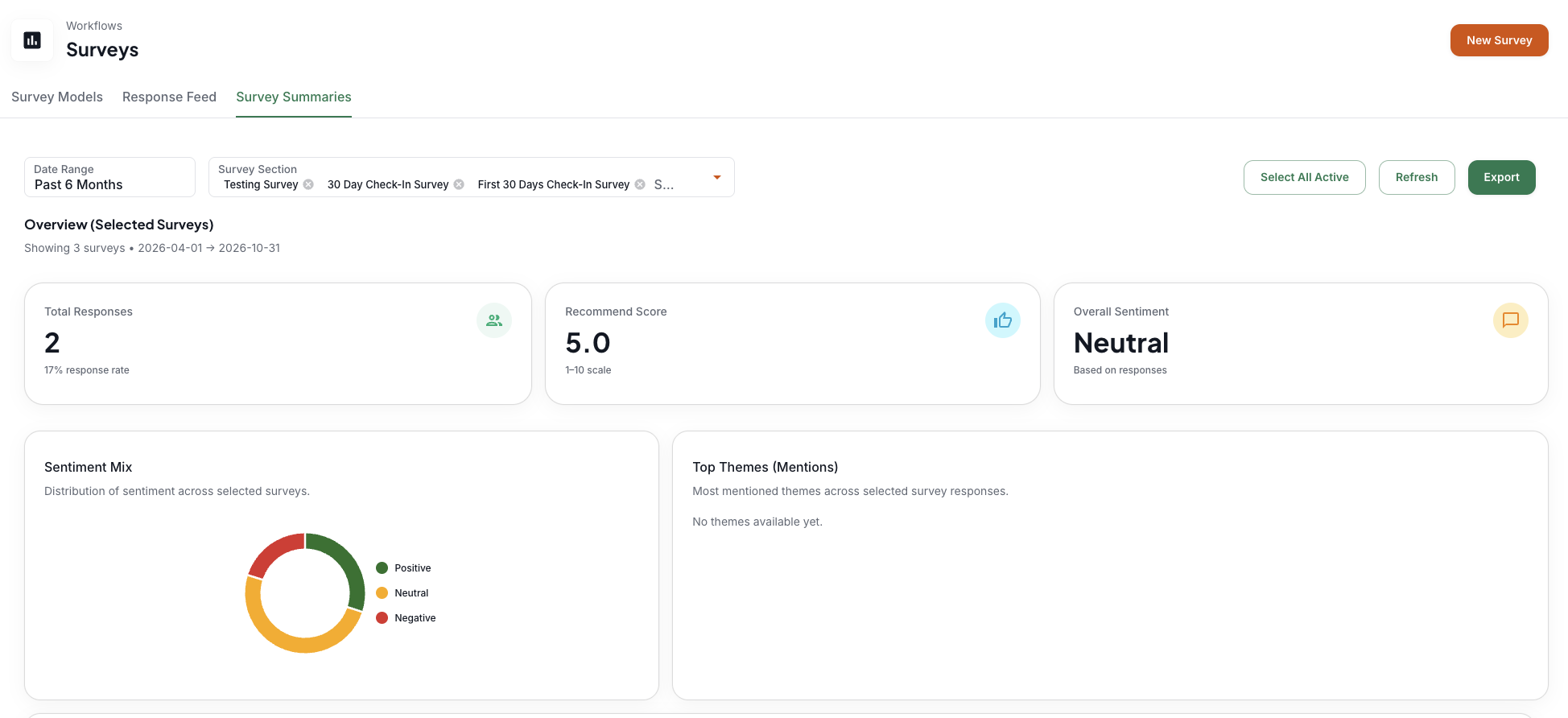
Survey Summaries uses AI to turn your caregiver responses into an at-a-glance overview, so you can understand trends without reading every response.
How to use it
Go to Workflows > Surveys > Survey Summaries
Select the surveys you want to summarize and click Apply, or click Select All Active to include every active survey
What you'll see across the selected surveys
Total responses
Recommended Score (the average overall satisfaction score)
Overall Sentiment
Themes drawn from caregiver responses
Response frequency per day
Combined Highlights, Areas for Improvement, and Recommended Follow-Ups
What you'll see for each individual survey
Overall sentiment (positive, neutral, negative)
Survey Score and Completion Rate
Positive Highlights and Areas for Improvement
Quick Stats
Quotes from caregiver responses (anonymous surveys won't reveal names)
Because Survey Summaries is AI-powered, wording and top themes may vary slightly each time it loads. Themes are approximate and are meant to show common trends, not every individual response.
How agencies can use Survey Summaries
Leadership meetings: bring the Highlights and Areas for Improvement to monthly or quarterly meetings as a ready-made agenda
Action planning: use Recommended Follow-Ups as a starting point for your team's to-do list
Caregiver recognition: share positive quotes (with permission, or from anonymous surveys) in announcements or team meetings
Closing the loop: send an announcement to caregivers summarizing what you heard and what you're changing
Comparing programs: select only your onboarding surveys, then only your pulse surveys, to see how new hires feel compared with tenured caregivers
Tracking completion: watch completion rates to see which surveys need a better reminder, message, or reward
To-dos
Review Survey Summaries at least monthly
Pick one Area for Improvement each month and assign an owner to act on it
Share one positive highlight with your caregivers each month
Compare low-completion surveys and adjust reminders, rewards, or messaging
Tips
Use Summaries to find the trend, then use the Response Feed or Individual Responses to dig into the details.
Since themes are approximate, check the underlying responses before making a big decision based on a single theme.
Recommended Survey Setup Checklist
A 30/60/90-day new hire check-in (Event-Based, named, escalations on)
A recurring pulse survey for all caregivers (Autopilot, anonymous, Auto-Email to leadership)
A "no shifts in 2 weeks" survey to re-engage inactive caregivers (Event-Based)
Escalation rules on every survey that asks about satisfaction or intent to stay
Reminders and an expiration window set on every survey
Auto-Email set up on every active survey
A weekly Response Feed review and a monthly Survey Summaries review on someone's calendar