How to Use the Survey Response Feed
Last updated: July 7, 2026
We've revamped the survey response feed section on Zingage. Here's how it works.
The Survey Response Feed in Zingage allows you to view, search, filter, export, and reply to caregiver survey responses in one place. This article explains how to access the response feed and use the available tools.
For a visual, 🎥Watch the Zingage Surveys Response Feed Overview
Accessing the Survey Response Feed
From your Zingage dashboard:
Hover over the left navigation menu.
From the Response Feed, you can view survey responses submitted by caregivers.
Viewing Survey Responses
By default, the Response Feed shows survey responses from all time.
You can narrow down the responses by using the available filters:
Date Range: Filter responses based on when they were submitted.
Survey: Filter by a specific survey that was launched in Zingage.

As long as a survey has not been deleted, its responses can be found in the database.
Searching for a Caregiver
You can search for a caregiver by name in the Response Feed. Once you search for and select a caregiver, all completed surveys for that caregiver will appear.
Switching Views
You can use the toggle option to switch the Response Feed view. The updated caregiver survey view makes it easier to review all completed surveys for a specific caregiver and click through their responses.

Exporting Survey Responses
Survey responses can be exported from the Response Feed. Use the export option when you need to download survey response data for review, reporting, or recordkeeping.
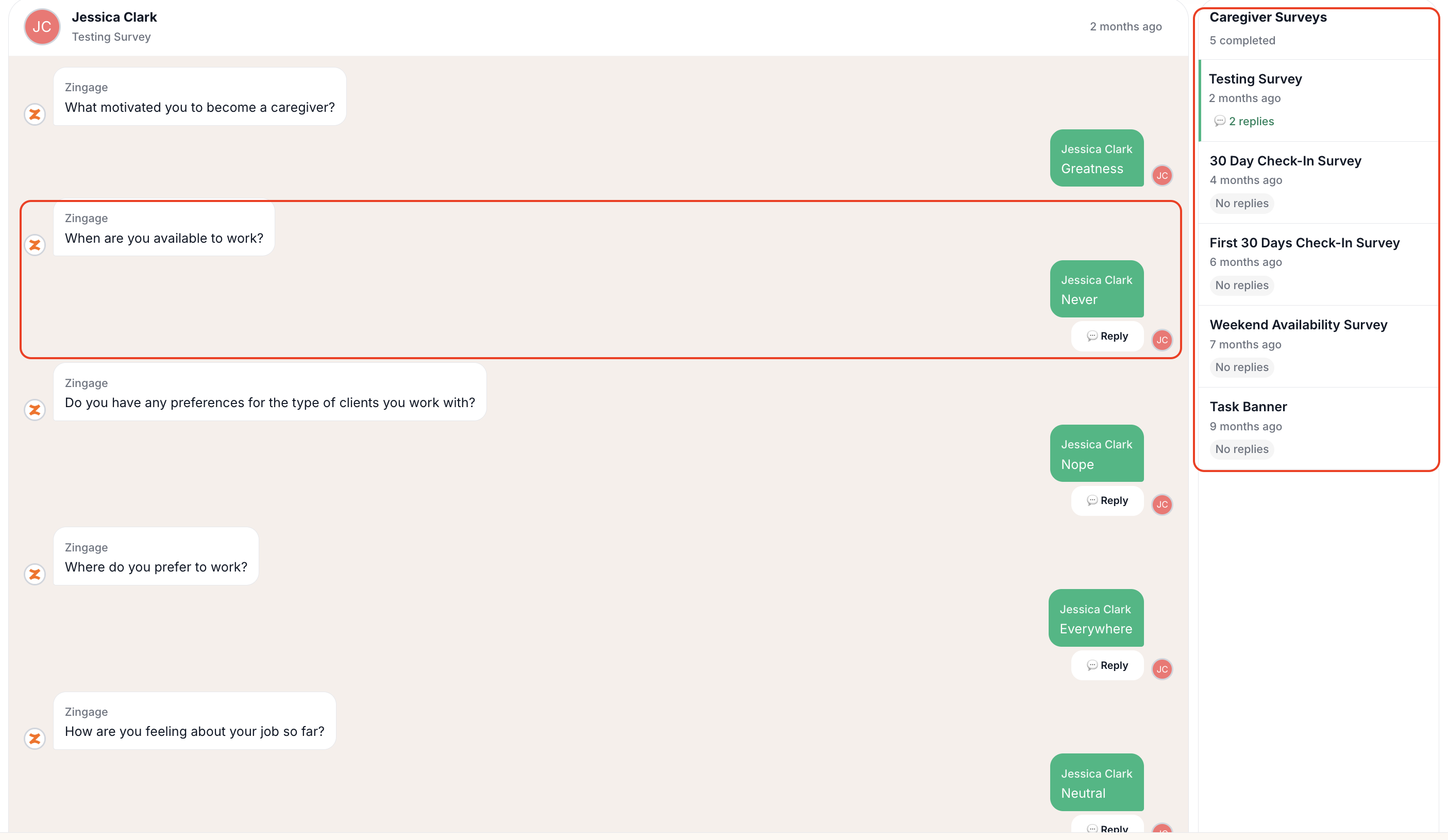
Viewing Responses by Caregiver
The Response Feed allows you to view surveys by caregiver.
When you select a caregiver, you can see all surveys that caregiver has completed. You can click through each completed survey to review their responses.
Survey responses are displayed in a chat-style format, making it easier to follow the caregiver’s answers and any replies that have been sent.
Replying to a Specific Survey Response
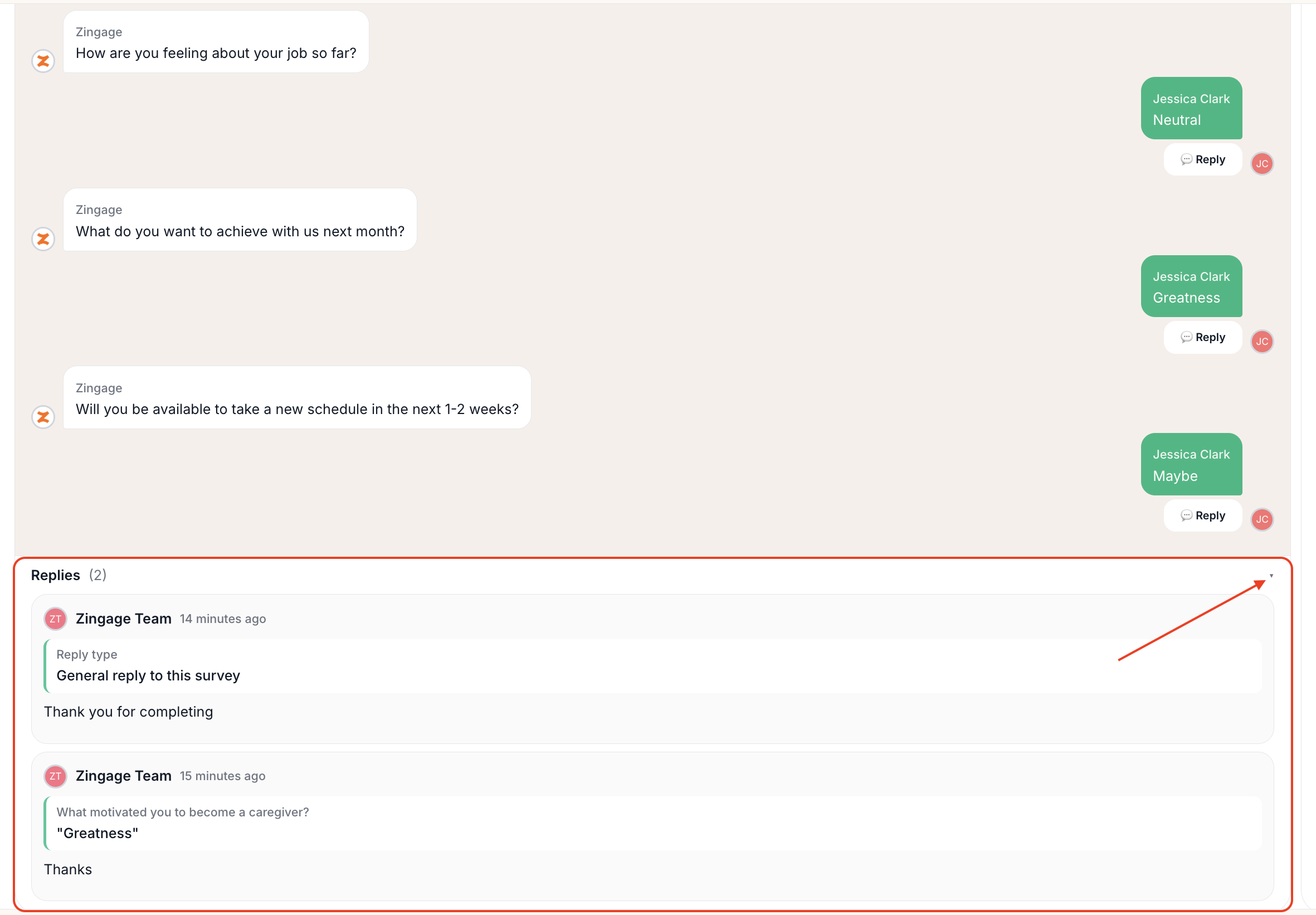
You can reply directly to a specific response from a caregiver.
To reply to a specific response:
Open the caregiver’s completed survey.
Find the response you want to reply to.
Click Reply below that response and scroll to the bottom of the survey.
Type your message.
Click Send.
Your reply will appear on the caregiver’s side as a note. You can also expand the response section to view replies connected to that specific response.
Replying to the Survey as a Whole
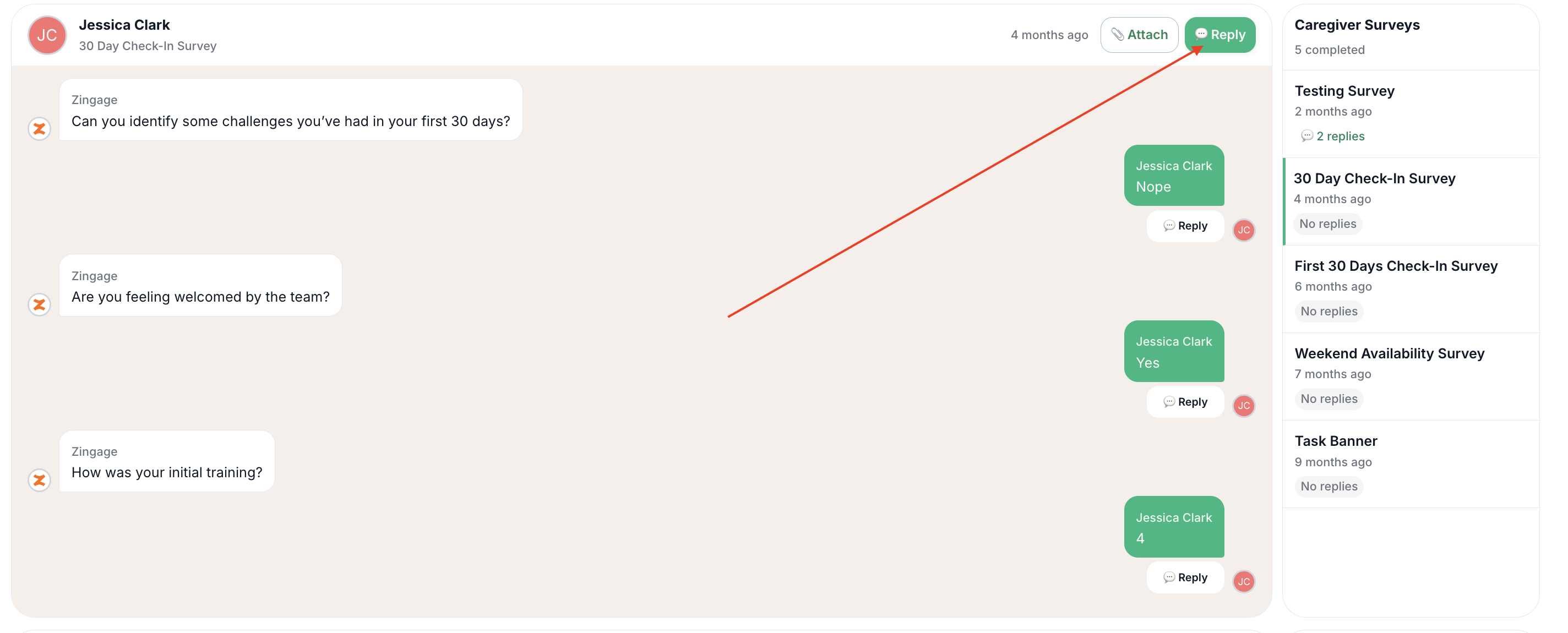
You can also send a general reply to the entire survey.
To reply to the full survey:
Open the caregiver’s completed survey.
Click the Reply button at the top of the survey and scroll to the bottom of the survey.
Type your message.
Format your reply if needed. You can add bullet points, bold text, italicize text, underline text, add images, and add attachments
Click Send.
This reply will also appear on the caregiver’s side as a note.
👆Note:
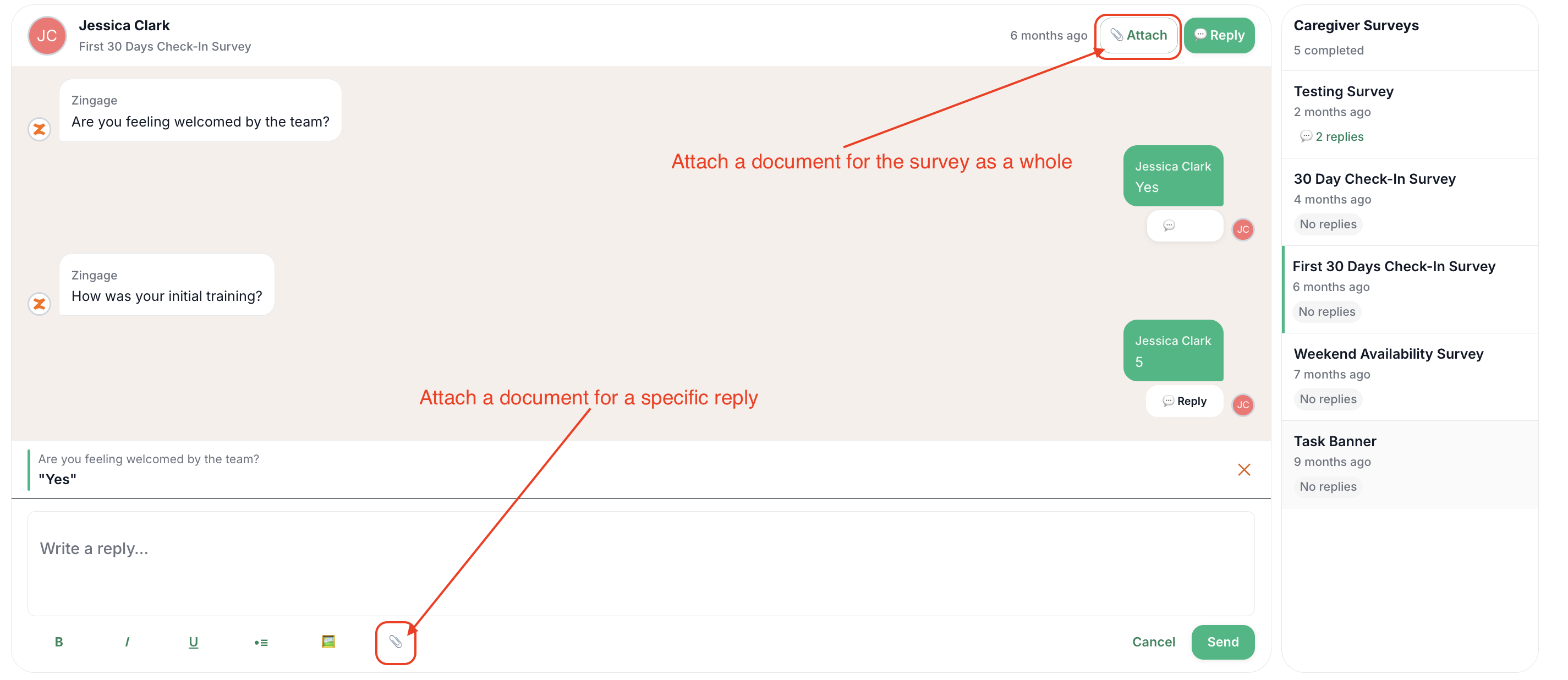
A user can attach only one general reply and one reply to any specific caregiver survey response. The same for attachments. You can only attach one document per survey and one document per reply of a caregiver's survey answer to a question.
Attaching Documents to a Survey Reply
You can attach a document to a survey reply if you want the caregiver to access a specific file.
For example, you may want to attach a document for the caregiver to:
Review additional information
Complete a form
Learn more about a topic
Follow next steps
Once sent, the caregiver will receive the attachment as part of the note on their end.