Workflows: Recurring Announcements, Surveys & Rewards
Last updated: May 11, 2026
Are your daily caregiver communications eating up hours of your week? Whether it’s welcoming a new hire, celebrating a milestone, or gathering regular feedback, recurring workflows ensure nothing falls through the cracks.
Recurring workflows build on the same system you use to send one-off announcements, rewards, and surveys, but with a major difference: once set up, they run automatically. These automations keep your team engaged, informed, and appreciated, without adding more to your plate.
🧠 What Is the Workflow Builder?
The Workflow Builder lets you:
Create and schedule announcements, rewards, or surveys
Send messages to all or specific groups of caregivers
View and track past messages and results
💡 Only workflow-created announcements are stored and viewable later.
🎯 Why Use the Workflow Builder?
Ensures message delivery and tracking
Allows team members to review messages they missed
Helps with documentation and communication audits
⚒Types of Workflows:
Recurring (autopilot) Workflows
Event-Based (triggered) Workflows
🧠 How Recurring Workflows Work
Just like one-off workflows, recurring workflows let you send announcements, rewards, or surveys. The difference lies in the delivery method:
Choose Autopilot for messages that go out on a fixed schedule (e.g., every Monday).
Choose Event-Based for messages triggered by key event based milestones (e.g., birthdays, 30-day anniversaries, onboarding).
📅 When to Use Autopilot Workflows
Use these for consistent, scheduled messages:
Weekly Announcements – Send an agency update or motivational message every Monday.
Recurring Pulse Survey – Collect quick feedback every 30 days from new hires or top performers.
Friday Reminders – Nudge caregivers about timecards, documentation, or scheduling updates.
🎯 When to Use Event-Based Workflows
Use these to automatically respond to real-life moments, such as:
New Hire Onboarding – Automatically welcome new caregivers within 72 hours of their first day by sending a welcome announcement
Anniversary Celebrations - congratulate caregivers when they hit their first 30, 60, or 90 days with a welcome announcement or spot reward
No Shifts in 2 weeks - send a quick survey to get feedback from caregivers that haven't had a shift in 2 weeks
⚙ How to Set Up a Recurring Workflow
1. Choose Your Workflow Type
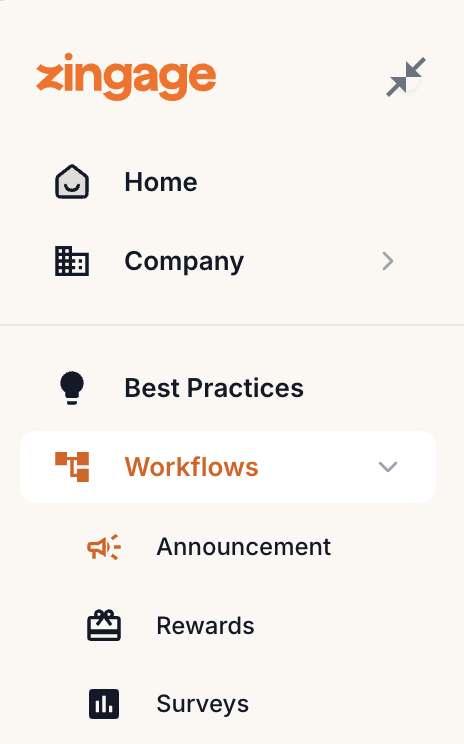
Go to Workflows and select whether you’re sending an announcement, reward, or survey.
2. Build Your Message
Fill in the key details:
Announcements: Write your message.
Rewards: Add message + reward amount.
Surveys: Create questions and set optional incentives.
3. Select Your Delivery Type
Choose between Autopilot and Event-Based:
▶ If You Select
"Put on Autopilot"
Choose the recipient group (e.g., all employees or specific groups)
Click Put on Autopilot
Set the repeat interval (e.g., every 7 days, every 2 weeks)
Choose the start date (when the workflow goes live for the first time)
📆 If You Select
"Event-Based"
Choose the trigger event
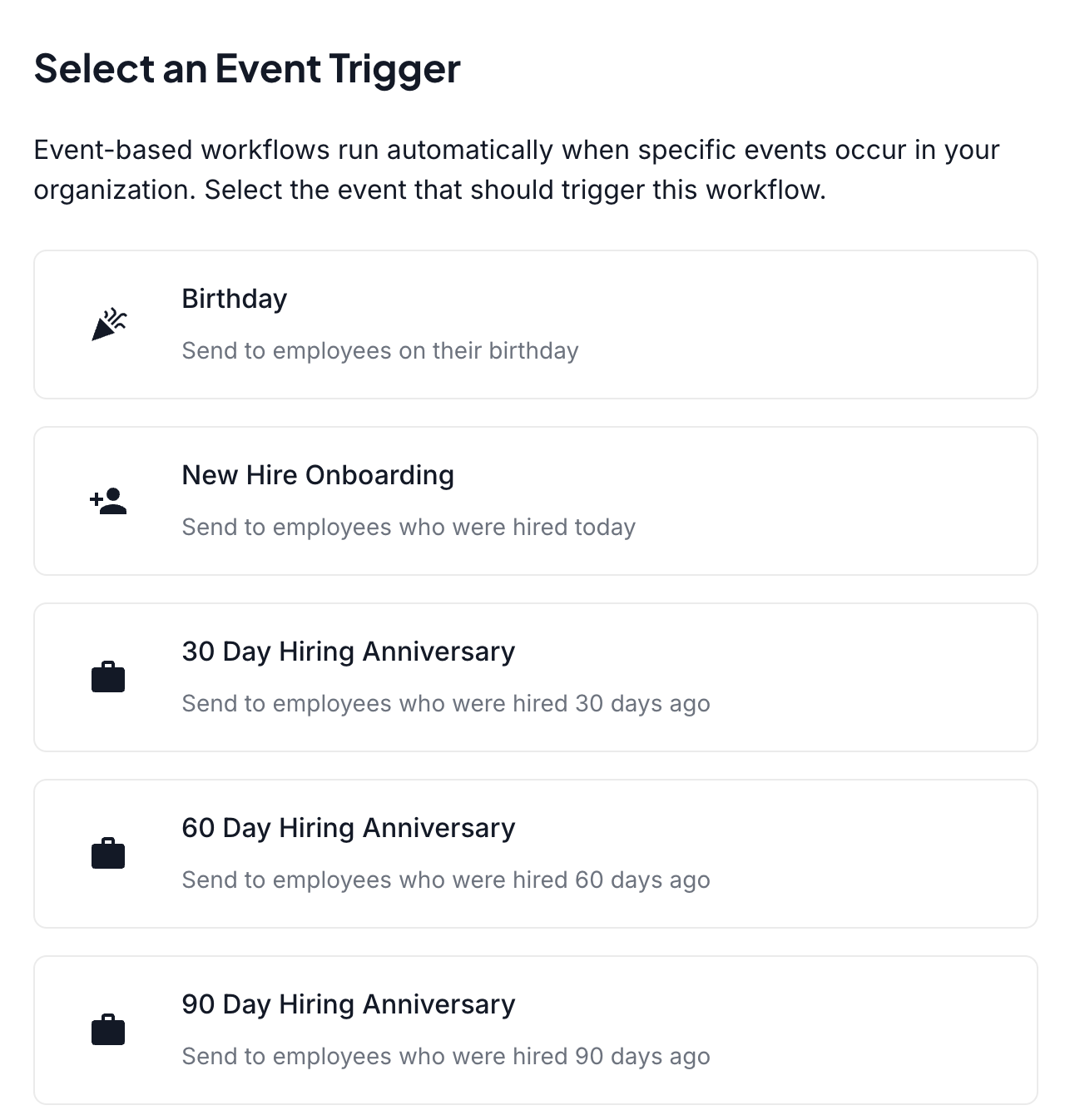
Zingage will handle the timing—your message or reward will send automatically on the right day for each caregiver.
Please review this help article Using Employee Groups with Event-Based Workflows to learn about how to segment these type of workflows even further
✨ Best Practices
Task | Recommendation |
Sending reminders or broadcasts | Use Workflow Builder |
Targeting a specific group | Use tags or filters within the workflow |
Following up on a message | Use the built-in message history log |
Sending one user a spot reward | Use the single spot reward function from the Employees table ($ under the actions column) or the 'Send Reward' button on the employee score card. |
Sending the same spot reward amount to multiple users | Use a rewards workflow for a faster and smoother task completion. |
❓Frequently Asked Questions:
📝How to View Past Announcements
If the announcement was created through the Workflow Builder:
Go to the Workflows section in the left-hand menu
Select the relevant workflow
You’ll see the full message, audience, and send date
🔍Can I View Announcements Sent Outside a Workflow?
Unfortunately, announcements sent manually (not through a workflow) cannot be retrieved later. There’s currently no archive or message history for direct/send-now announcements.
📝How do I edit a survey or edit the questions or settings in a survey?
Surveys can be edited by going to Workflows > Surveys > Click the survey > Go to the workflow and hit the edit button. This article fully explains the steps.
Please Note: You will want to confirm that you don't have certain anniversary or birthday rewards turned on within the goal center prior to making a recurring spot reward workflow. If both are active at the same time, you run the risk of double rewarding your staff.