Using Employee Groups with Event-Based Workflows
Last updated: April 10, 2026
Overview
You can now filter event-based workflows by Employee Group — meaning you control not just when a workflow fires, but who receives it. This update applies to announcements, rewards, and surveys sent via event-based triggers like birthdays, anniversaries, and hiring milestones.
This new filter is optional — leaving it blank means the workflow will default to the standard setting and go out to all caregivers who hit the event trigger.
How It Works
Video Tutorial: Integrating Event-Based Workflows with Employee Groups
When setting up an event-based workflow, you'll now see an optional Employee Group filter before creating the workflow. Only caregivers who meet the event trigger and belong to the selected group will receive the workflow.
Step-by-Step: Setting Up an Event-Based Workflow with an Employee Group Filter
Navigate to the Workflows dropdown in your Zingage admin dashboard
Select the type of workflow you want to send
Announcement ➤ Click Send Announcement in the top right
Rewards ➤ Click Send Reward in the top right
Survey ➤ Click New Survey in the top right
Build your workflow
Announcements: write your message, select the delivery options and add any attachments if desired ➤ Click Next
Rewards: add the reward amount, write your message, select the delivery options, and add any attachments if desired ➤ Click Next
Surveys: complete steps 1-8 on the left side panel to setup your survey and select a template or draft your survey questions ➤ Click Next
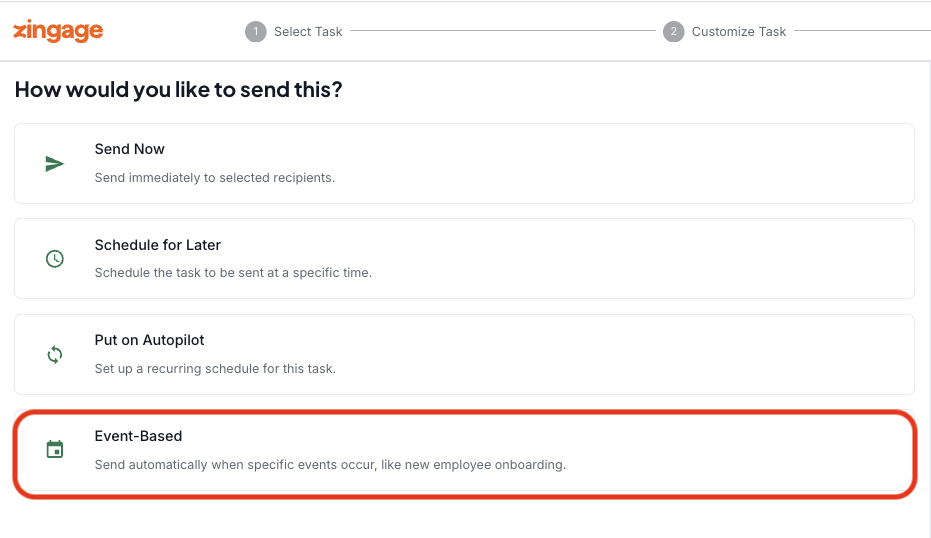
Select Event-Based as your Send Method
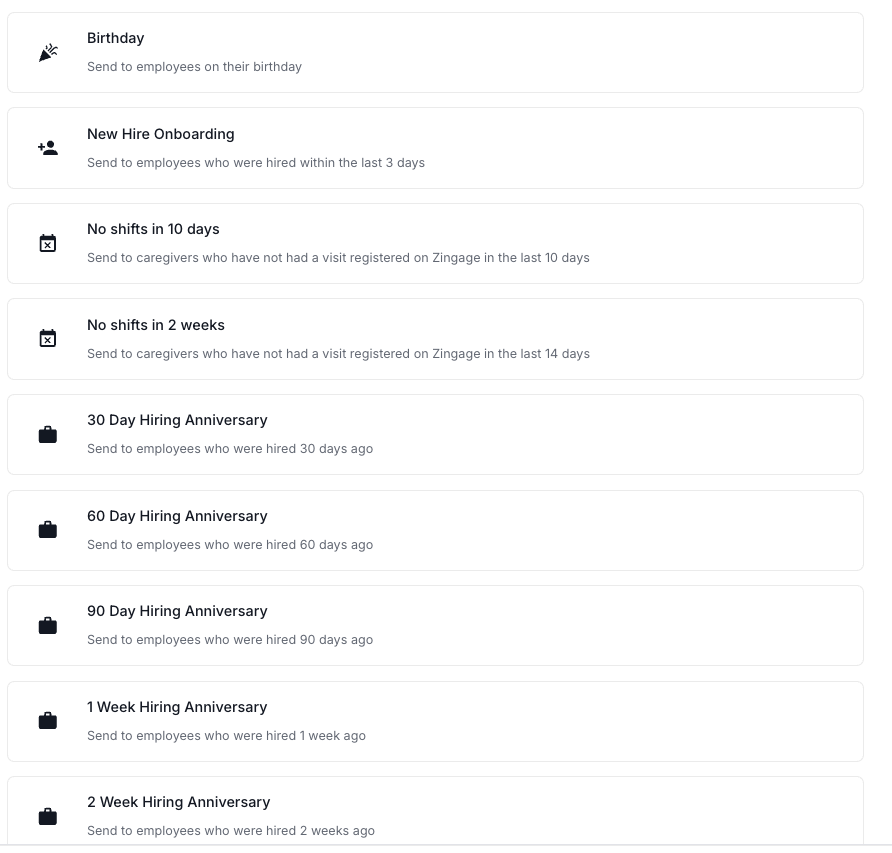
Choose your trigger event: select the milestone that should trigger the workflow — for example:
Birthday
Work Anniversary (e.g., 3-year hiring anniversary)
New Hire Onboarding
This is the new step -Apply an Employee Group filter (Optional)
Before clicking Create Event Workflow, you'll see an option to filter by Employee Group. Select the group you want to restrict the workflow to. For example:
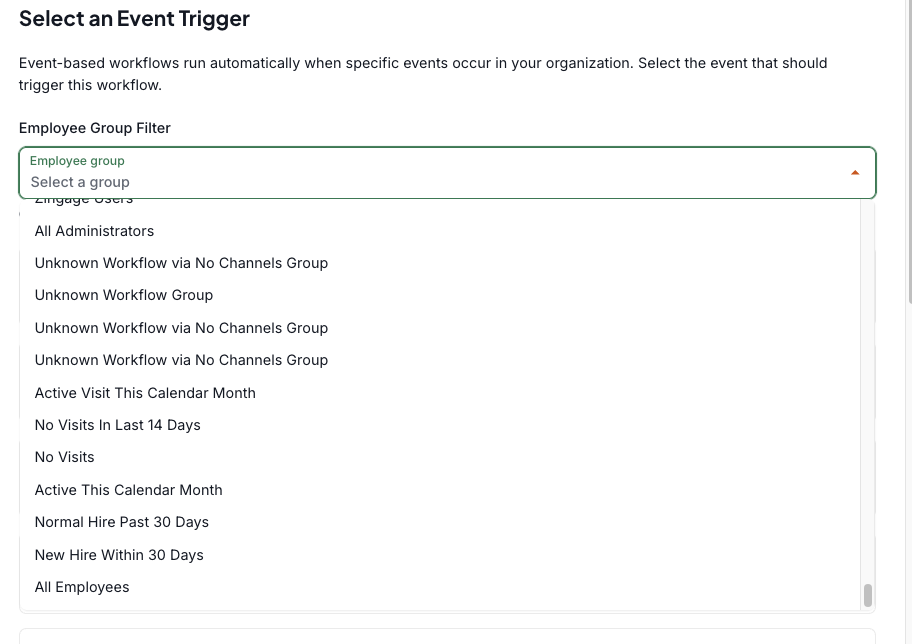
Active Visit This Calendar Month — only caregivers with an active visit in the current month
Zingage Users — only caregivers who have onboarded to the platform
Custom Groups - any custom employee groups you've made (i.e. specific caregivers that work for a certain client)
Location Based Groups - groups of caregivers segmented by location
No Visits — caregivers with no scheduled visits
If you don't want to filter by group, you can leave this blank and the workflow will apply to all eligible employees.
Click Create Event Workflow
It may take a few seconds to load, but after you click this button your workflow will be live. It will automatically send to any caregiver who hits the trigger event and matches the group filter.
Example Use Cases:
Birthday & Anniversary Announcements/Rewards for Active Caregivers:
You may only want to send an anniversary announcement to caregivers who have worked recently. Set up an announcement workflow, select your anniversary trigger (e.g., 3-year hiring anniversary), and filter by the employee group Active Visit This Calendar Month.
Alternative: Rewards via the Goal Center - As shown in the video tutorial above, if you prefer to manage anniversary & birthday rewards through the Goal Center instead of a workflow, you can edit your goals and restrict it to a specific Employee Group there as well.
Custom Group Surveys
You may want to send a survey to caregivers within a custom group you made (e.g. Mrs. Smith's Caregivers or Brooklyn Based Caregivers) only when they haven't had a shift in 10 days. Set up a check-in survey, select the new No Shifts in 10 Days event trigger, and filter by Mrs. Smith's Caregivers or Brooklyn Based Caregivers.
Tips
All available Employee Groups will appear in the filter dropdown
You can use this filter across all three workflow types: announcements, rewards, and surveys.
If you have multiple anniversary tiers set up (e.g., 1-year, 3-year, 5-year), you can apply an Employee Group filter to each one individually.