Editing and Duplicating Surveys
Last updated: March 10, 2026
You absolutely can edit the questions or make changes to the survey content or question settings.
How to edit a published survey
If you need to modify questions in an existing survey, you'll need to:
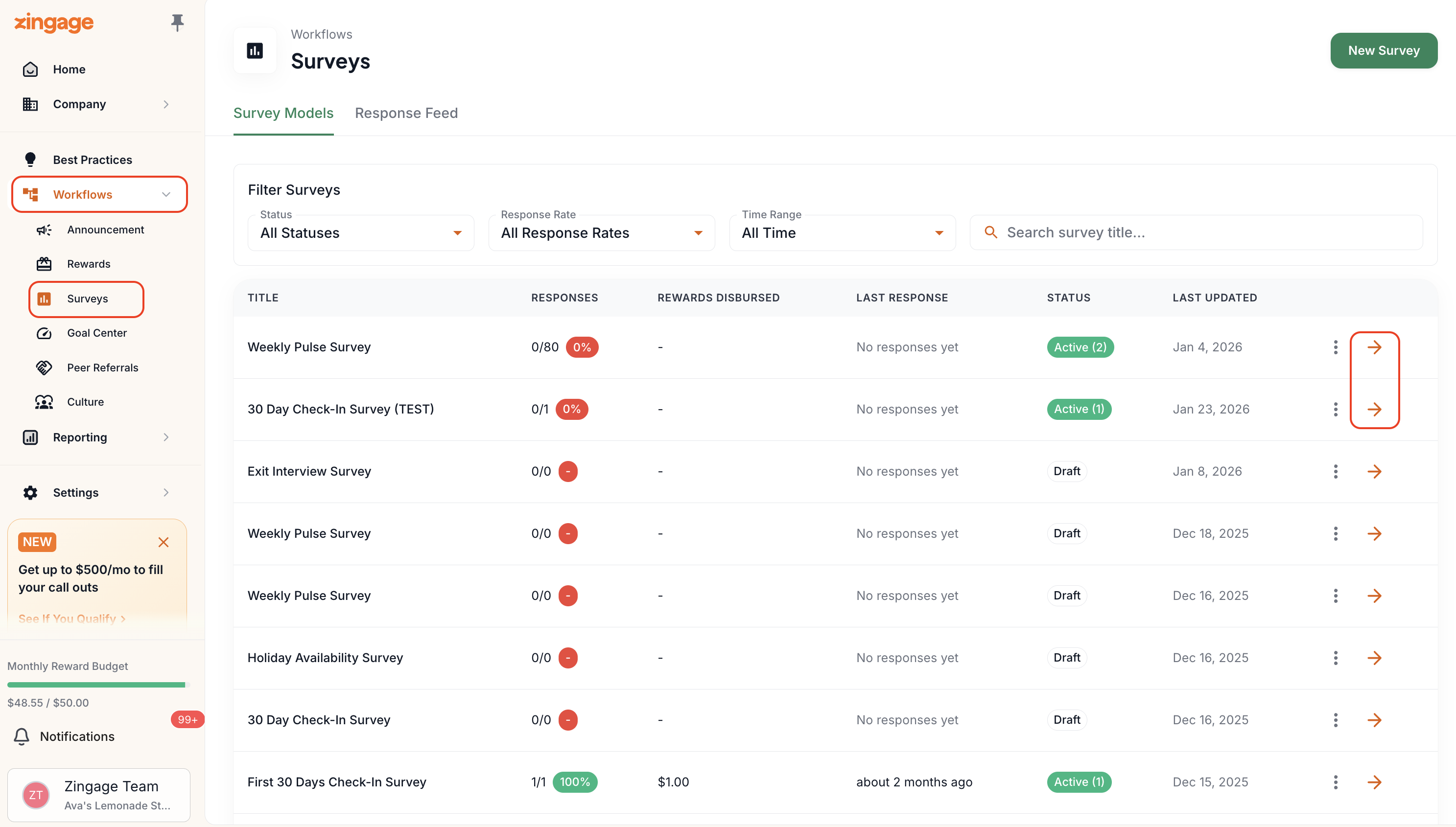
Go to Workflows > Surveys
Click the three dots next to the survey you would like to edit and hit the Edit button
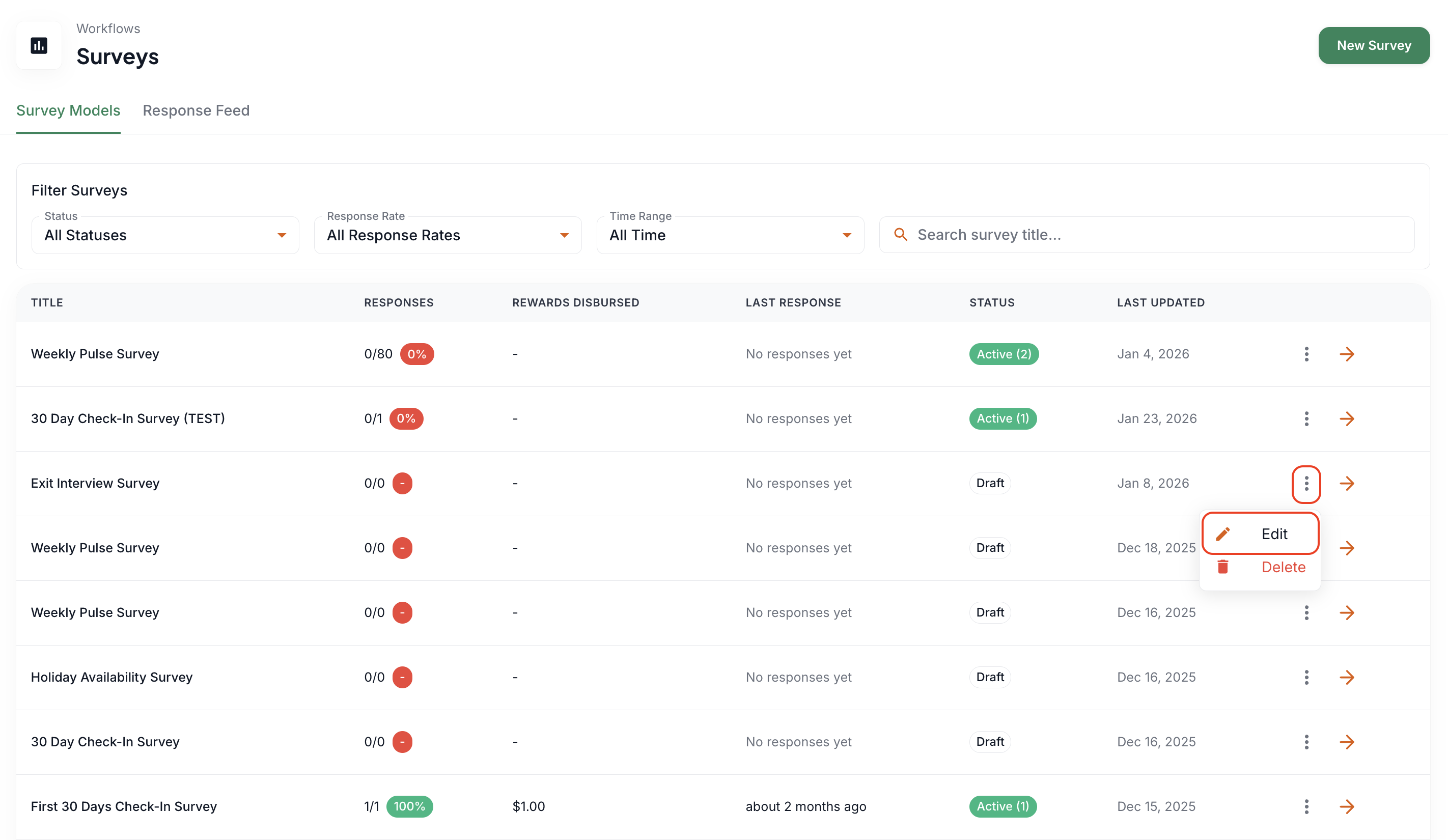
The survey process for that survey should reopen, where you can make changes to any part of the survey.
Any changes made to the survey will override the current version of the survey, and the changes will take effect on the next scheduled distribution of the survey.
Workflow Distributions in Surveys
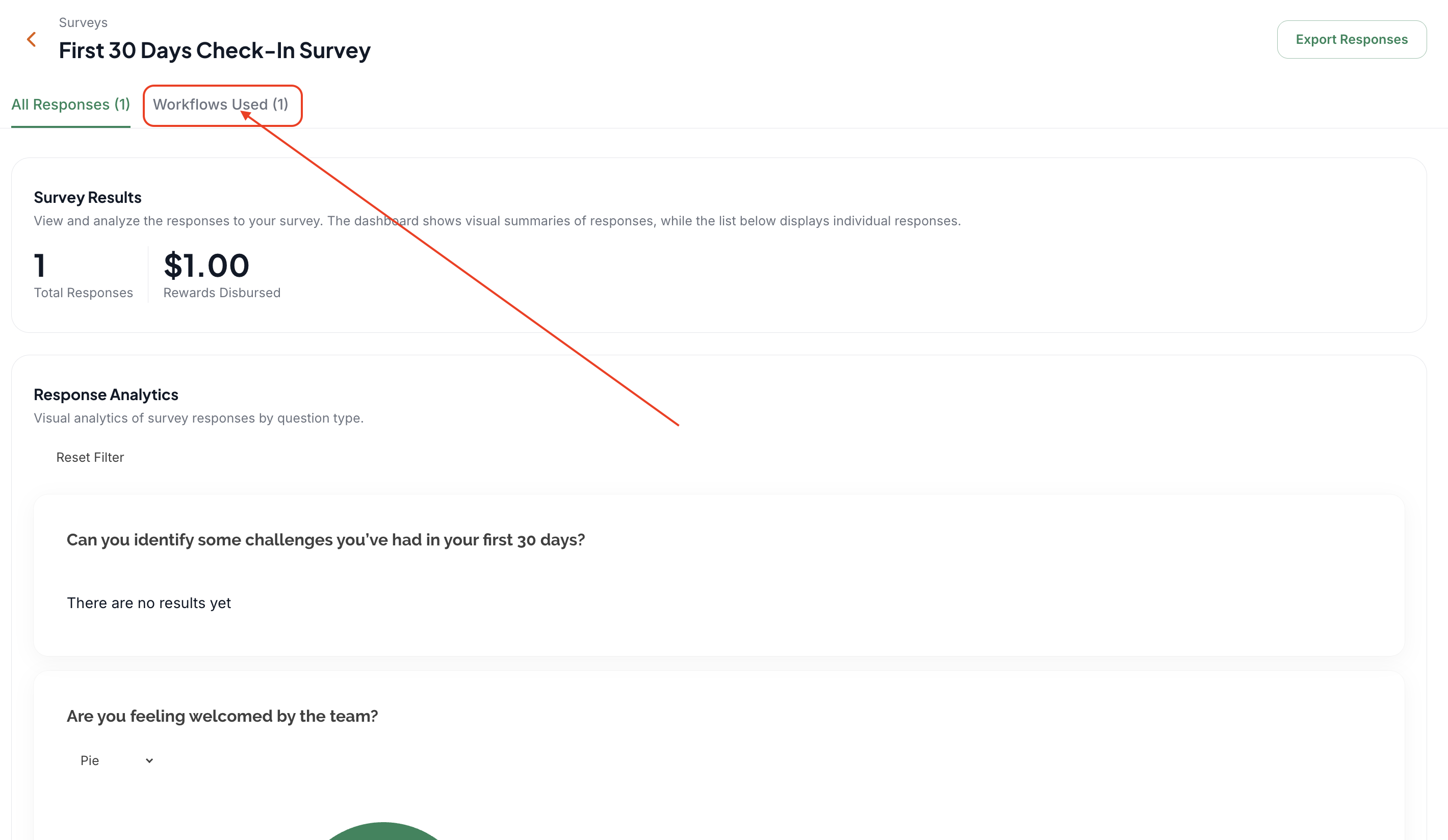
You might have noticed the Workflows Used section in a survey's page when you click on it from the main survey page.
Workflow distributions in surveys are a nifty way to duplicate a survey for another recipient group or list without cancelling the original survey. This is not the same as editing a survey because it does not change the original survey or cancel the original survey. Instead, it makes another form of that same survey, but with the changes you made, that runs independently of the original survey.
Go to Workflows > Surveys
Click the survey you would like to edit and go to the Workflows Used tab
Click Create Distribution and edit as necessary
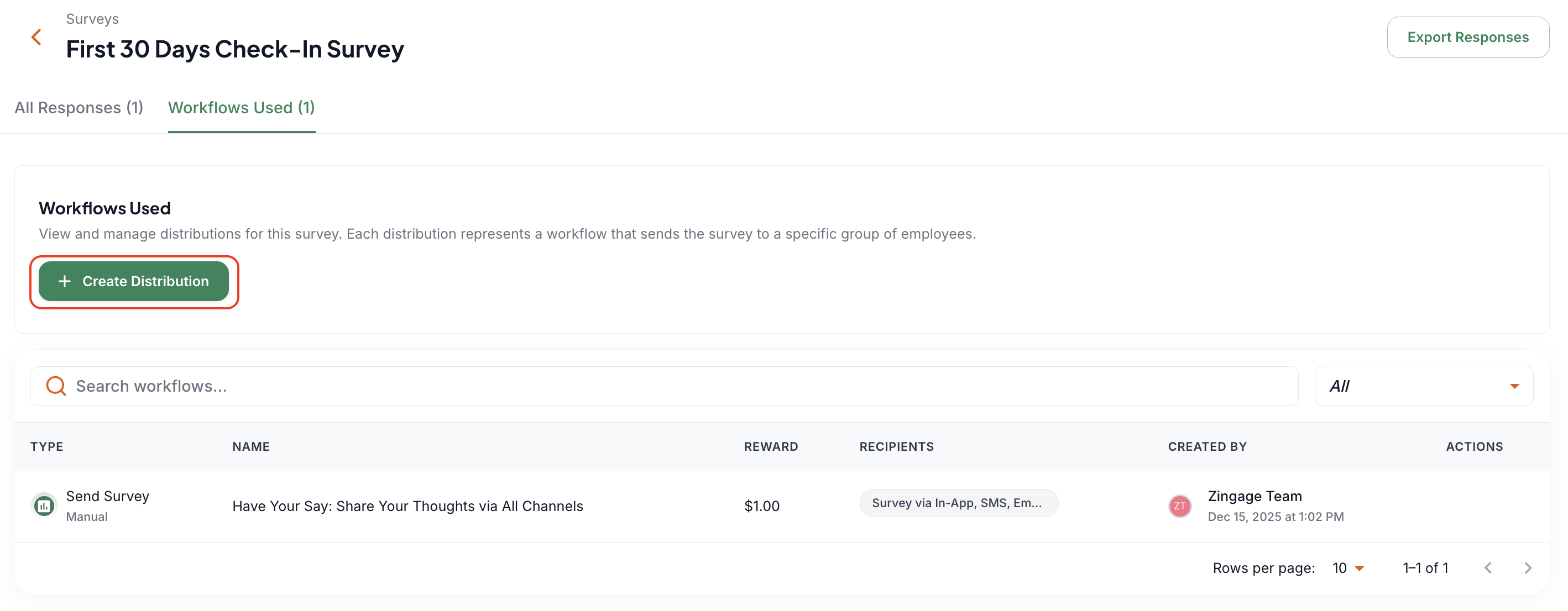
Then you can send out the survey, and this new distribution will be listed under the workflows used section of the survey. If you encounter any issues, please let the Zingage team know.