Workflow: Referrals
Last updated: August 31, 2026
Referrals are one of the most effective ways to grow your team. With Zingage, you can easily launch a referral program that rewards caregivers when someone they refer is hired and reaches key milestones — no manual tracking needed. Check out our 🎥 How to Set Up Referral Programs on Zingage tutorial or use the step-by-step details below!
Just a heads up that only Owner level users can create Peer Referral programs on Zingage. If you're not an owner, you could either have the Owner on the agency's Zingage account create the program or request from the owner that your role be changed to Owner to facilitate the process.
🧭 Step-by-Step Setup Instructions
1. Navigate to the Referral Workflow
Go to Workflows in your admin dashboard, then click Peer Referrals to begin setting up your program.
2. Create a New Referral Job
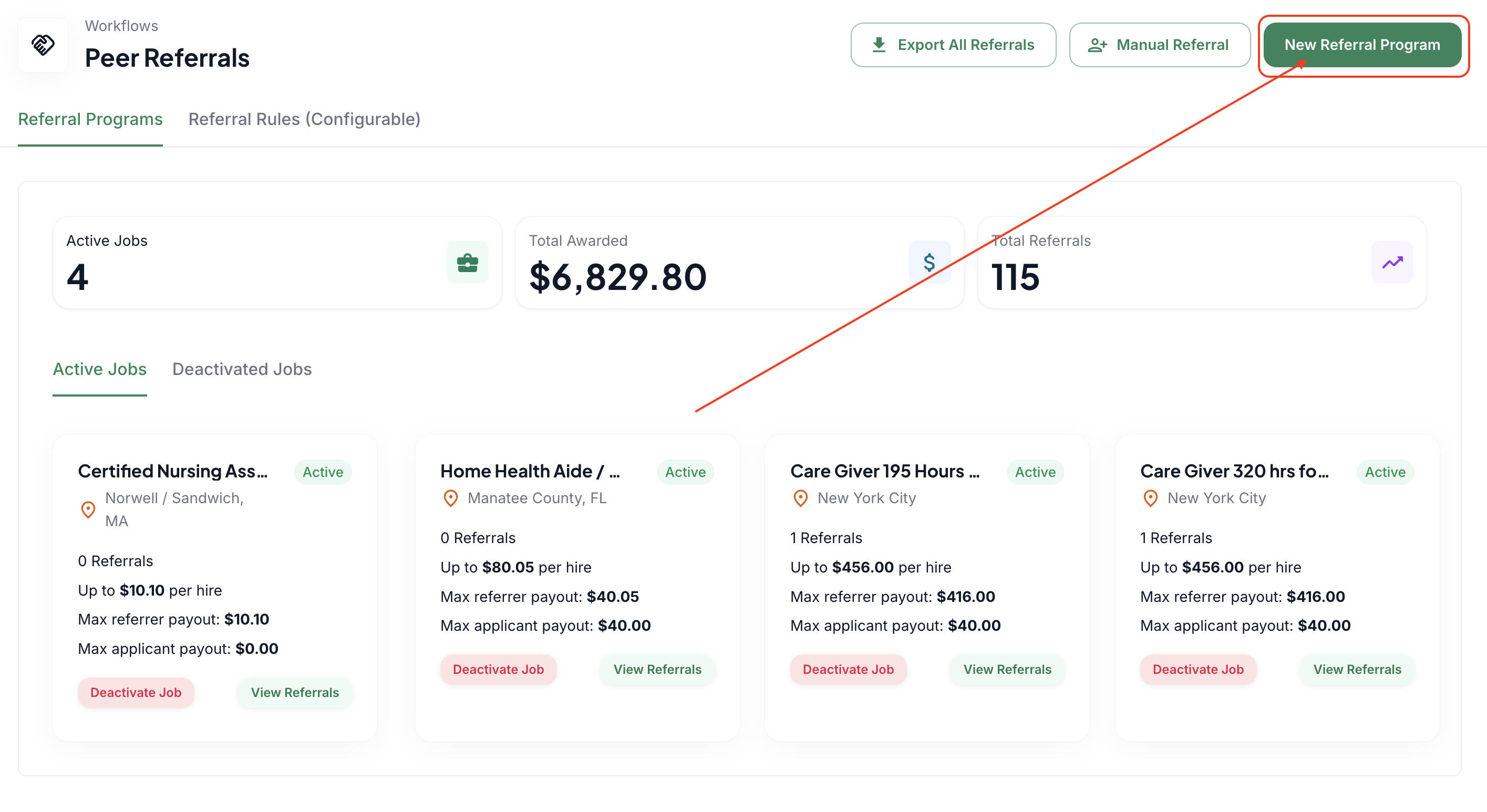
Click the "New Referral Program" button in the top right corner of the screen:
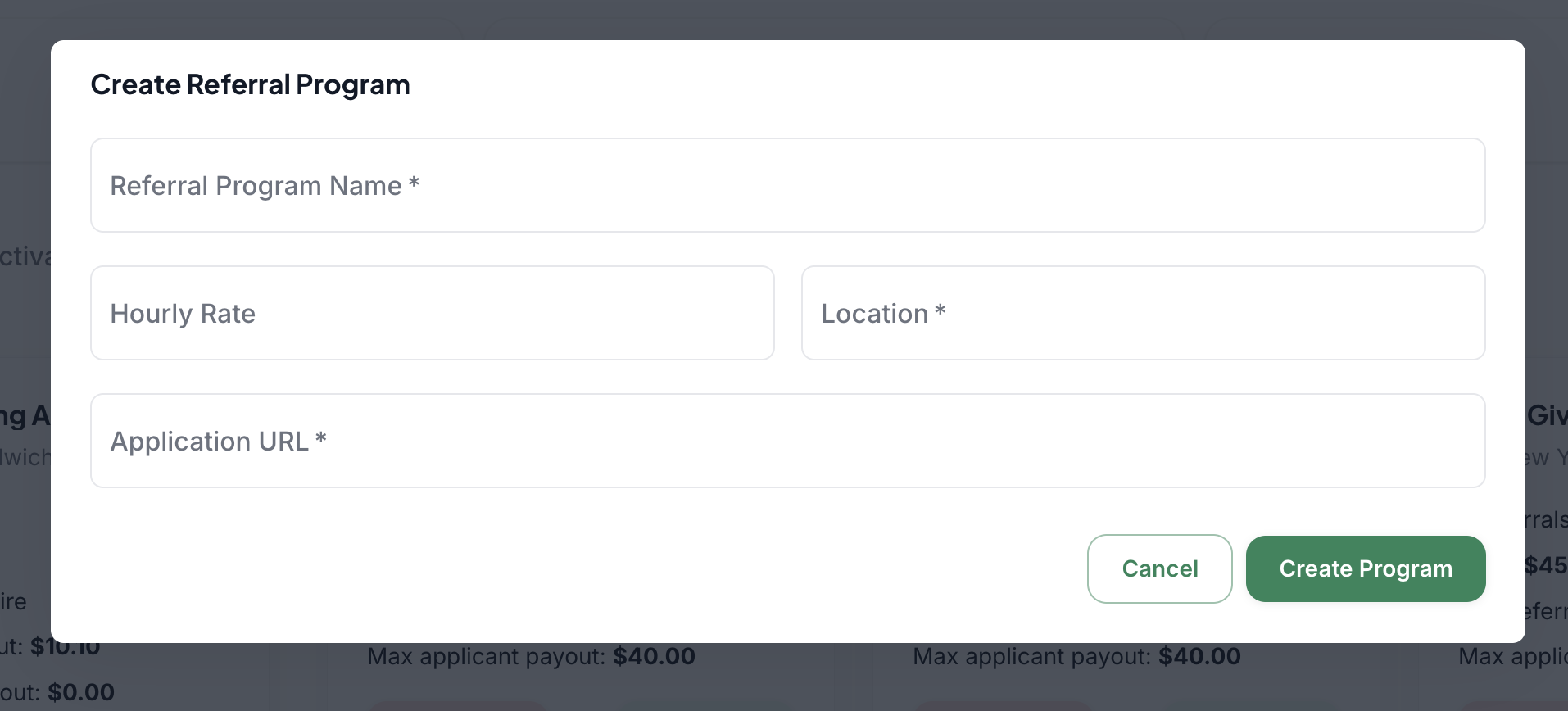
Enter the Job details:
Referral Program Name – General (e.g., Caregiver) or specific (e.g., Weekend CNA – Brooklyn)
Hourly Rate – Add a range if you’d like to show earning potential
Location – Optional, but helpful if you operate across multiple regions
Application URL – MANDATORY link to an application and full job description or external site
Once filled out, click Create Program.
3. Set Referral Milestones
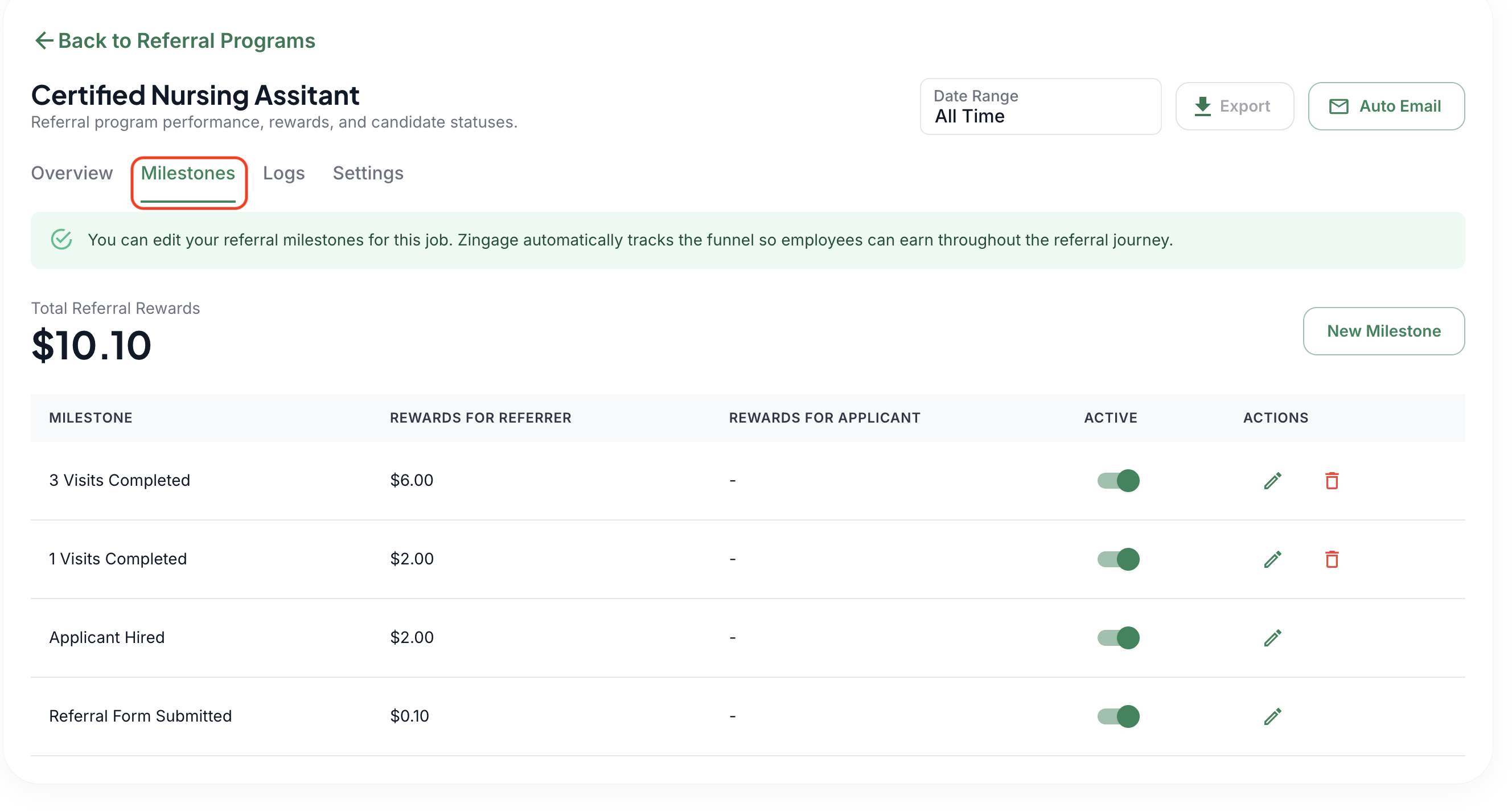
After creating the program, click the View Referrals button on the referral program to access the program details and go to the Milestones tab.
There are some initial recommendations to start with, but feel free to edit or create your own via the New Milestone button. There are new milestone options for Hours Worked, Days Employed, and Visits Completed. You can toggle milestones on or off, click the edit button, or delete the milestone entirely.
4. Managing Referrals
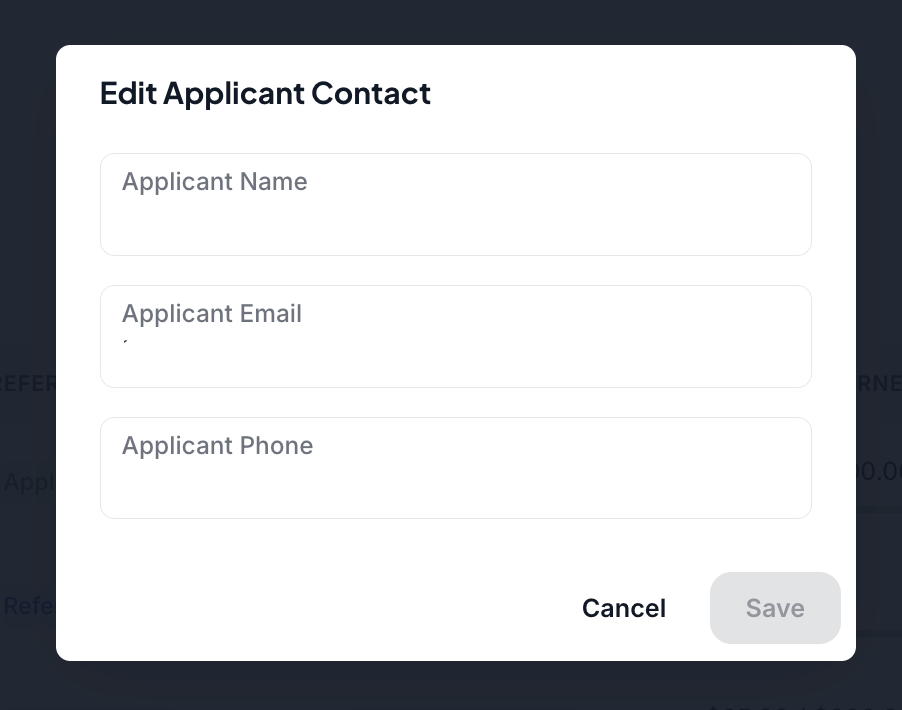
You can change the referral information to allow seamless tracking on Zingage and to correct any mistakes. Since Zingage relies on matching the candidate's email and phone number to a Zingage account to award after-hire milestones, they need to be exactly the same.
If a caregiver's referral has a different phone number or email, you can edit the contact. To do that;
Go to Workflows > Peer Referrals
Click the green 'View Referrals' button on the program the referral belongs to
Find the referral and click it to see the side pop-up
Hit 'Edit Contact'
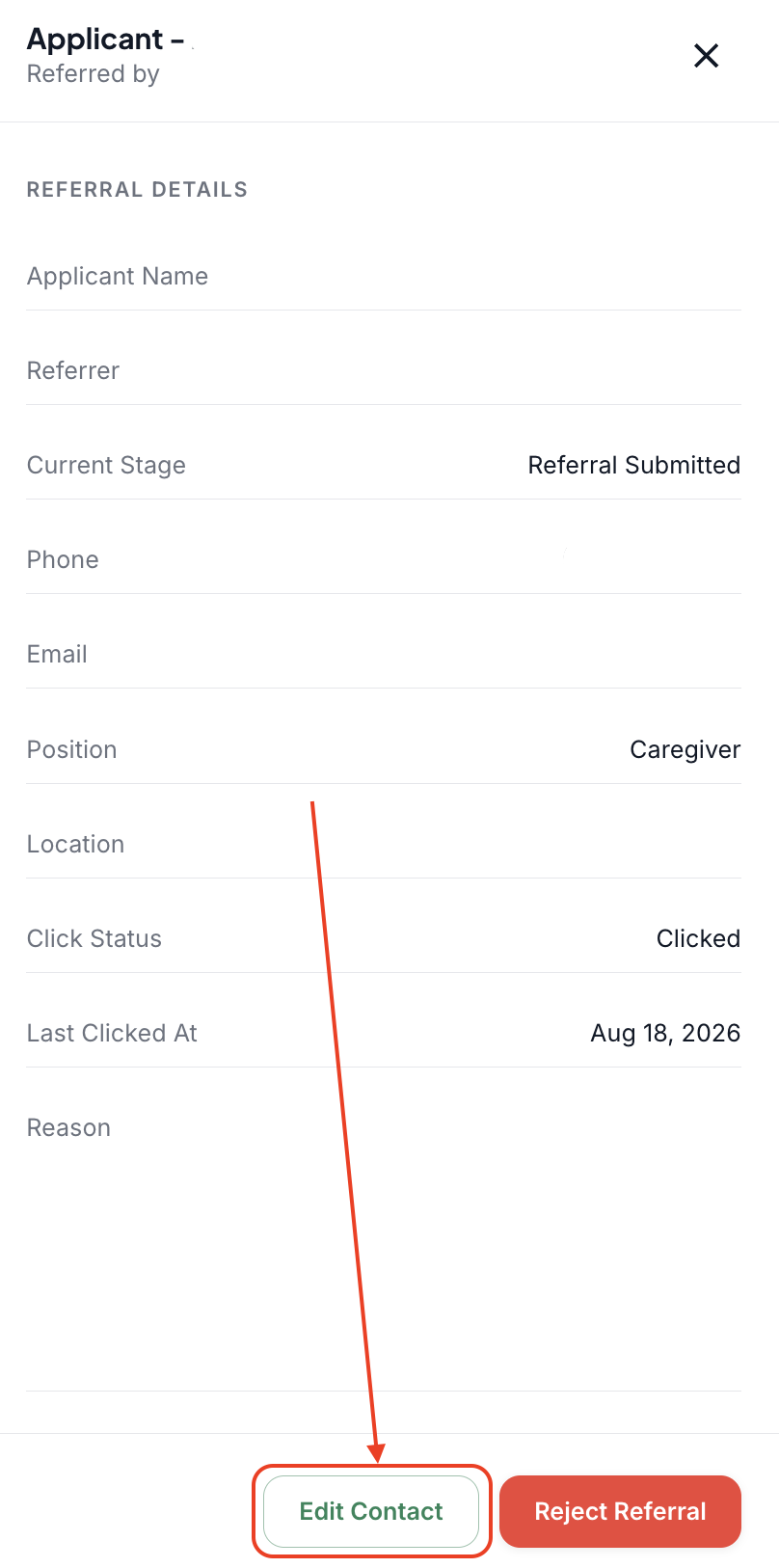
Make your changes and hit 'Save'
👀 What Your Caregivers See
Once you create referral opportunities, caregivers can easily make referrals on their Zingage View. The "How Do I Submit a Referral on Zingage?" article explains to caregivers how they can submit referrals and contains visuals of what they will see on their side.
👀 What Referred Caregivers See
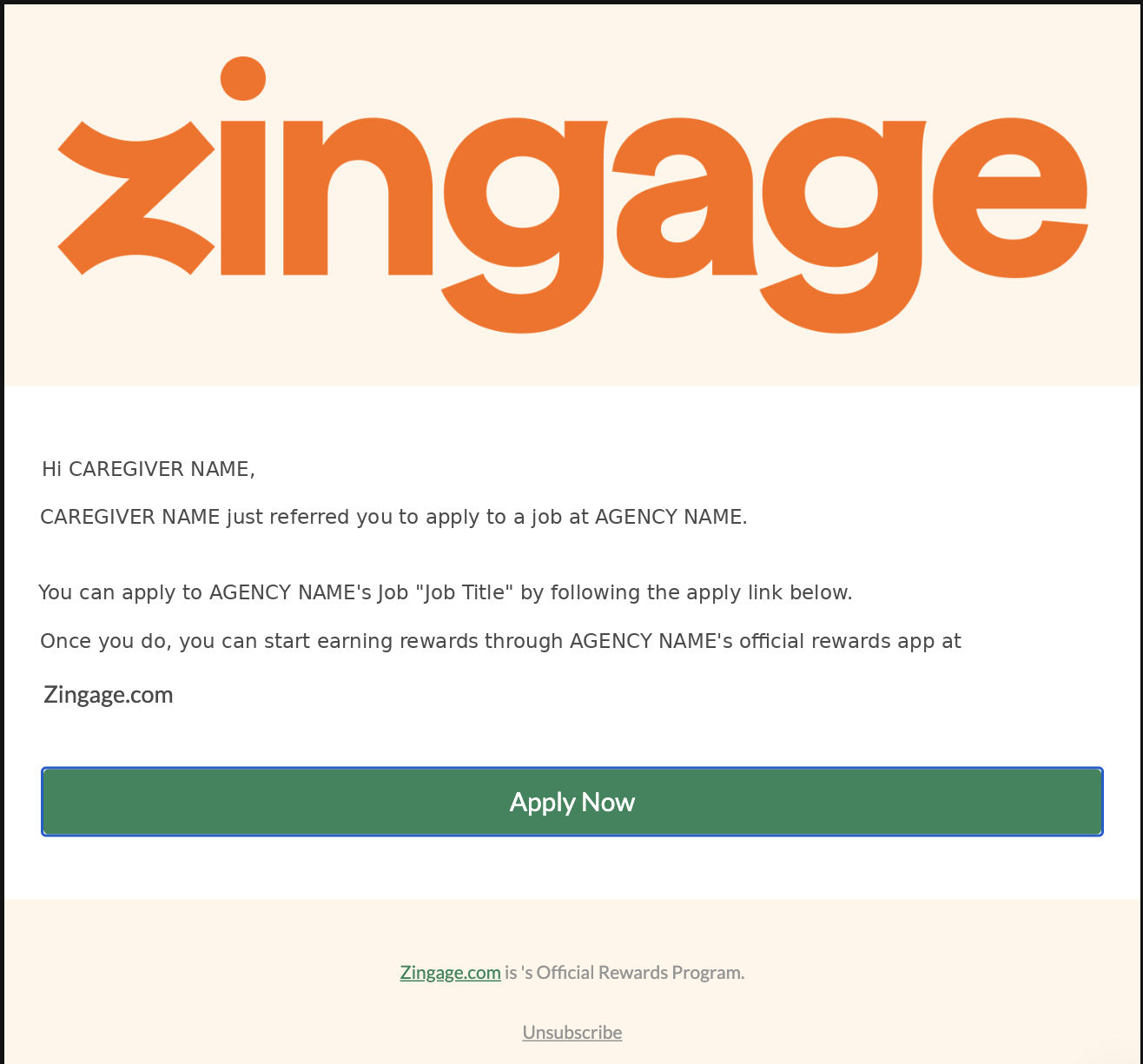
After a referral is made, the individual who has been referred will receive a notification via email and text saying the following. The Apply Now button will take them to whatever link that was added to the mandatory 'Application URL' step outlined in one of the above sections.
👀 What You and Your Admin Team Sees
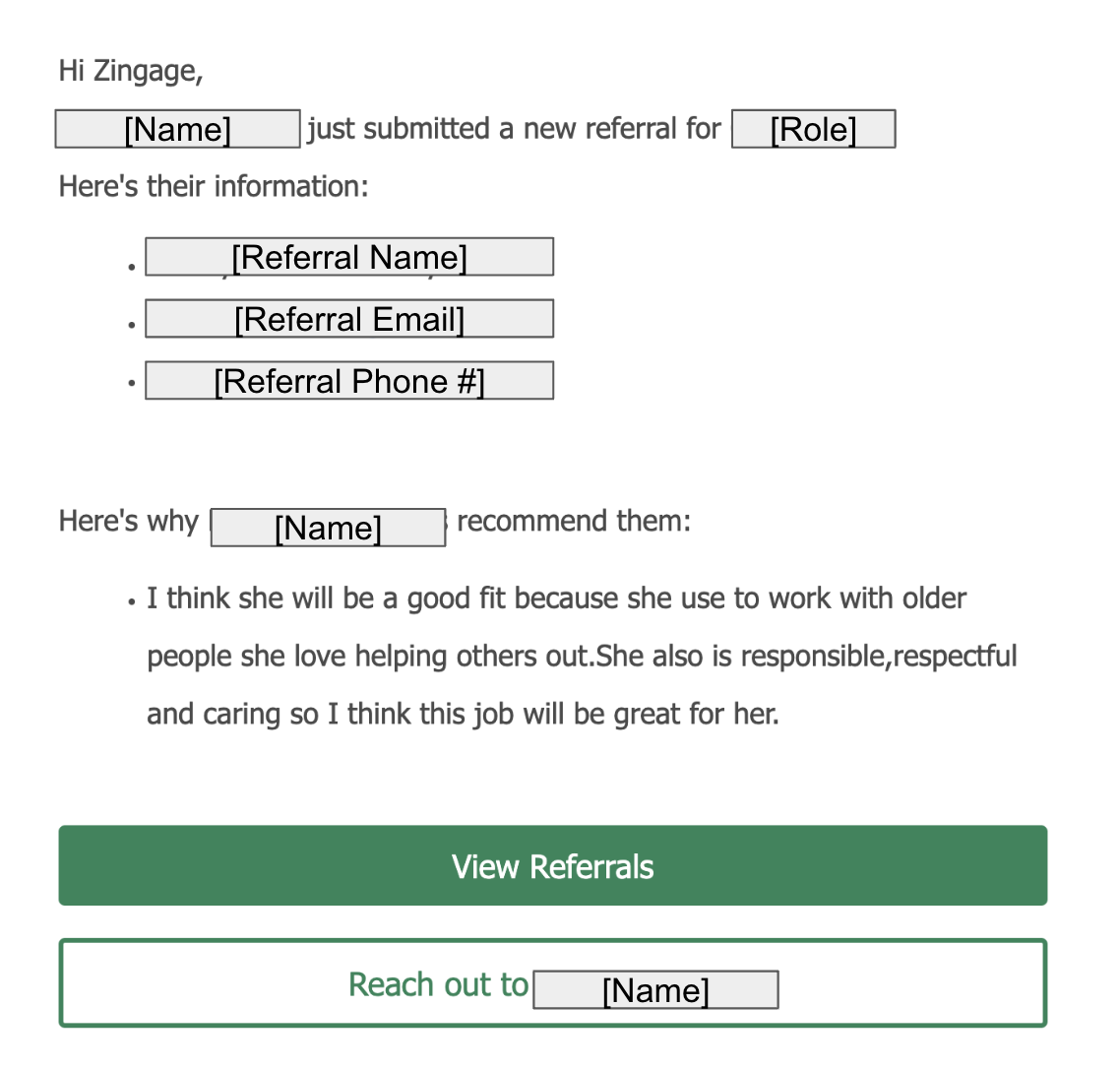
Once a caregiver submits a referral:
You will receive an email with the caregiver's referral
You can click "reach out" and send an email to the candidate
Zingage monitors for a match when that person is hired and added to your system
If they meet the milestone (e.g., 20 hours worked), the caregiver who made the referral is automatically rewarded
💡 Tips for Success
Keep it broad: Most agencies use a generic title like “Caregiver” to encourage more referrals
Make it count: Offer rewards that feel meaningful — $50 to $100 rewards are common and effective
Spread the word: Use Zingage announcements to let your team know how the program works and what they’ll earn
Example Announcement:
Hi Team!
We're excited to launch our new referral program through Zingage! Know someone who'd be a great fit to join our team? Refer them and you could earn up to ($X)!
To submit your referral directly through your Zingage profile, follow the steps outlined in this help article.
Let's grow our team together!
❓Frequently Asked Questions
Q: How does the system know when a referral is hired?
A: Zingage checks the referred person’s phone/email against your employee list. If there’s a match, tracking begins automatically. Be sure that the candidate's phone number and email address are exactly the same as the referral's to enable automatic tracking.
Q: How do caregivers submit referrals?
A: Through the Zingage mobile app — it takes less than a minute. The "How Do I Submit a Referral on Zingage?" article explains this process in detail.
Q: Does Zingage handle hiring?
A: No. You’ll still handle outreach, interviews, and hiring. Zingage only tracks if/when a referral is submitted, if/when they are added to your EMR, and then any rewards they earn based on your milestone settings.
Q: Do I need a new job listing for each position?
A: It's best to have a separate listing per job. A great rule of thumb is that if the application link is different on your end, a new referral program is required on Zingage because, during the process, the application link for the job will be sent to the applicant, and we want to make sure the right one is sent.