How to Change a User’s Role in Zingage
Last updated: May 4, 2026
Whether you're updating permissions for a caregiver or assigning new responsibilities to an admin, changing a user’s role in Zingage is quick and easy. Follow the steps below to update roles for both employees and administrators.
Changing a user's role will assign them permissions as well as a title on Zingage
👥 Changing an Employee’s Role
From your dashboard, hover over the left navigation pane.
Click Company > Employees.
In the Actions column next to the employee’s name, click the “👁🗨️” icon or click their avatar icon to open their Employee Scorecard.
Scroll to the Roles section and click the Edit button.
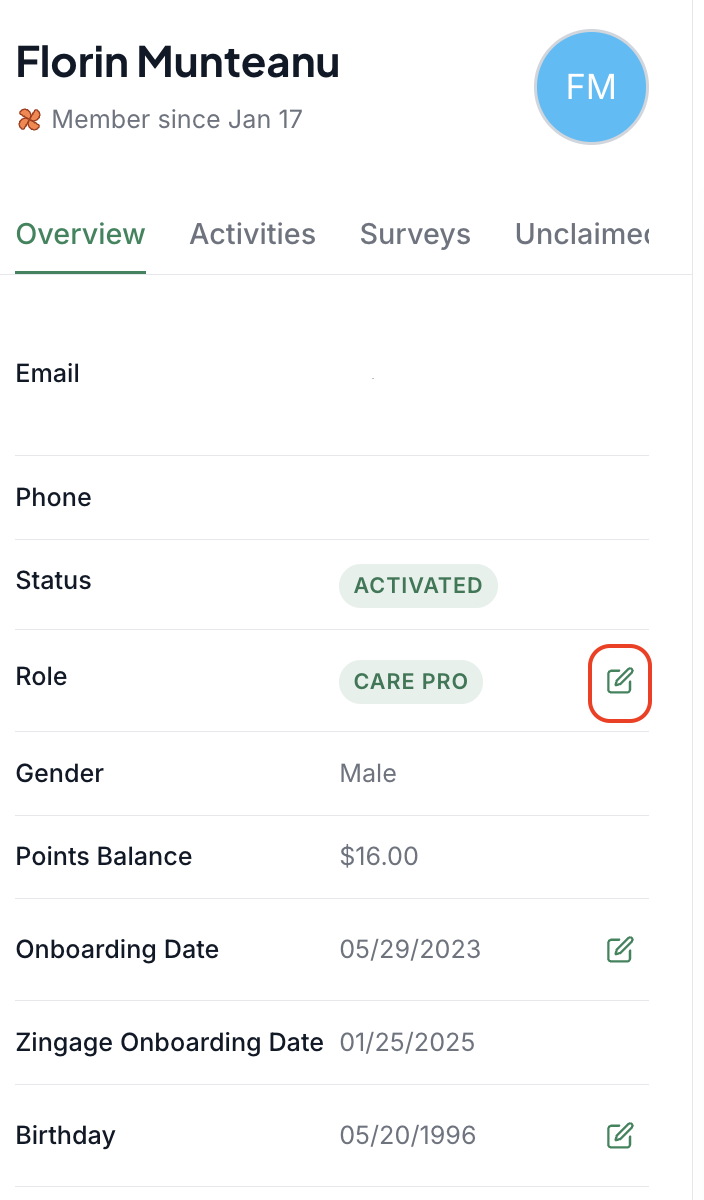
Click the drop-down arrow and choose the new role from the list.
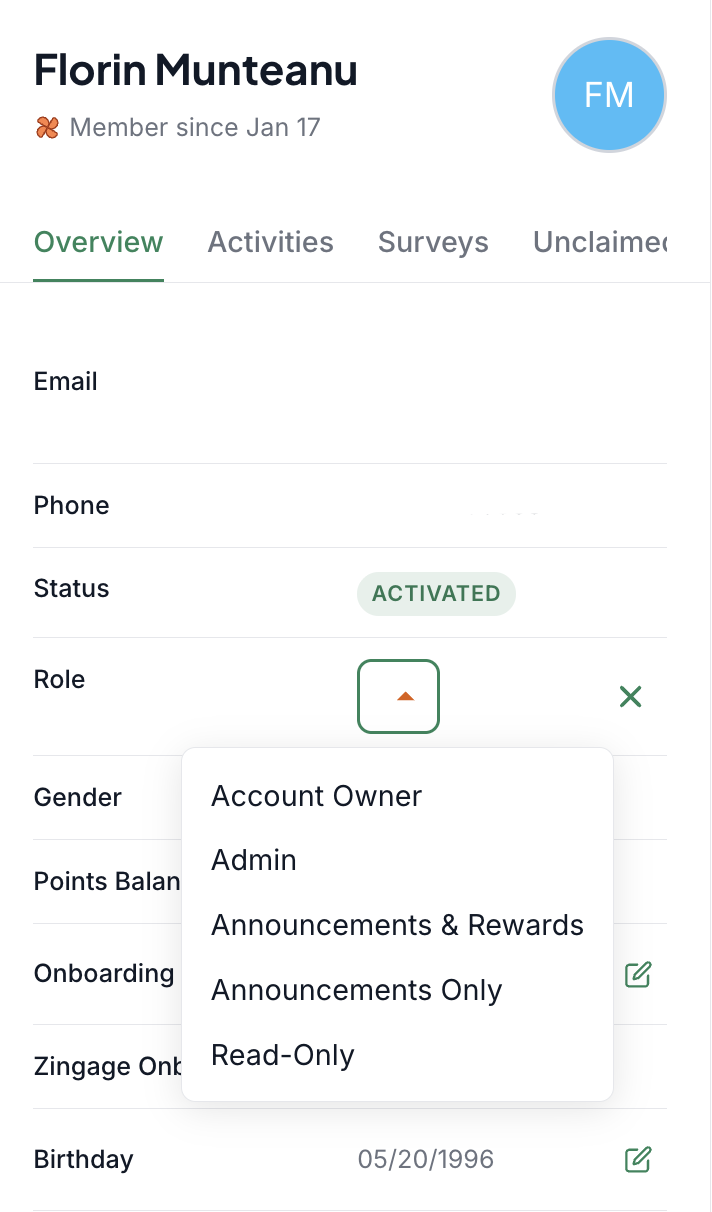
Click Save Changes to confirm.
🛠 Changing an Administrator’s Role
In the left navigation pane, click Company > Administrators.
Select the avatar icon of the administrator whose role you want to change.
In the Role section, click the Edit icon.
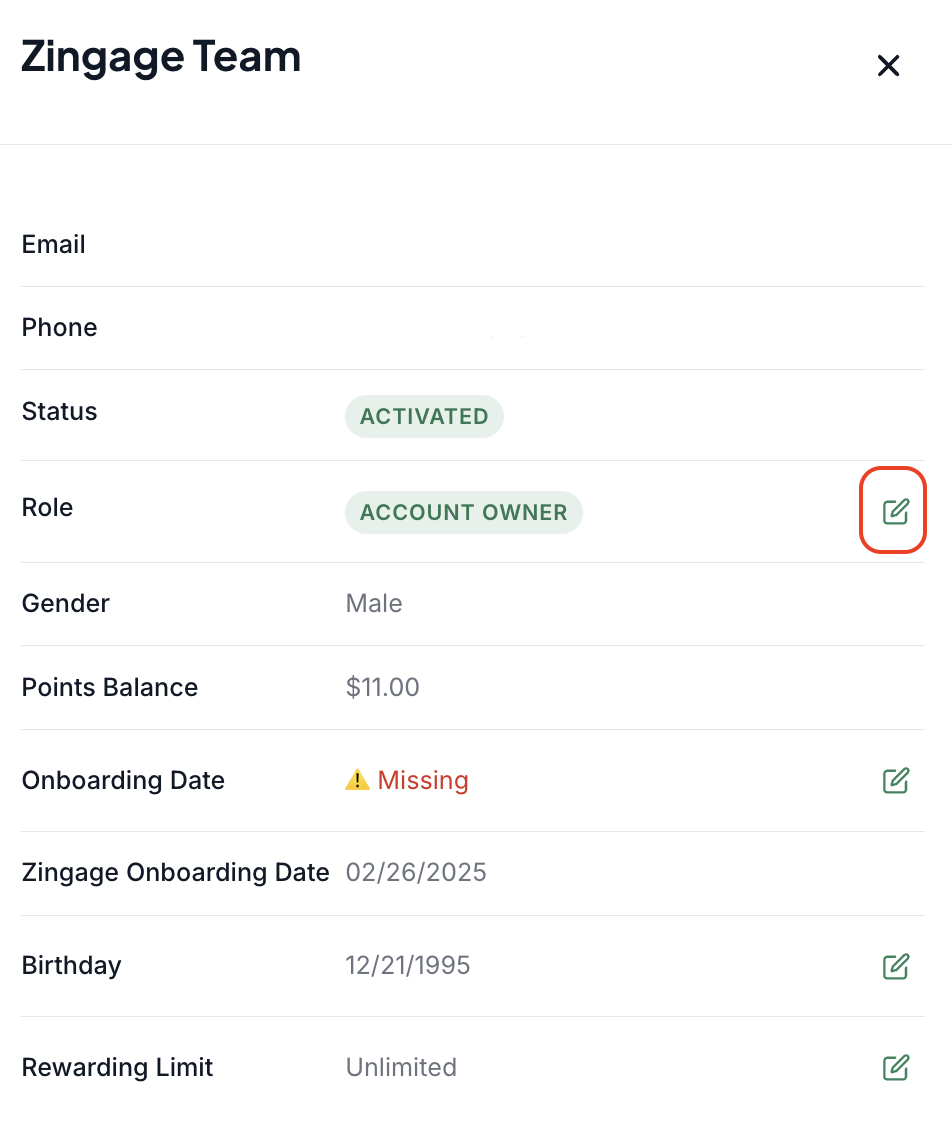
Click the drop-down and choose the desired new role.
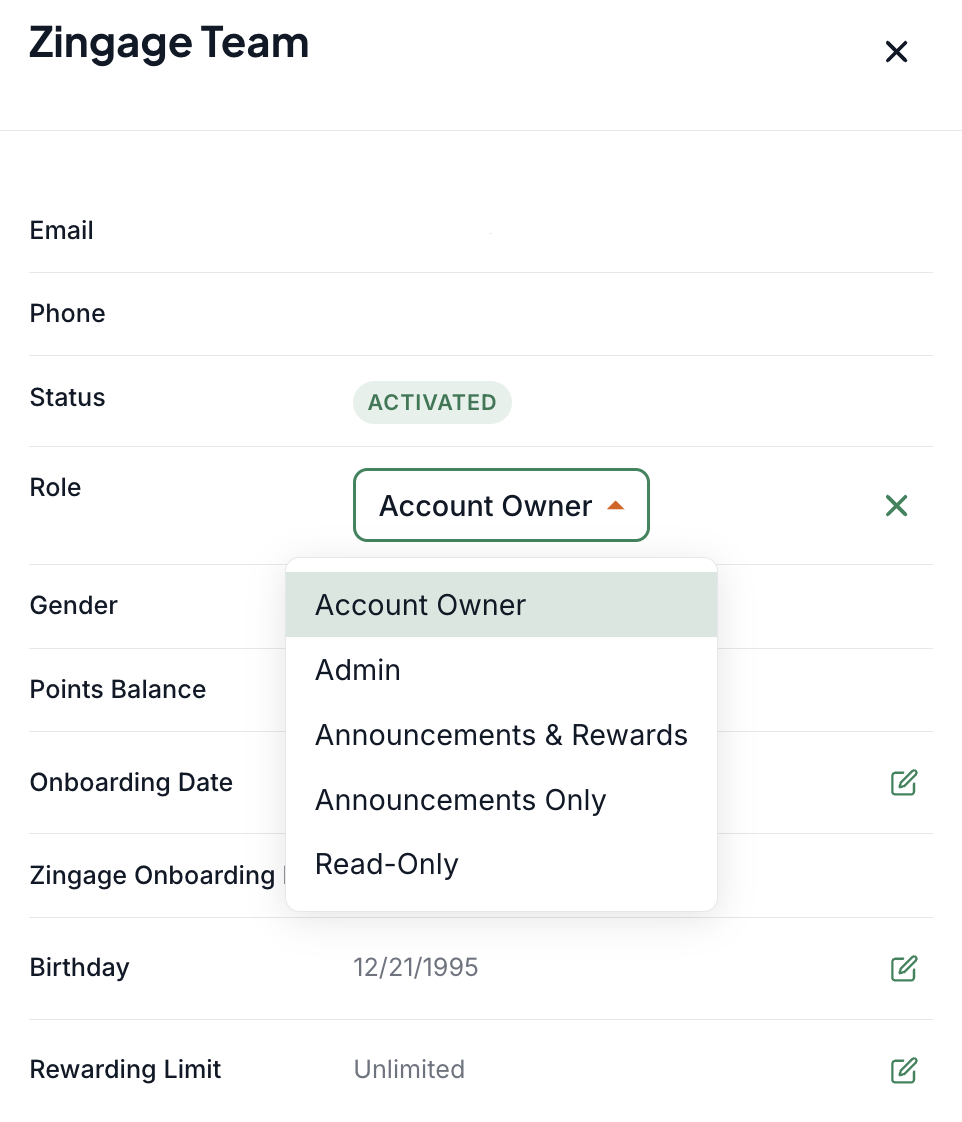
Click Save Changes to apply the update.
You cannot change a staff level user to a caregiver on your end. You'd need to request this from Zingage and we'll direct you!
And that’s it! 🎉 You’ve successfully updated the user’s role in Zingage.