How Do I View, Print, or Export Survey Responses From Zingage?
Last updated: August 20, 2025
There are several ways to access and review survey responses in Zingage, depending on whether you want to view all responses or focus on individual employee responses.
Exporting all survey responses
To export all responses from a survey:
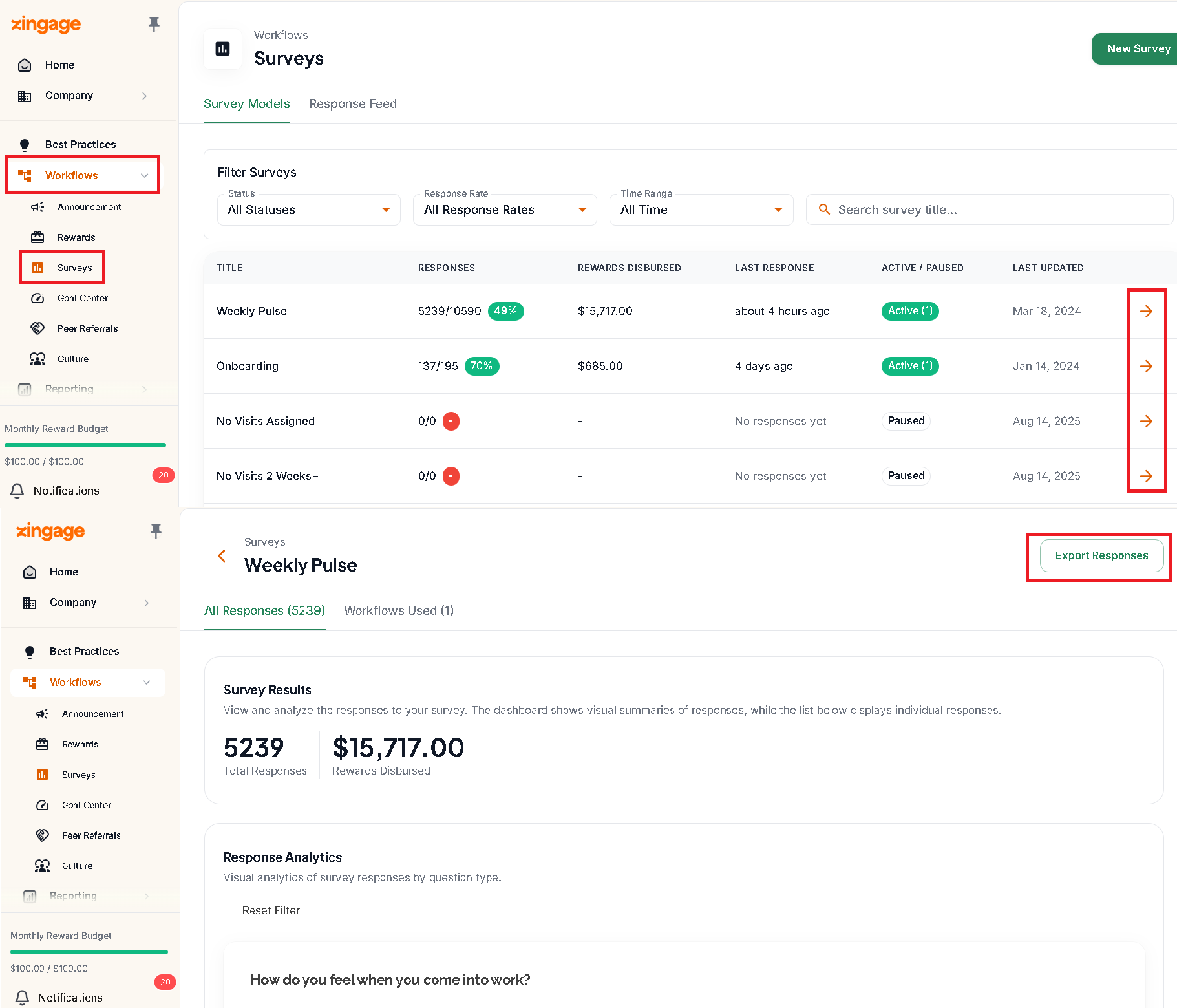
Go to Workflows > Surveys
Click on the survey you want to access
Click the Export Responses button in the top right
This will automatically generate a spreadsheet with all survey data that you can then print if needed:
Viewing individual responses
To review individual employee responses without exporting data:
Option 1: From the survey page
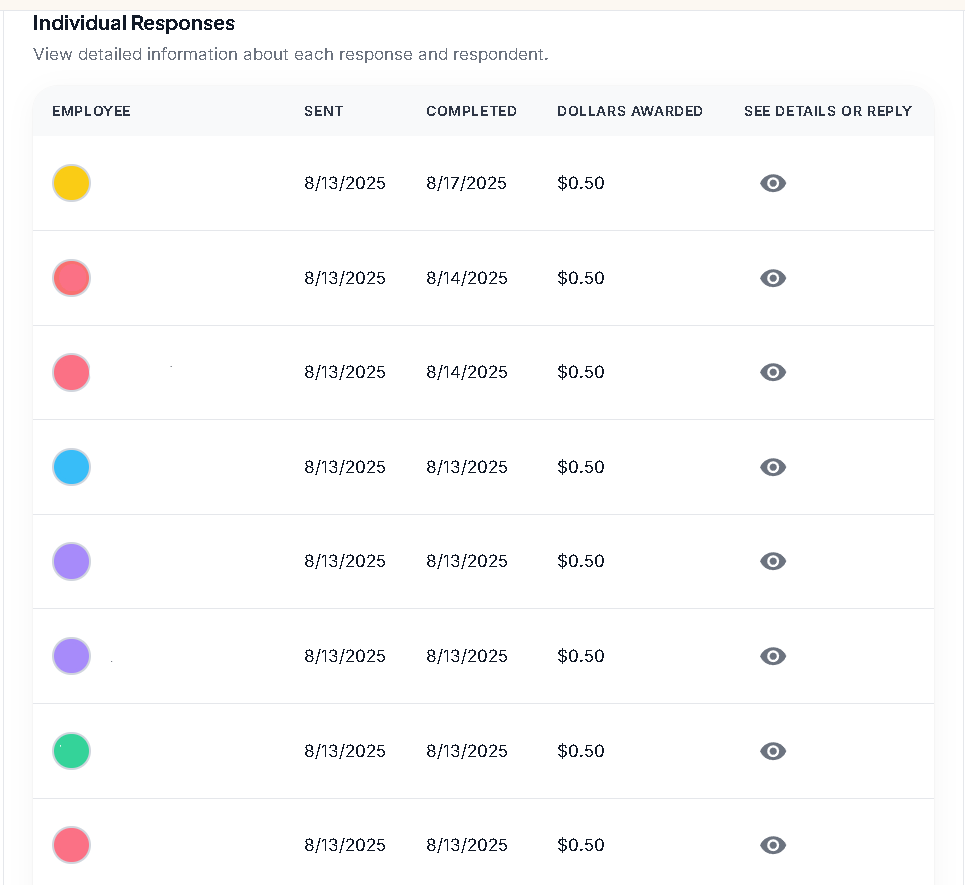
Go to Workflows > Surveys
Click on the survey
Scroll to the bottom to find the Individual responses section
Click the eye icon next to any employee's name to view their specific responses
Option 2: From the employee scorecard
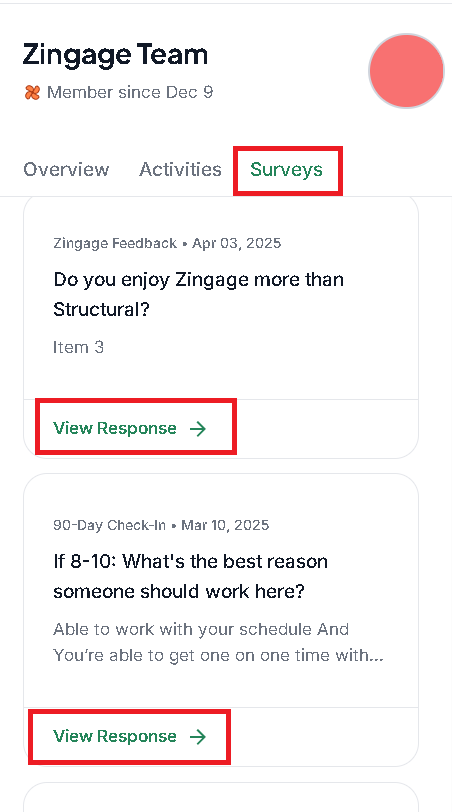
Go to Company > Employees
Click on the employee's user icon to open their scorecard
Navigate to the Surveys tab to see all their survey completions
Both individual viewing options allow you to discuss responses directly with employees during one-on-one meetings without needing to format or print spreadsheets.