Create Surveys and Review Responses
Last updated: July 28, 2026
Surveys help your agency collect caregiver feedback, monitor sentiment, and automate follow-up based on responses.
🎥Walkthrough: Surveys Workflow & Reviewing Responses
Related Articles and Resources:
Open the survey workflow
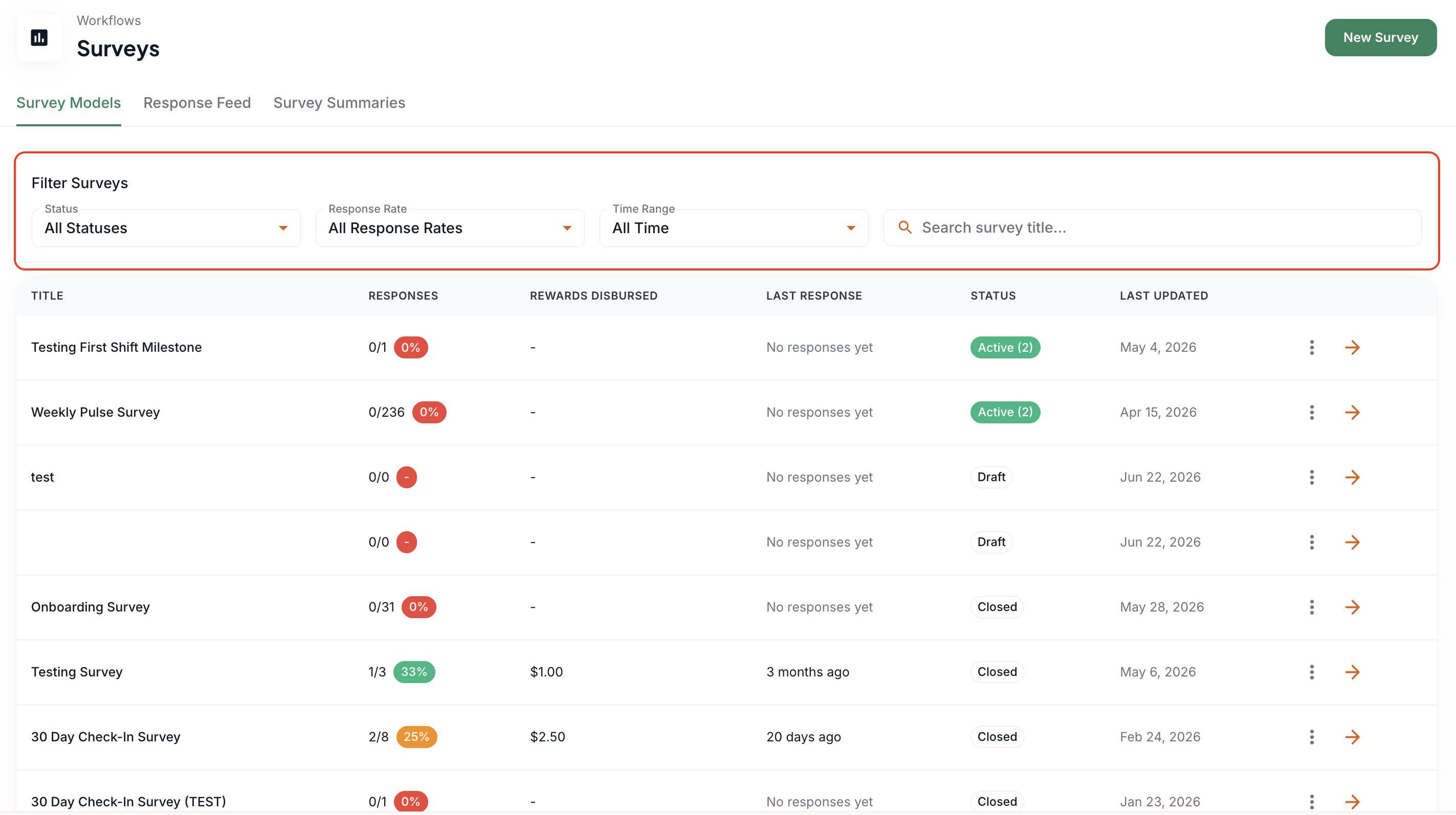
Go to Workflows > Surveys.
Use filters to find surveys by status, response rate, date range, or title.
Surveys may appear as Draft, Active, or Closed.
Create a survey
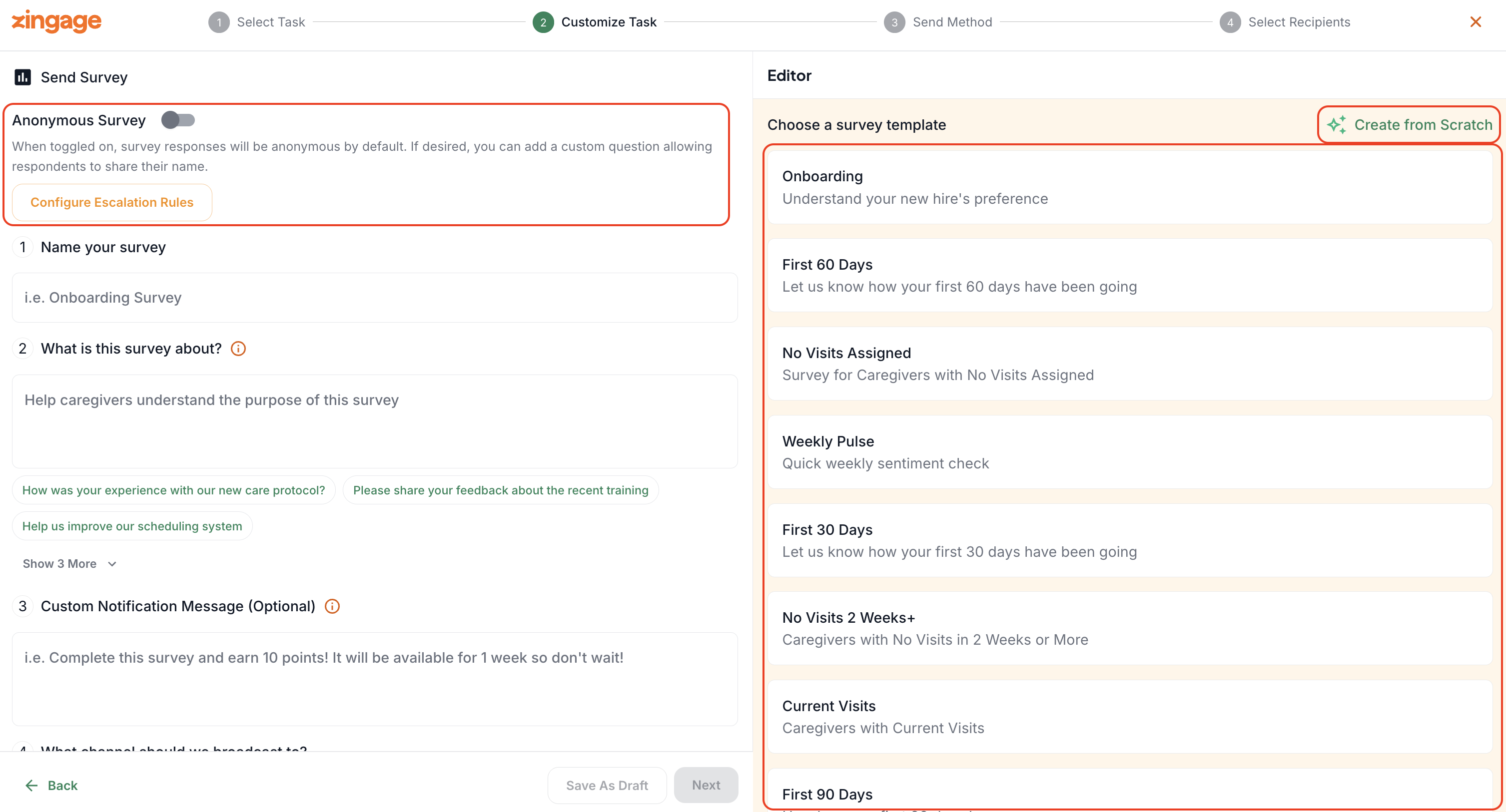
Select Create Survey.
Choose a template or begin with a blank survey.
Add or edit questions.
Available question types may include yes/no, multiple choice or dropdown, rating scale, and long text.
Mark important questions as Required, especially when a reward depends on completion.
Configure survey settings
Turn on Anonymous when responses should be collected without displaying the caregiver's identity.
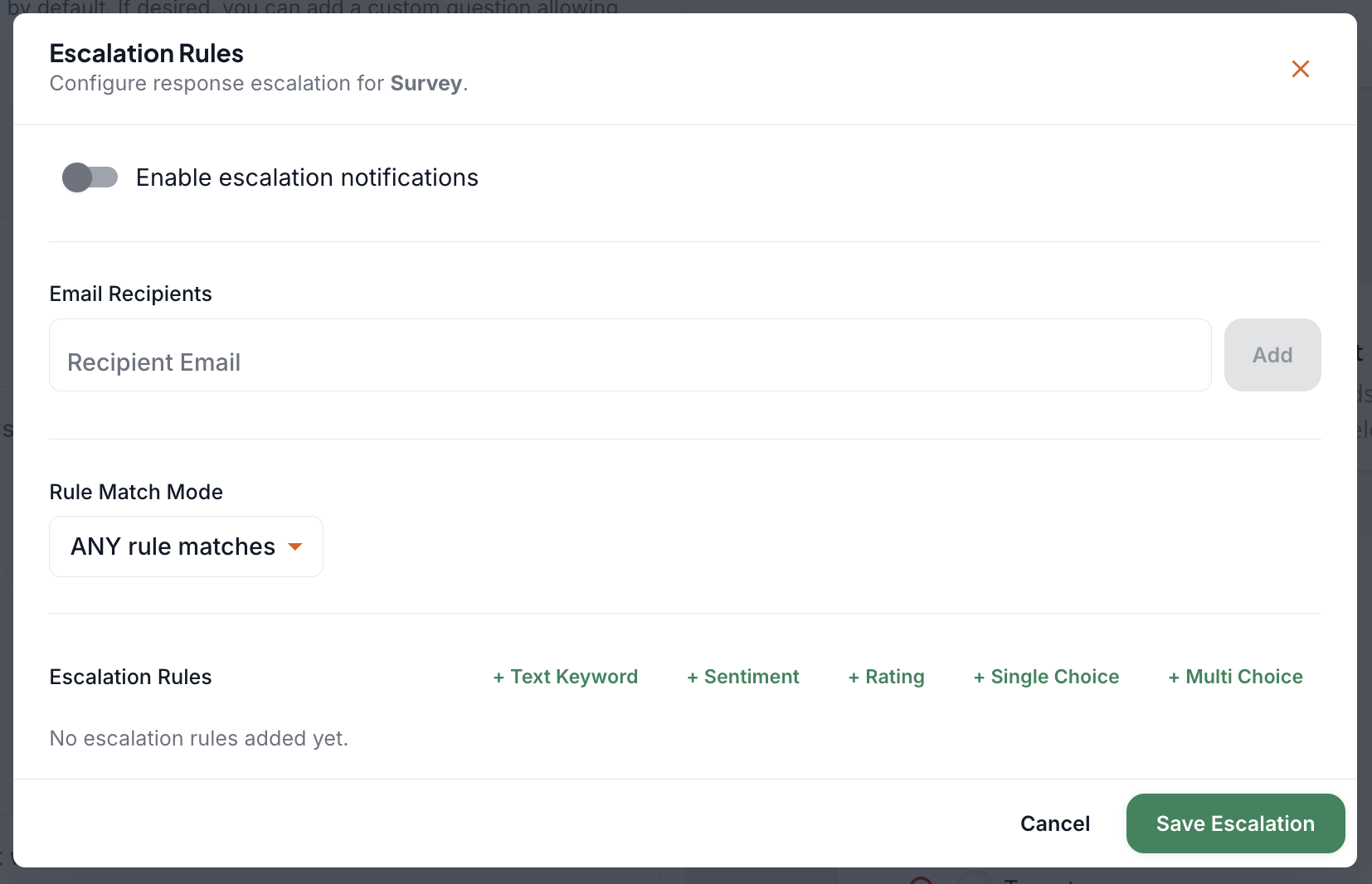
Configure escalation rules to email designated users when a response meets a selected condition, such as a low rating.
Customize the caregiver notification message.
Add a completion reward
A reward is optional.
Enter the amount caregivers receive after completing the survey.
Set a maximum total reward budget when the survey should stop rewarding after a specific amount has been distributed.
Consider the survey length, urgency, and response window when choosing the reward.
Choose a sending method
Send Now for a one-time immediate survey.
Schedule for Later for a specific future date.
Autopilot for recurring pulse checks, such as weekly, monthly, or quarterly surveys.
Event-Based for surveys triggered by an employee milestone or behavior, such as a new-hire check-in or a period without visits.
Review responses
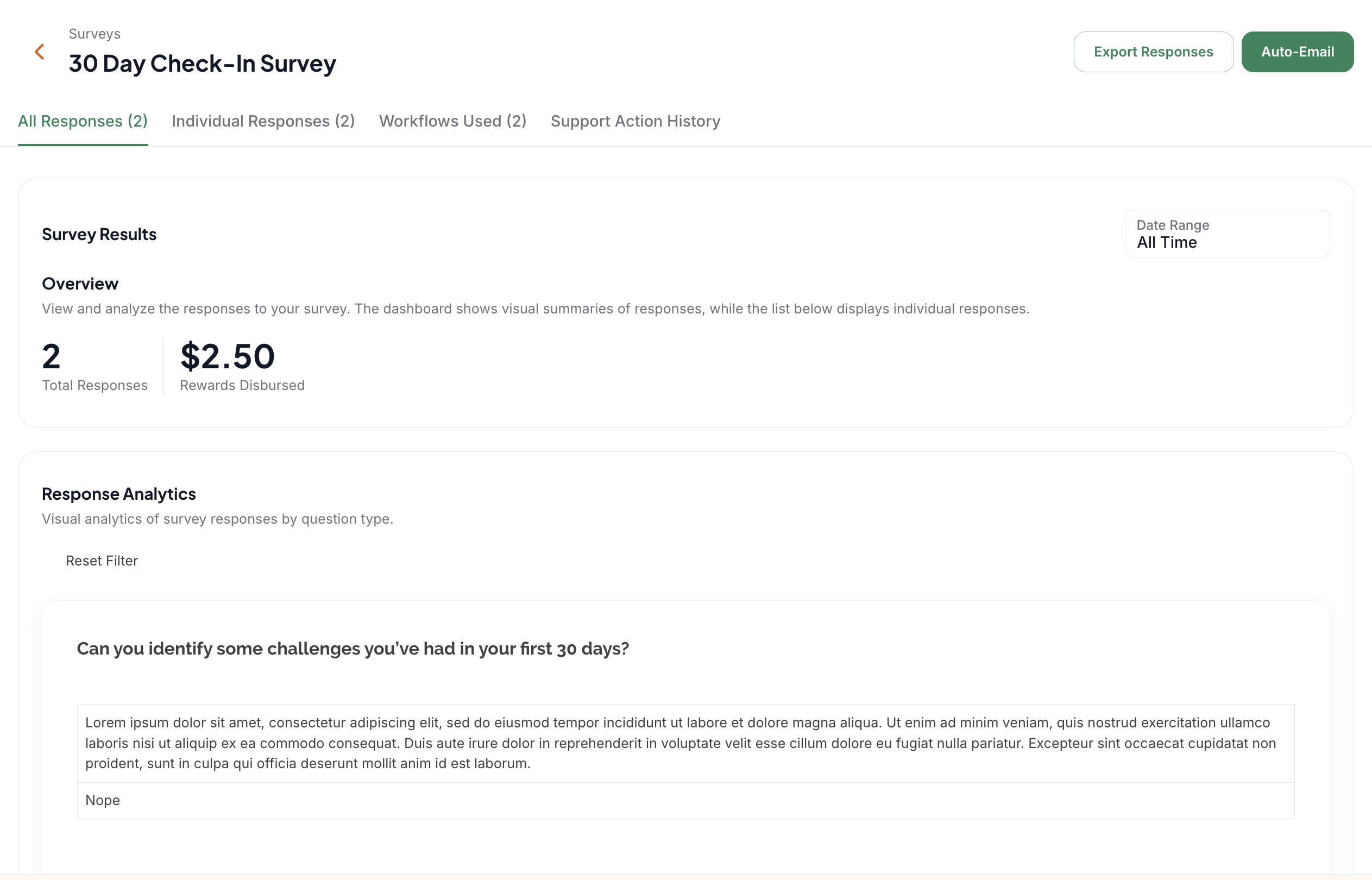
Open a survey to view the high-level response summary.
Use Individual Responses to review each submitted response when the survey is not anonymous.
Review sentiment, recommendation scores, response trends, and topic summaries where available.
Use response exports or email notifications when the results need to be shared with additional team members.