Updating the 'Contact Admin' Button for Caregivers
Last updated: March 19, 2026
Overview
Owners can now control which members of their administrative team appear as the point of contact on the caregiver side of the platform. This is managed through a simple toggle in the Administrators section of your dashboard.
Only Account Owner profiles can see and manage these toggles
Video Tutorial: Updating the 'Contact Admin' Button
Step 1: Navigate to your Administrators list
Log into your Zingage admin account.
Click the Company dropdown in the navigation.
Select Administrators.
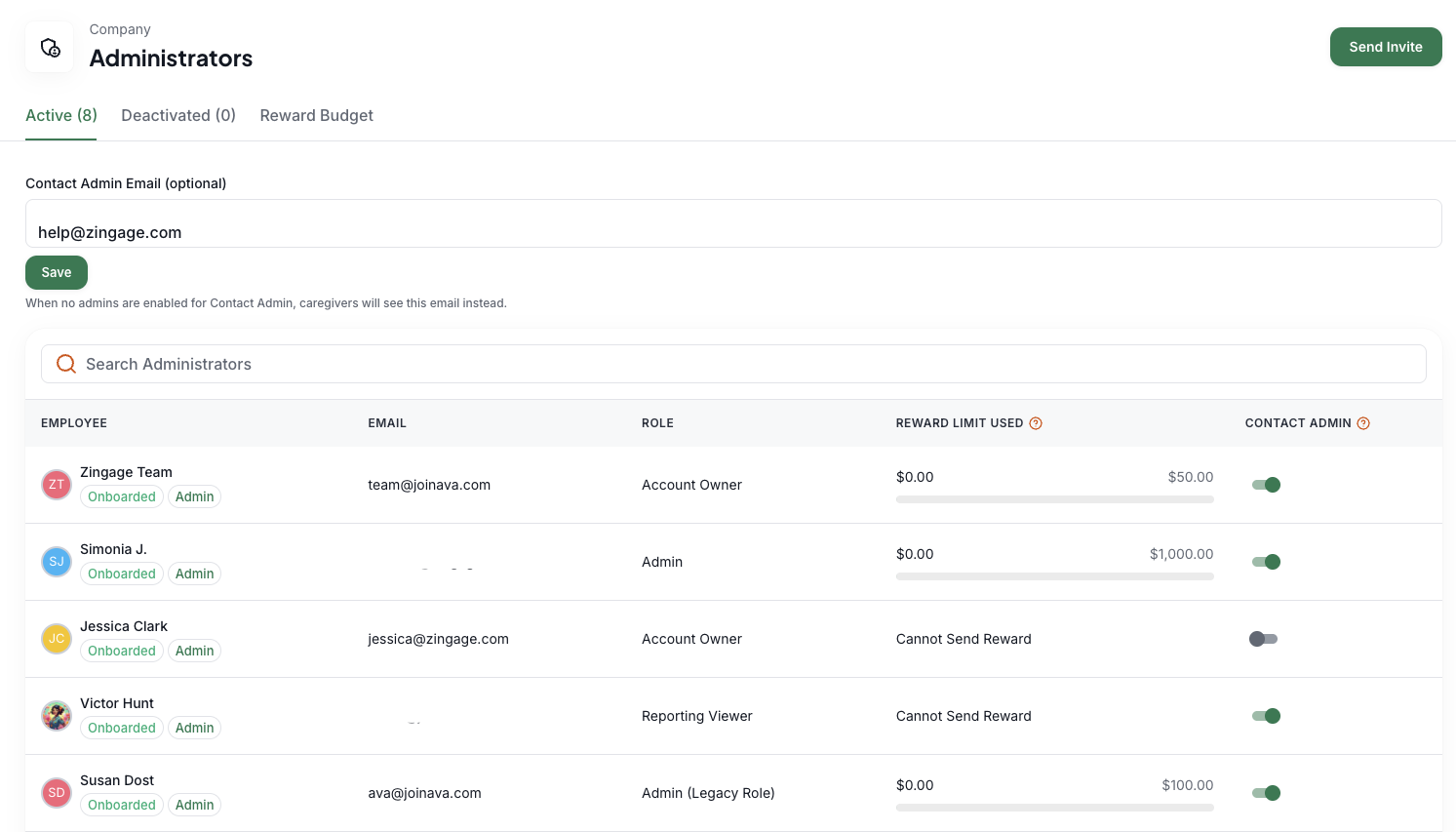
Step 2: Toggle admin visibility
You will see your full list of administrators.
On the right-hand side of each administrator's row, locate the toggle.
Switch the toggle on to make that admin visible to caregivers as a point of contact.
Switch the toggle off to remove them from the caregiver-facing contact list.
(Optional) Step 3: Verify what caregivers see
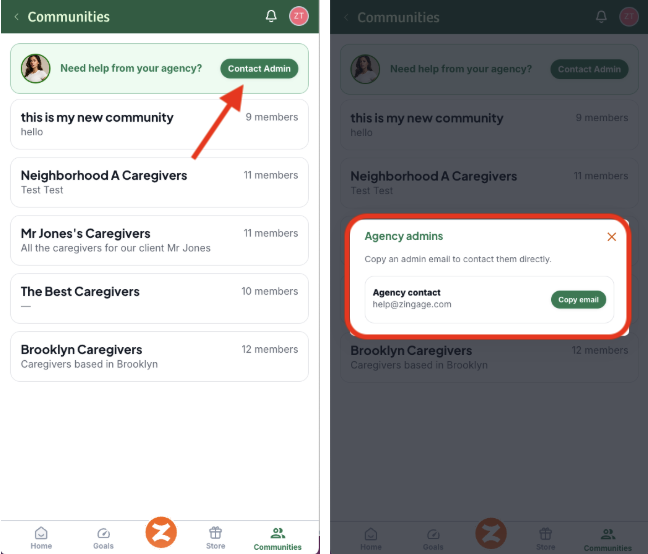
On the caregiver side, navigate to Communities.
Click the Contact Admin button.
The names that appear will reflect only the admins you have toggled on.
Notes
You can update these toggles at any time — changes take effect right away
Only admins with the toggle turned on will be visible to caregivers when they use the Contact Admin button.
This is useful for directing caregiver inquiries to the right team members based on role or availability.