How to Create Surveys on Zingage
Last updated: March 27, 2026
While some surveys in Zingage are automatically sent to specific employee groups (like the default "New Hire Within 30 Days" survey), you can create custom surveys to target specific groups of employees.
Creating a Custom Survey
Follow these steps to create a new survey:
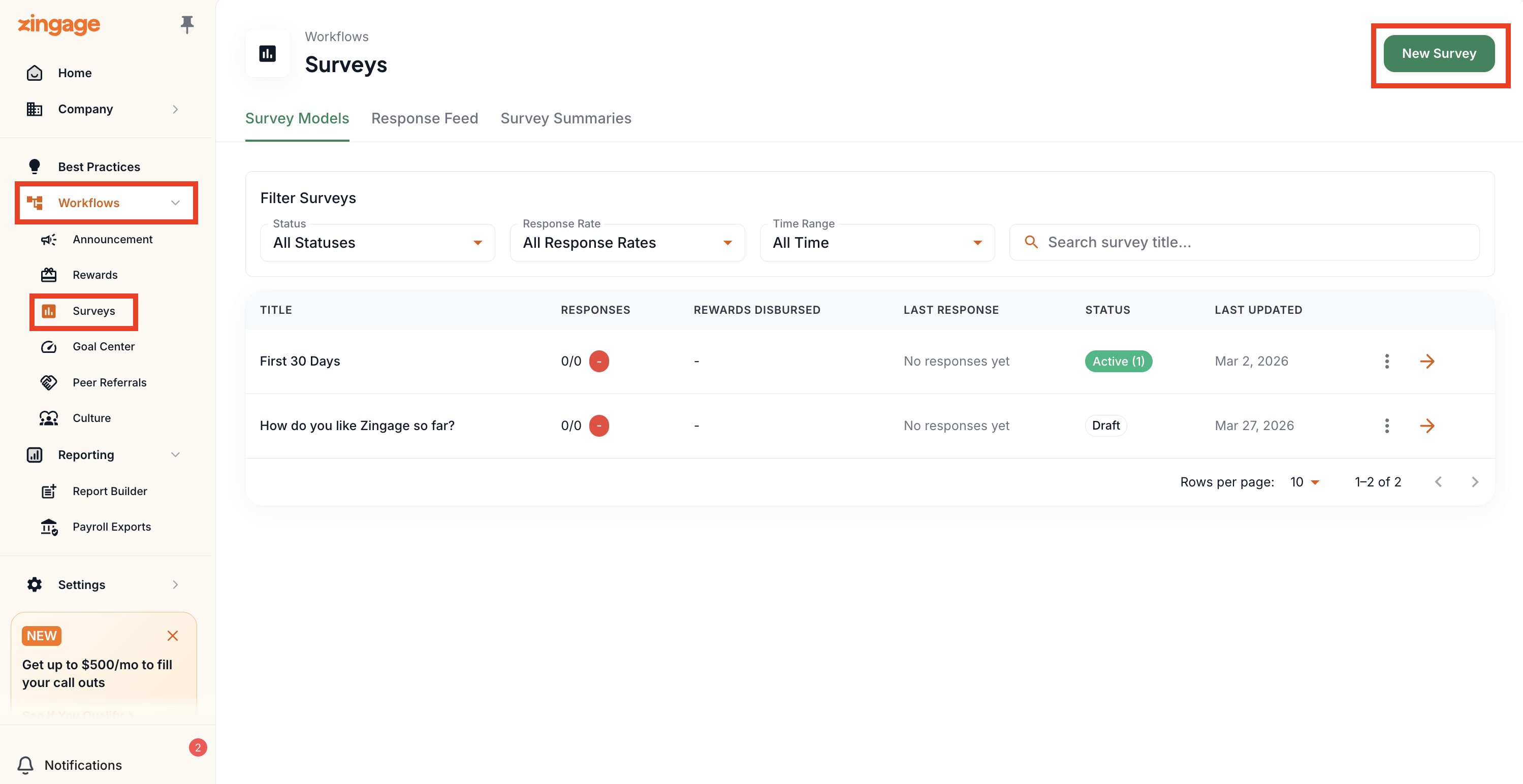
Navigate to Workflows > Surveys
Click "New Survey" in the top right corner
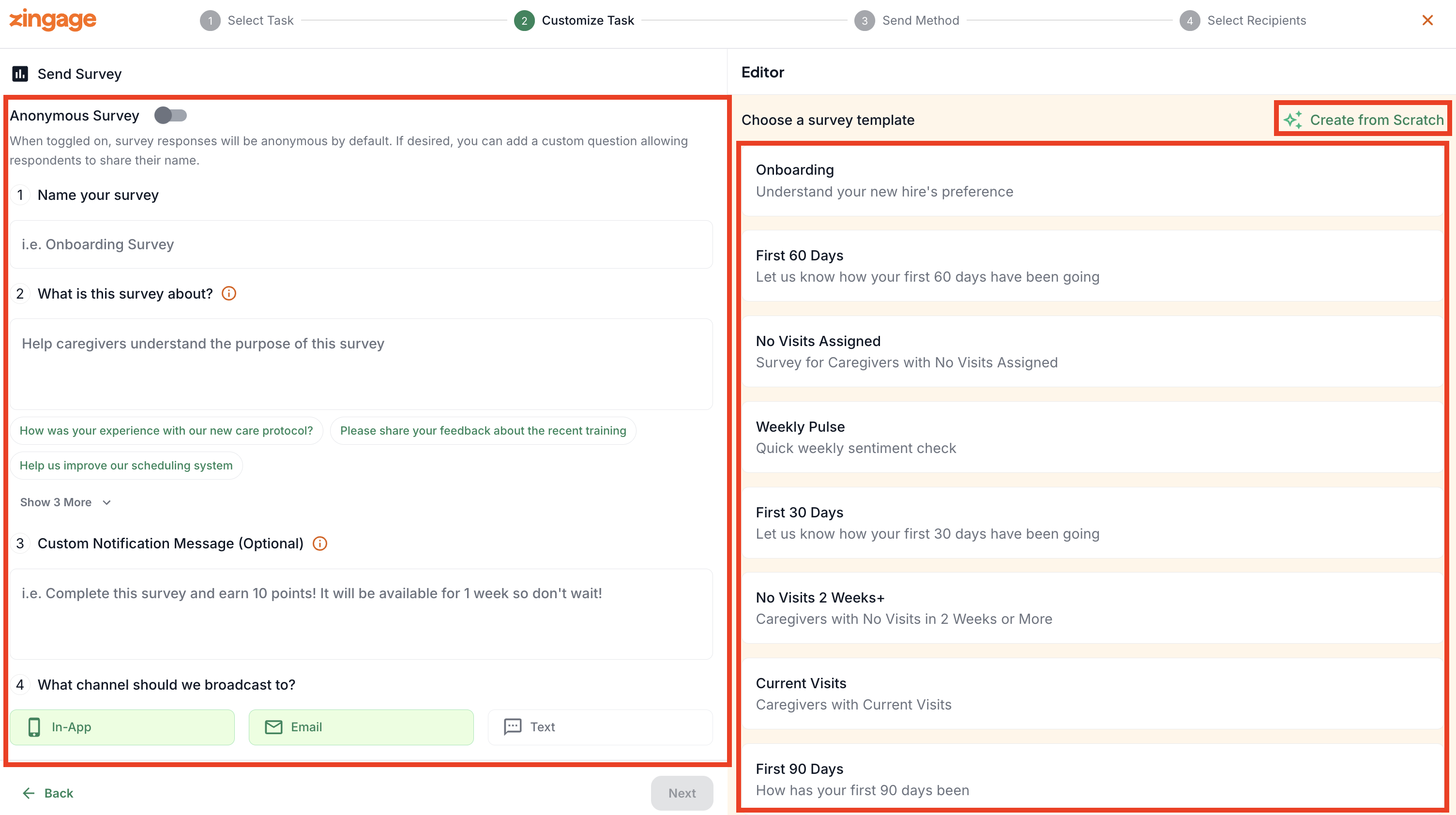
Configure the left panel settings:
If it's a feedback survey and you want to encourage honest feedback, toggle on the Anonymous Survey toggle
Caregiver submissions will not list a name or any identifiable information from the respondent.
Survey name
Description
Broadcast channels
Custom message (caregivers will see this message once they receive the survey)
Reward value
Expiration timeline
Reminder timeline (when you'd like caregivers to be reminded to complete the survey)
In the right panel, either select a template or create from scratch
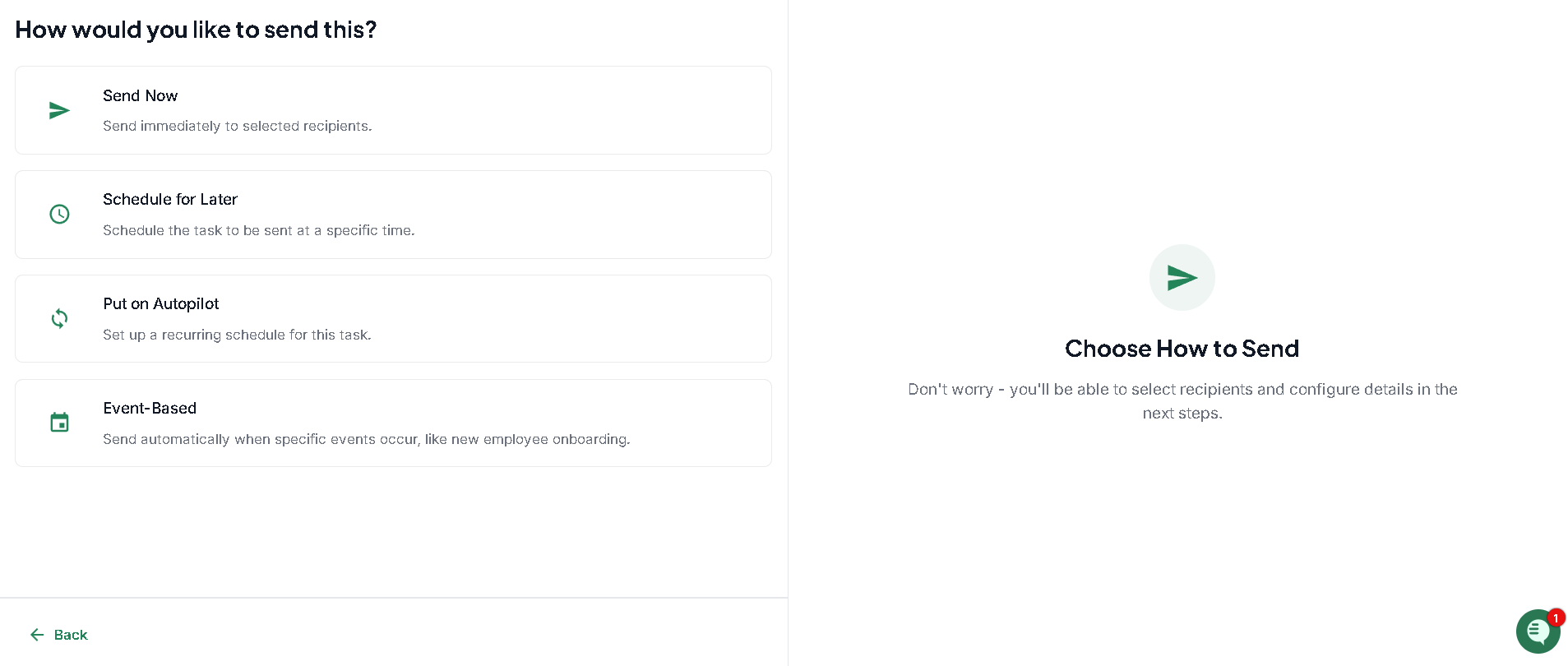
Set your cadence (including autopilot options if desired)
Send Now: this means the survey will be sent immediately to the chosen recipients
Schedule for Later: this means the survey will be sent on the selected date and time to the chosen recipients
Put On Auto Pilot: this means the survey will be automatically sent to the chosen recipients on the selected date and time
Event Based: this means the survey will be sent based on the chosen trigger. For example if a caregiver is added to Zingage within 30 days of their hire date in the agency's system, the New Hire Survey will be automatically sent to them.
Select recipients: this can be an employee group or individual employees
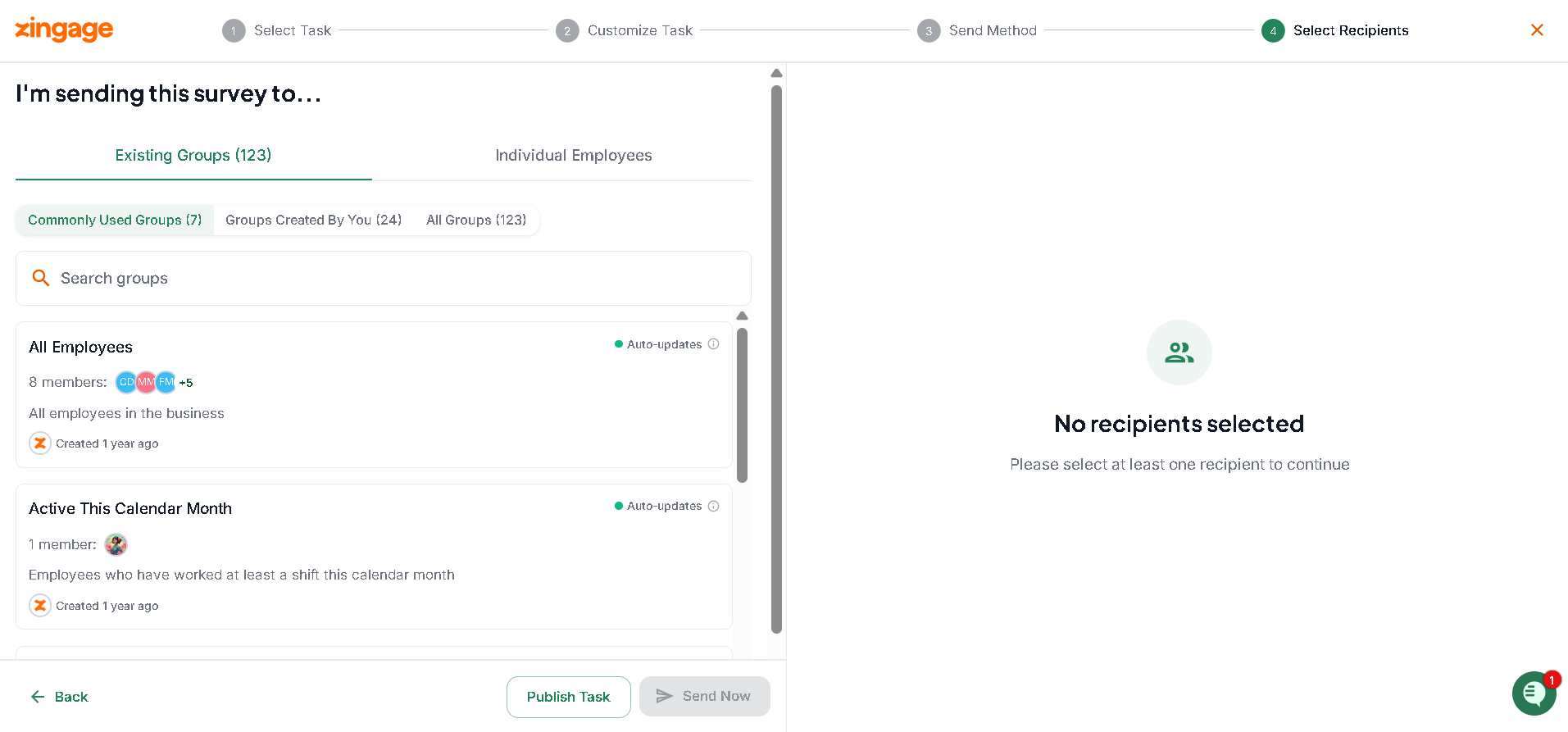
Setting Up Recipients
For surveys that you'd like to send to select people on a frequent basis, we recommend creating a custom Employee Group and creating a survey to send to that employee group:
Click "New Group" in the top right corner
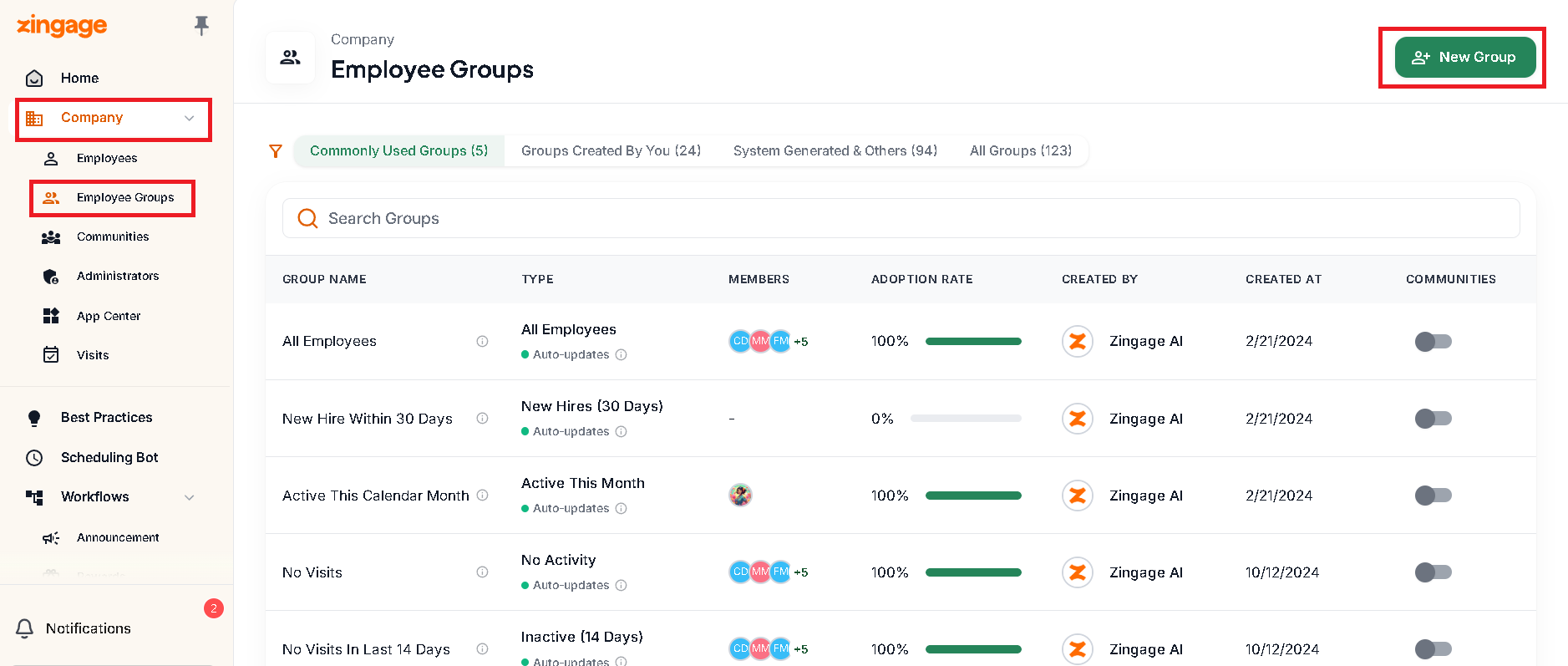
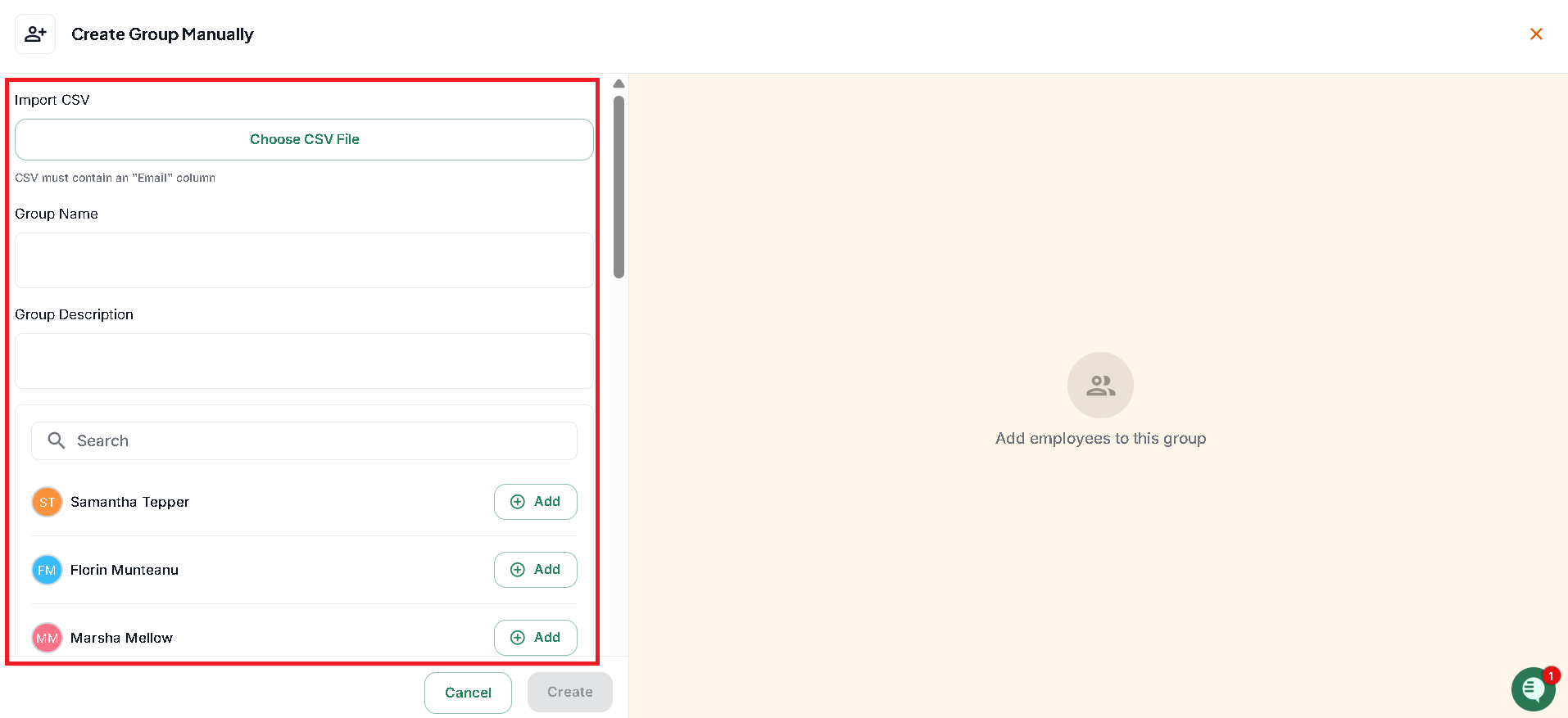
Fill in the group details
Add your desired employees to the group
Note: Employee groups like "New Hire Within 30 Days" in the System Generated Tab are system-managed and cannot be modified. To survey a different set of employees, you'll need to create a new survey with custom recipient settings.