Payroll on Zingage - Reward Totals Export
Last updated: July 24, 2026
The Reward Totals Export allows you to export caregiver reward redemption data for payroll, tax reporting, and recordkeeping. You can generate reports for a specific date range, filter by caregiver or reward type, and export the data in your preferred format (PDF/CSV).
You can also schedule reports to be sent automatically to your payroll or accounting team.
Note: Zingage does not provide tax or accounting advice. We recommend consulting your finance, payroll, or tax team for guidance on how to use this information for your agency.
🎥Watch our Reward Totals Export for Payroll and Taxes Walkthrough
Accessing the Reward Totals Export
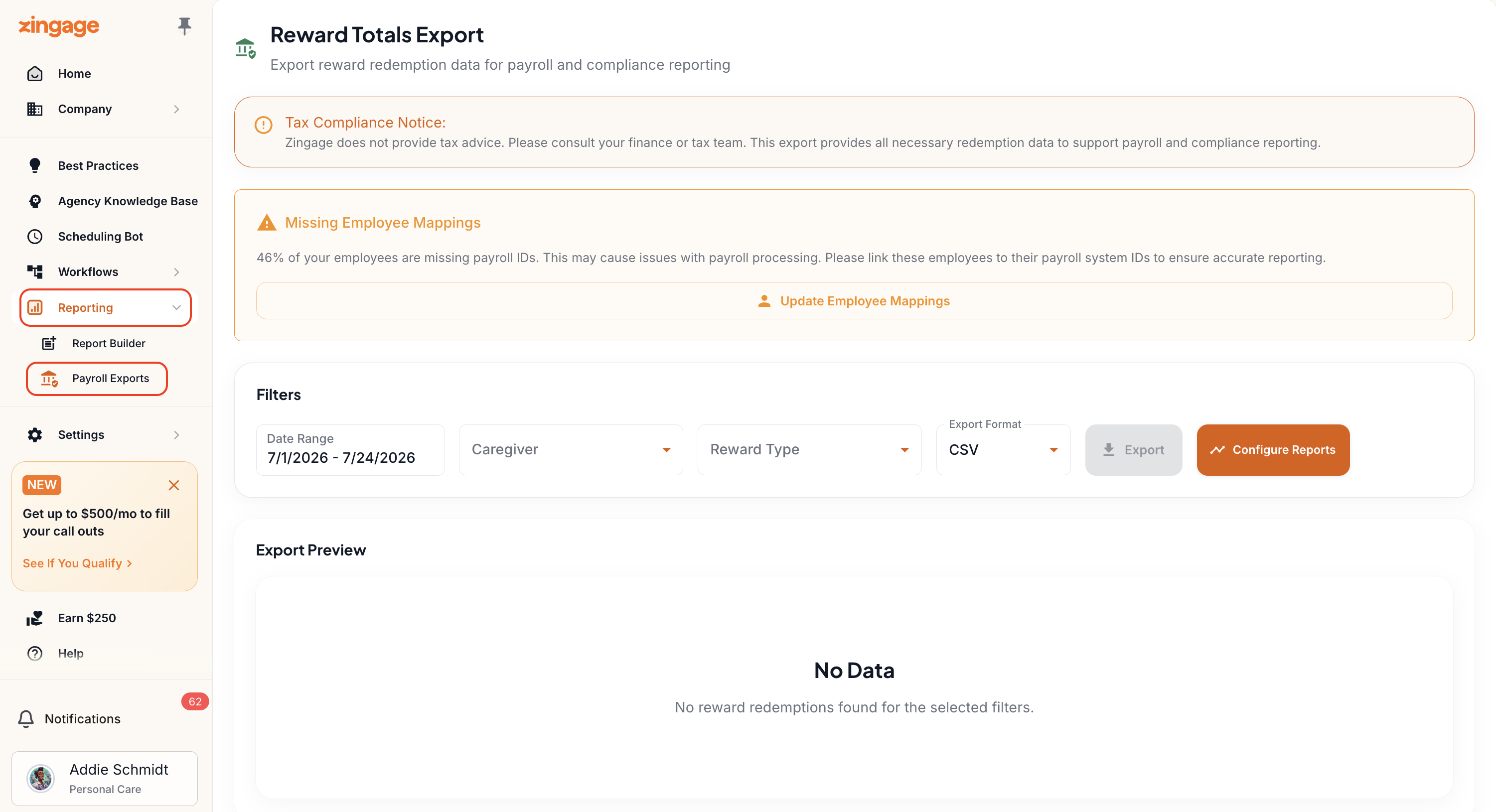
From the left navigation menu, select Reporting.
Click Payroll Exports.
The Reward Totals Export page will open.
Understanding the Export Preview
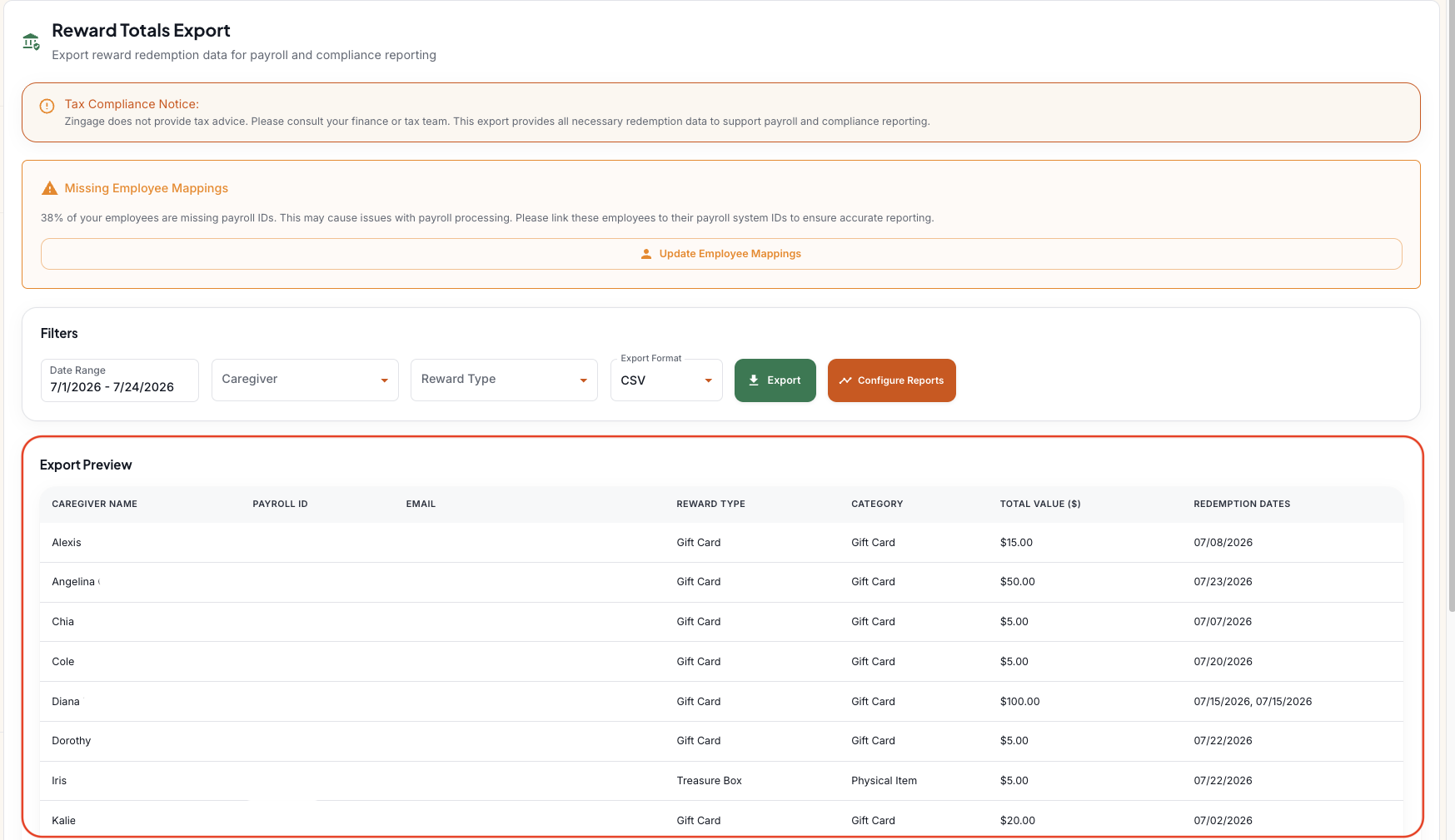
Before exporting, you'll see a preview of recent reward redemptions. Depending on your export settings, the preview may include:
Caregiver name
Payroll ID
Email address
Reward type
Reward amount
Redemption date
The information shown reflects your agency's caregiver data. For example:
Filtering Your Export
Use the filters at the top of the page to customize the report before exporting.

You can filter by:
Date Range – Select the reporting period you want to export.
Caregiver – Export data for an individual caregiver or all caregivers.
Reward Type – Filter by a specific reward type, such as gift cards.
Export Format – Choose your preferred export format.
Once you've selected your filters:
Click Export.
Confirm the export.
Download the generated file.
Scheduling Automatic Reports
If you regularly provide reward data to payroll or accounting, you can schedule reports to be sent automatically.
To configure scheduled reports:
Click Configure Reports.
Select your pay frequency:
Bi-weekly
Semi-monthly
Monthly
Enter the last day of your pay period.
Enter one or more recipient email addresses, such as:
Payroll
Accounting
Finance
Agency administrators
Click Save.
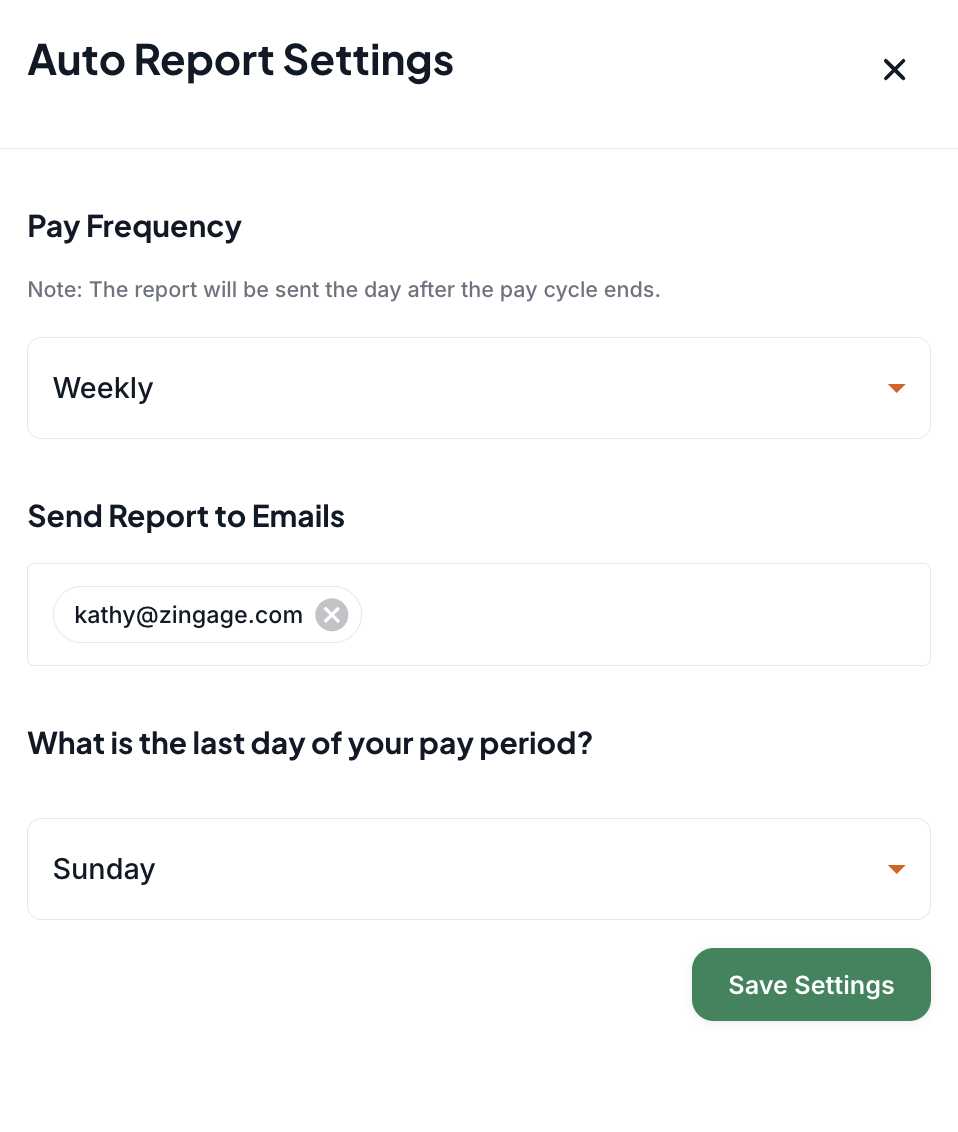
Once configured, Zingage will automatically generate and email the report according to your selected schedule.
Best Practices
Review your date range before exporting to ensure you're reporting on the correct pay period.
Schedule recurring reports to reduce manual work for payroll processing.
Work with your finance or tax professionals to determine how exported reward data should be reported for your agency.