How to Create an Employee Group, Edit It, and Add New Members
Last updated: August 17, 2026
You can easily create and employee groups to add newly hired employees or make other changes to a group by following the steps below:
How to Create a Custom Employee Group
Video Tutorial: How To Create A Custom Employee Group
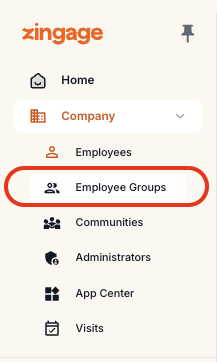
Navigate to Company > Employee Groups
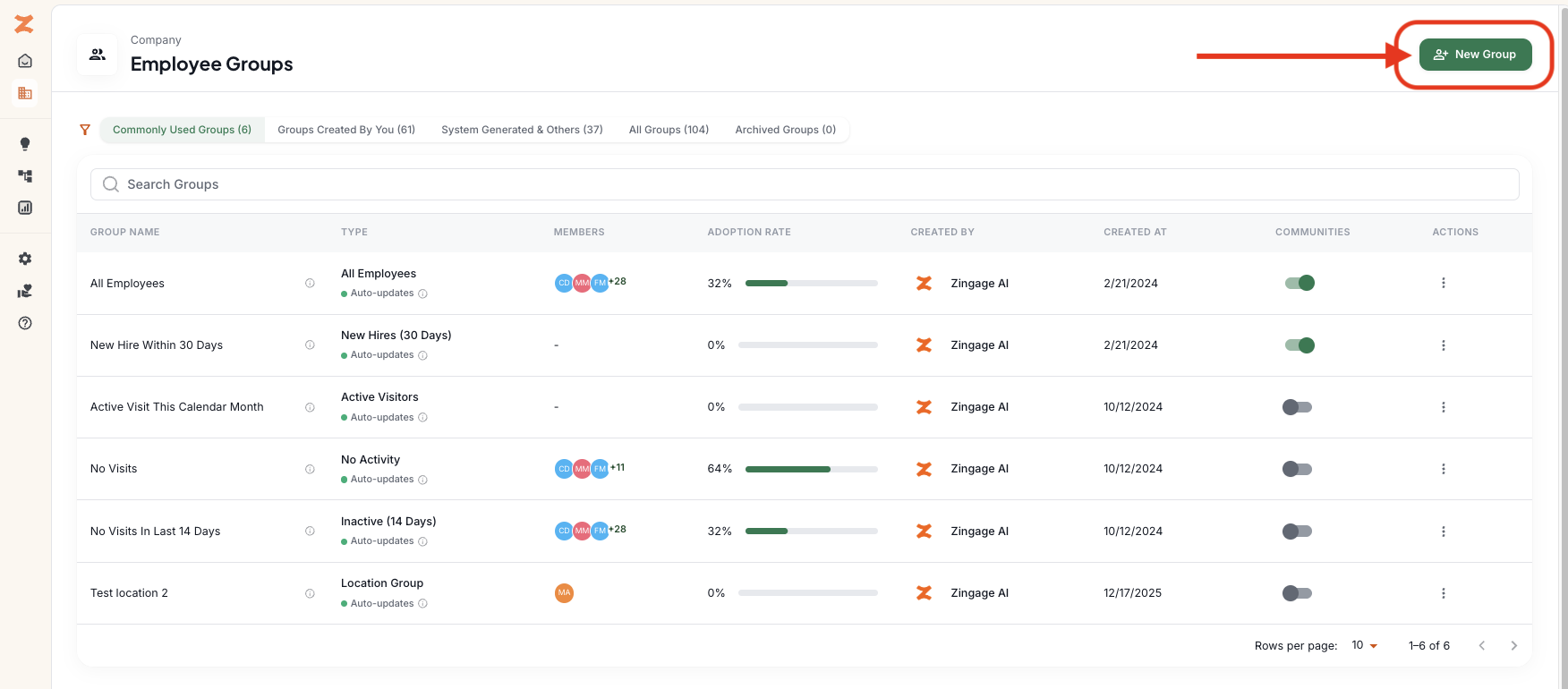
Click New Group in the top right corner
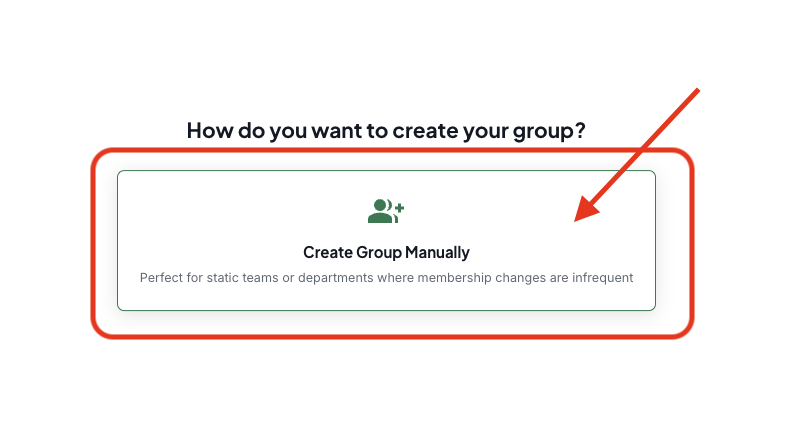
Click 'Create Group Manually'
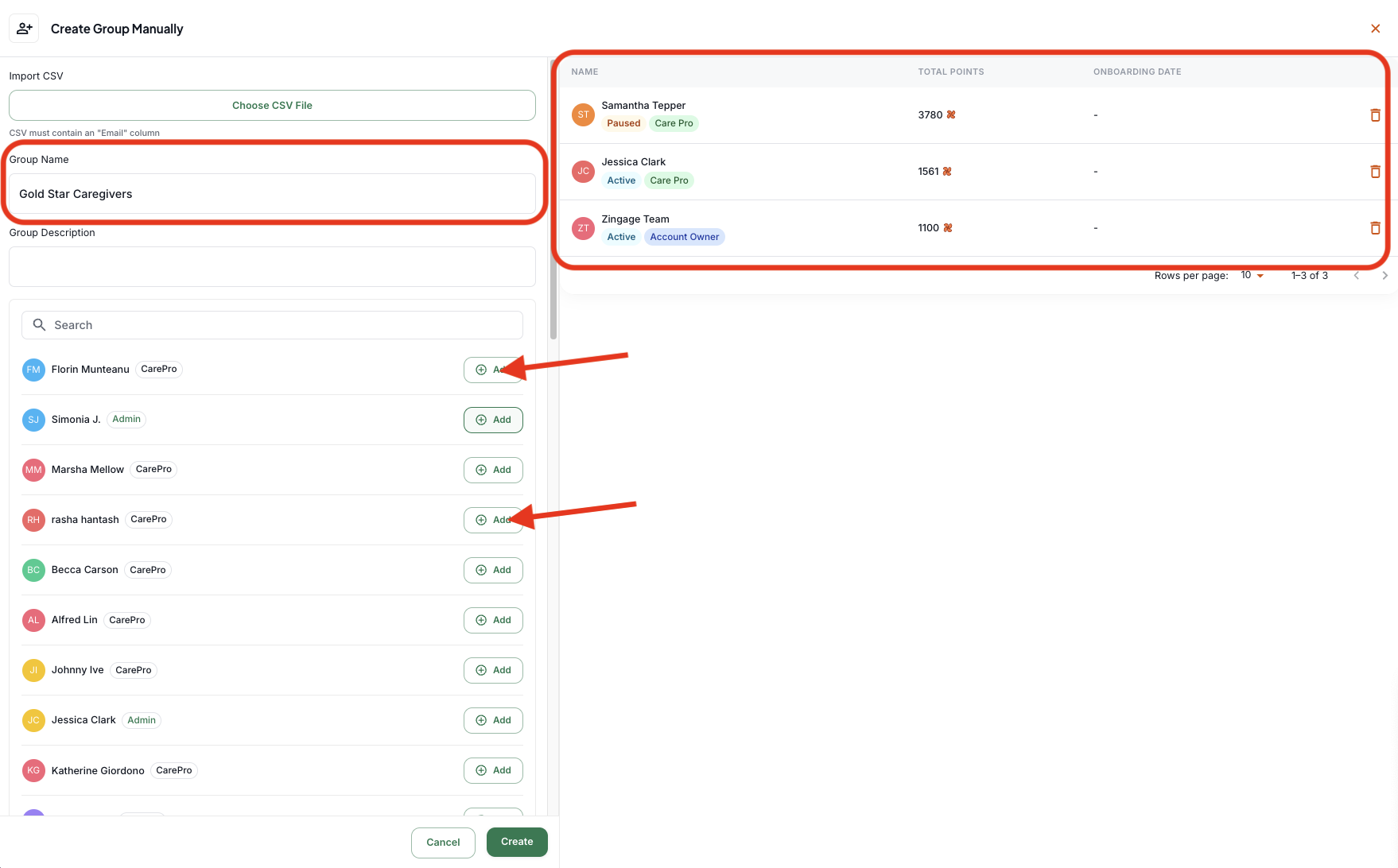
Option 1: Upload a CSV of the users you'd like in the group (please note the CSV must include their emails) then add the name of the group and the optional group description.
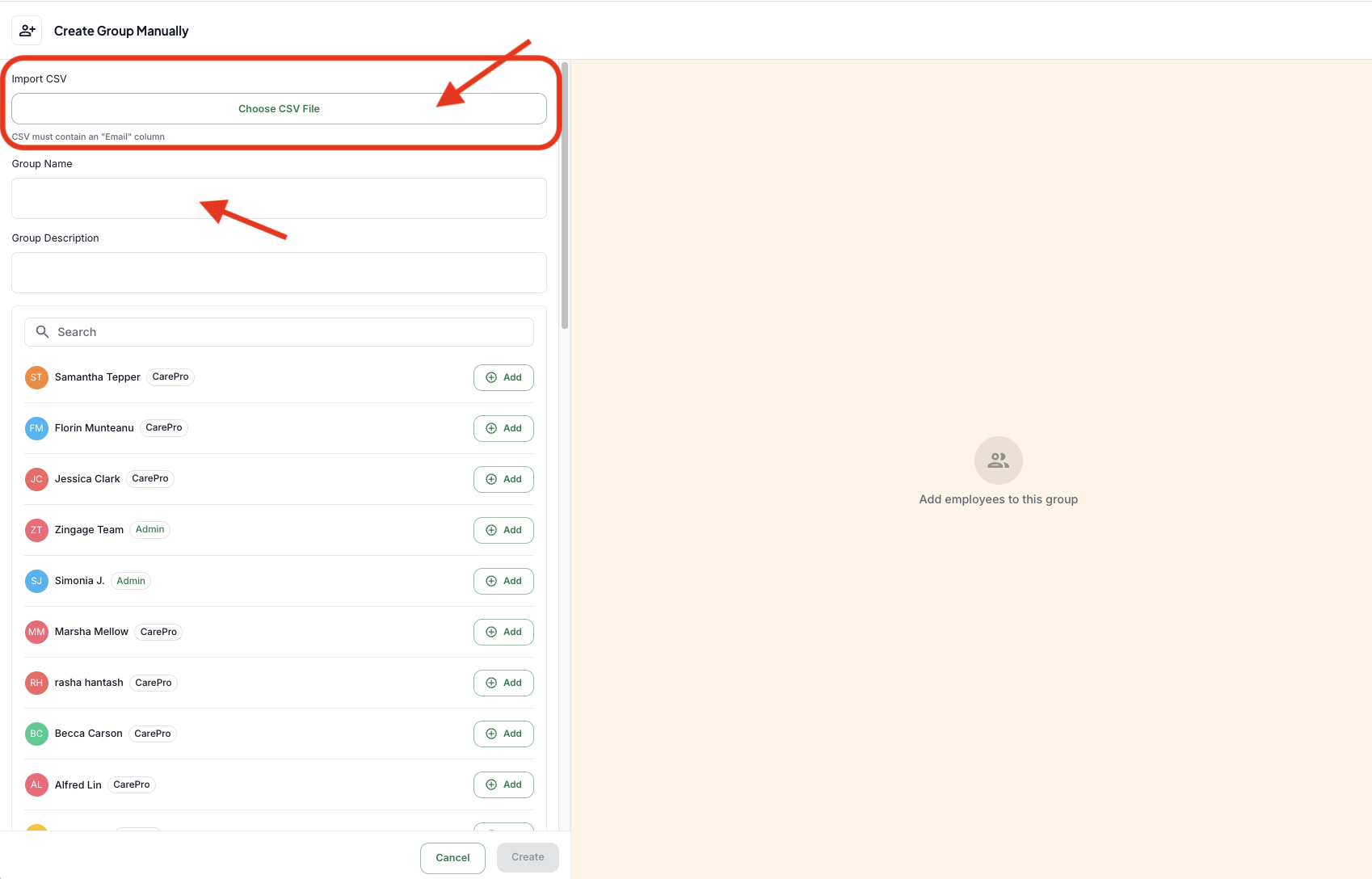
Option 2: If you forego the CSV upload, you can add the name of the group, the optional group description, and then manually add the individuals you'd like in the group. You can scroll through the list or type their name in the search bar and then add them there.
If you make a mistake, you can click the trash can icon next to their names on the right to remove them from the group
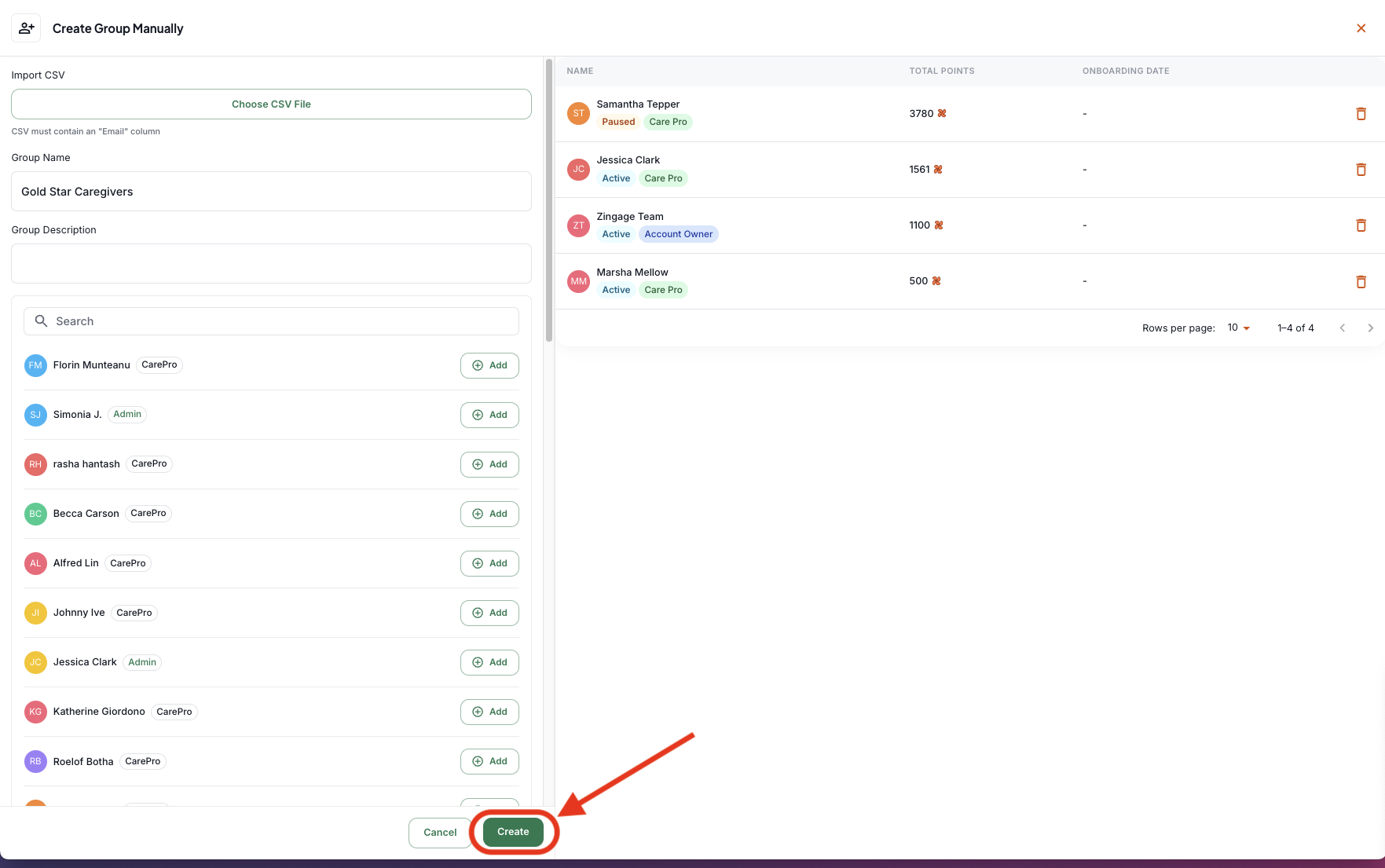
Click Create at the bottom and your group will be generated.
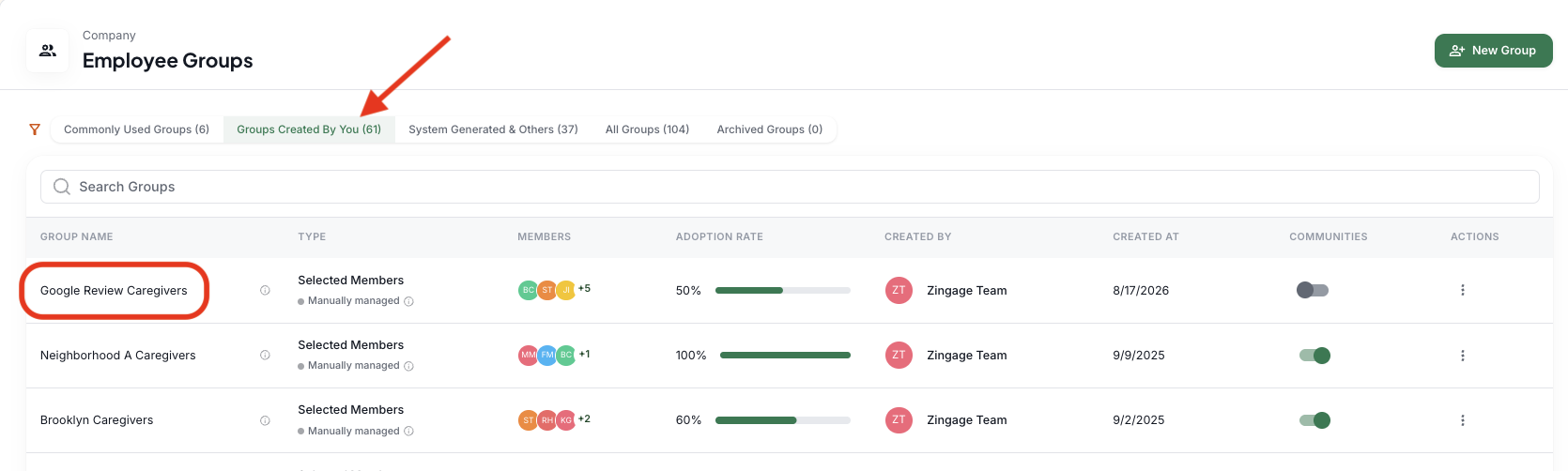
When back on the main page, click Groups Created By You and if you don't see the group you just made at the top, refresh your page so it updates.
You can now use this group throughout the platform. Example uses below:
Recipient group for workflows (i.e. specific announcements, surveys, or spot rewards)
Creating a Community of this group (more info on Communities here)
Selecting this group to be the recipient of specific goals in the goal center (more on that here)
Steps to edit an employee group
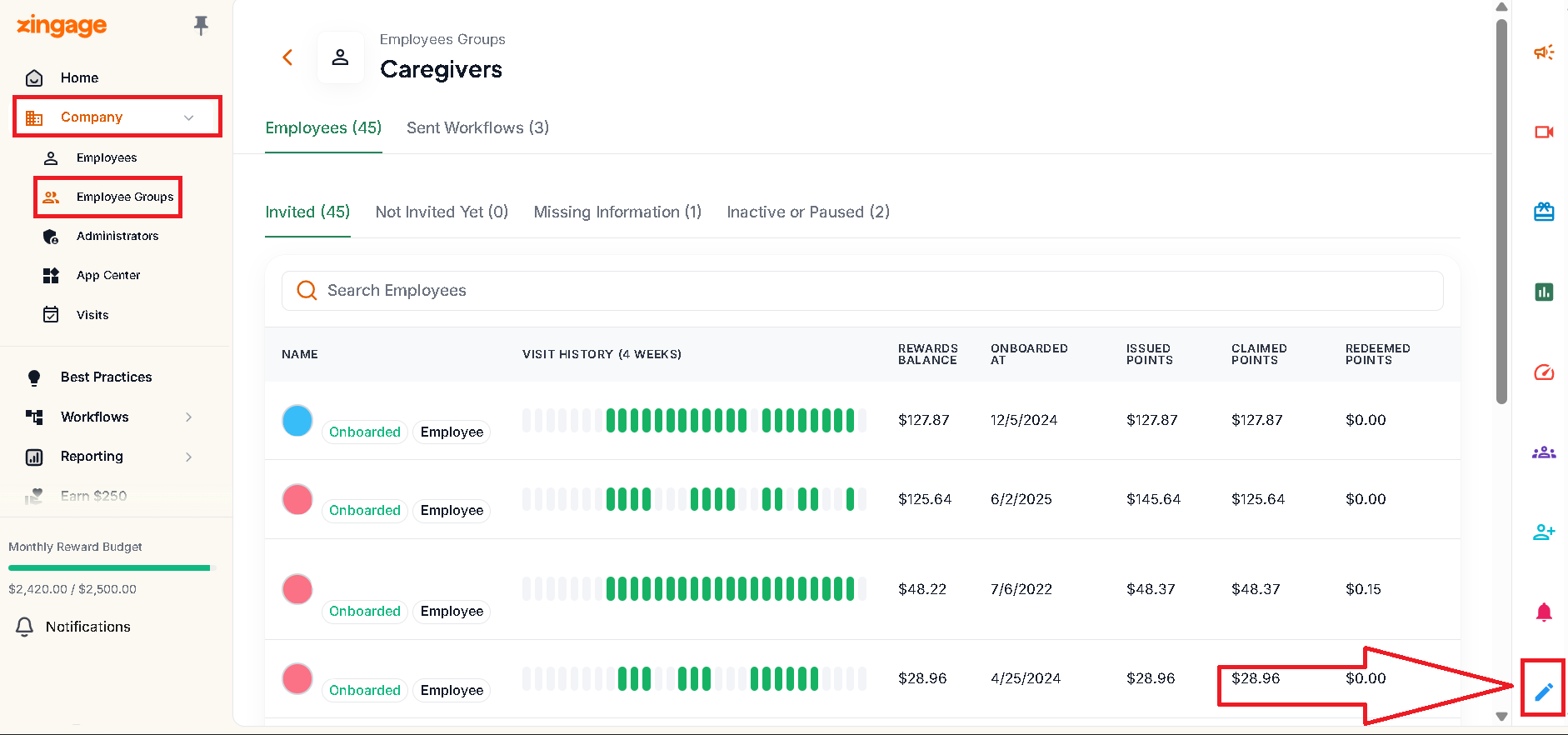
Navigate to Company > Employee Groups
Go to "All Groups" and search for the group name you want to edit
Click on the employee group to open it
Click the blue pencil icon to edit the group members
Add the employees you want to include in the group
Important notes
System-generated employee groups cannot be edited. Only manually managed groups can be modified.
If you need to survey a different group of employees but cannot edit an existing system-generated group, you may need to create a new survey with custom recipient settings instead.