How to Set Up and Manage Communities (Admin Guide)
Last updated: February 27, 2026
Communities is a Facebook-style group messaging feature that lets your caregivers connect, post messages, share photos and videos, and communicate within specific groups. As an admin, you have full control over what gets posted and can monitor all conversations. This article walks you through everything you need to know to set up and manage Communities from the admin side.
Note: Communities is a request-only feature. Before you can use it, you'll need to reach out to your Zingage team to have it enabled on your account. Once enabled, it will appear under the Company dropdown in your admin dashboard. There is no additional cost for this feature.
Video Tutorial: Setting Up and Managing Communities in Zingage
Step 1: Request the Feature
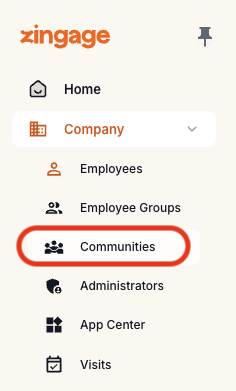
Contact your Zingage team and request that Communities be enabled for your account. Once it's turned on, you'll see a Communities option appear in your Company dropdown menu in the admin dashboard.
Step 2: Create a Community from Employee Groups
Communities are built on top of your existing employee groups. To create one:
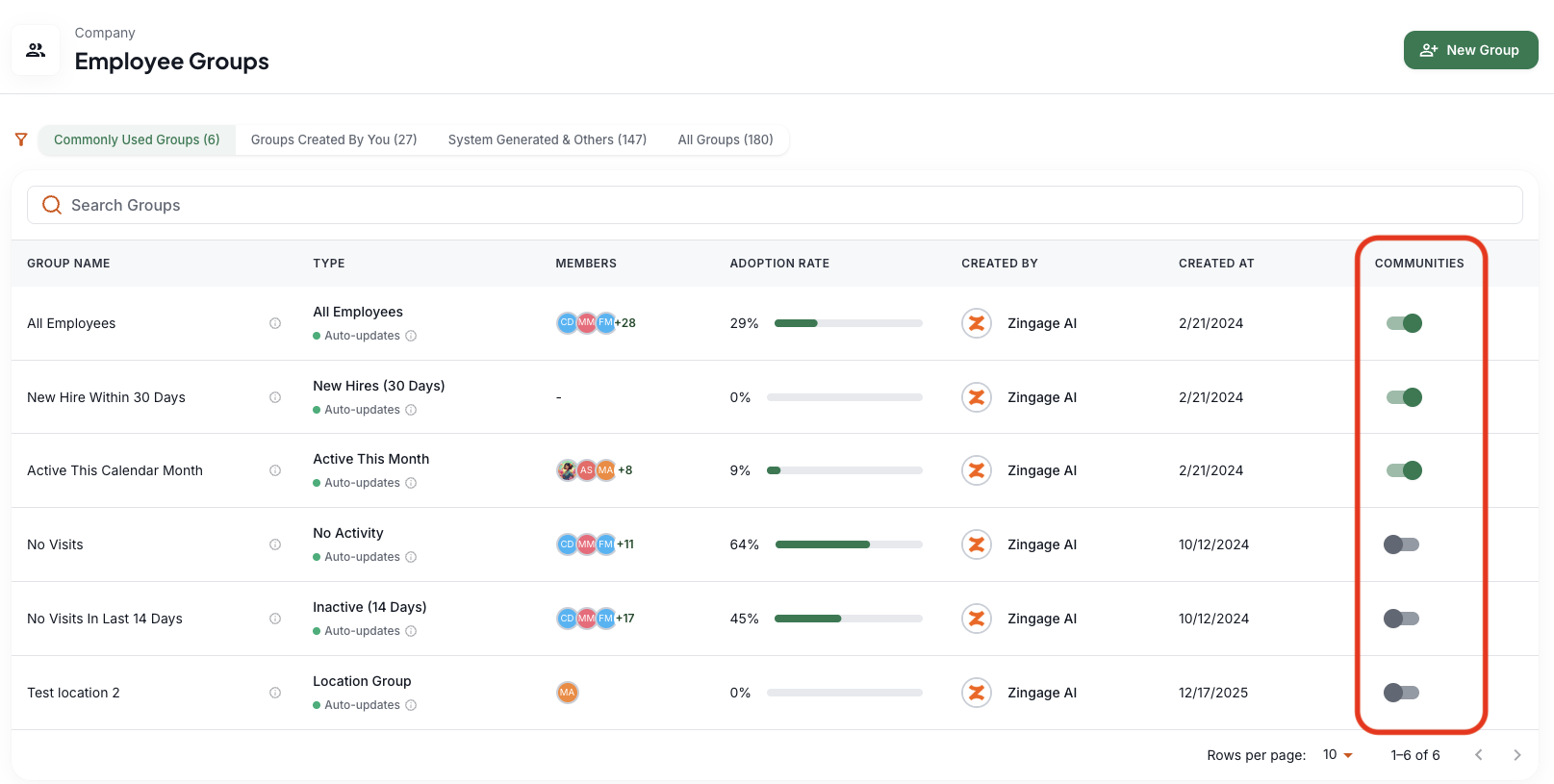
Navigate to Employee Groups in your admin dashboard.
Once Communities is enabled, a new Communities toggle column will appear on this page.
Find the employee group you want to create a community for (for example, caregivers assigned to a specific client).
Toggle the switch to green for that group.
A setup window will appear. Enter a name and description for the community.
Choose whether to enable View Only for Caregivers (see note below), then click Enable Community.
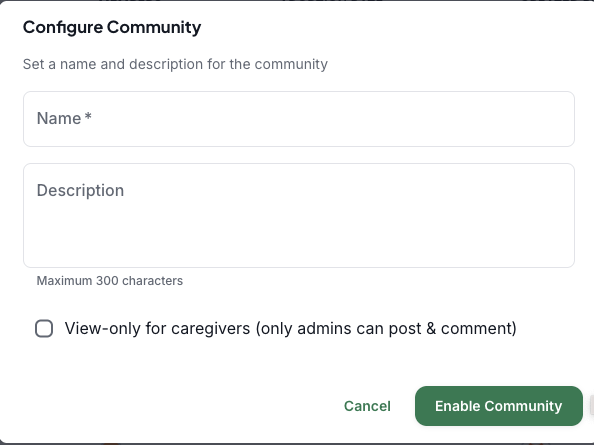
What is "View Only for Caregivers"? Checking this box creates a read-only message board where only admins can post. Caregivers can log in and view messages but cannot comment or post themselves. This is similar to the Announcements workflow, but instead of sending text messages, caregivers simply view posts when they log into the app. Leave this unchecked if you want caregivers to be able to post and interact with each other.
Step 3: Access and View Your Communities
Once a community has been created:
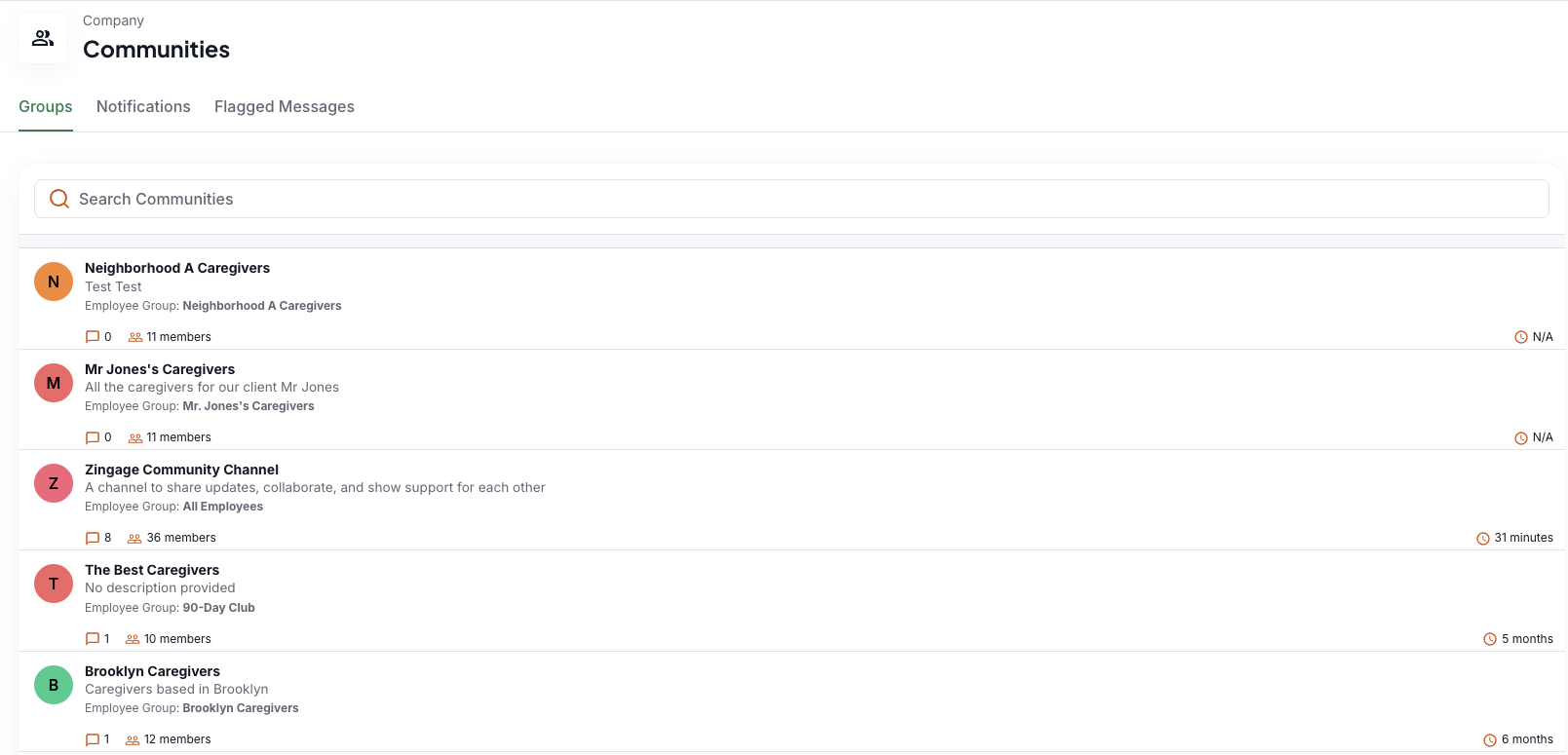
Go to Company > Communities from the top navigation.
You will see a list of all your active communities. Click into any community to view the feed.
From within any community feed, admins can:
Post text messages, photos, videos, and emojis.
View and respond to messages from caregivers (if View Only is not enabled).
See posts from all members of the community group.
Moderate Content — Flagging and Deleting Messages
As an admin, you have tools to keep communities safe and professional.
Manual Flagging and Deleting
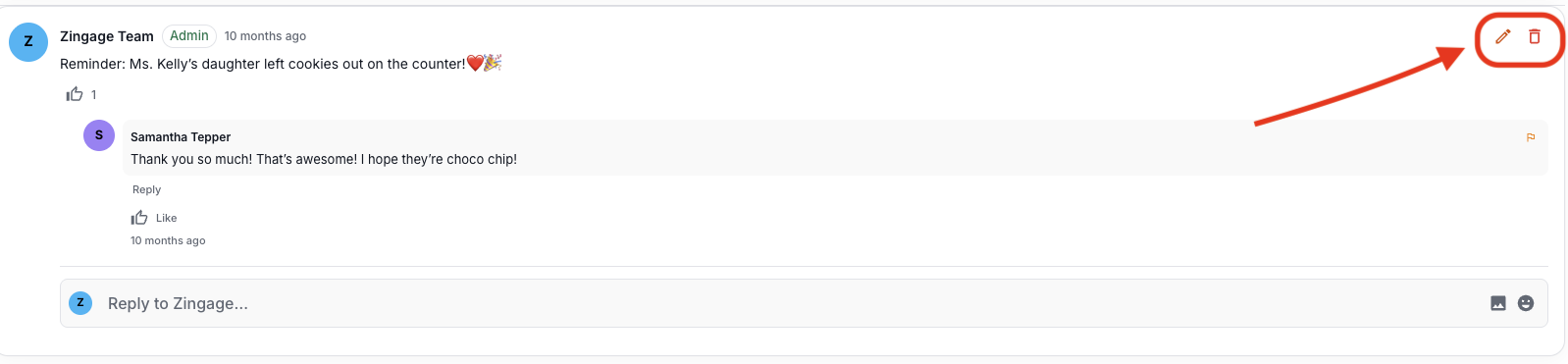
On any message in the feed, you will see a Flag button and a Delete button.
Flagging a message: The message will no longer be visible to other caregivers. Only admins can see it once flagged.
Deleting a message: The message is removed from the community entirely.
Automatic Flagging (AI Moderation)
Zingage's built-in AI content moderation automatically monitors posts for inappropriate language, including profanity or other flagged keywords. When a message is automatically flagged:
The message is hidden from all other caregivers immediately.
Only the admins can see it
It will appear in the Flagged Messages section for your review.
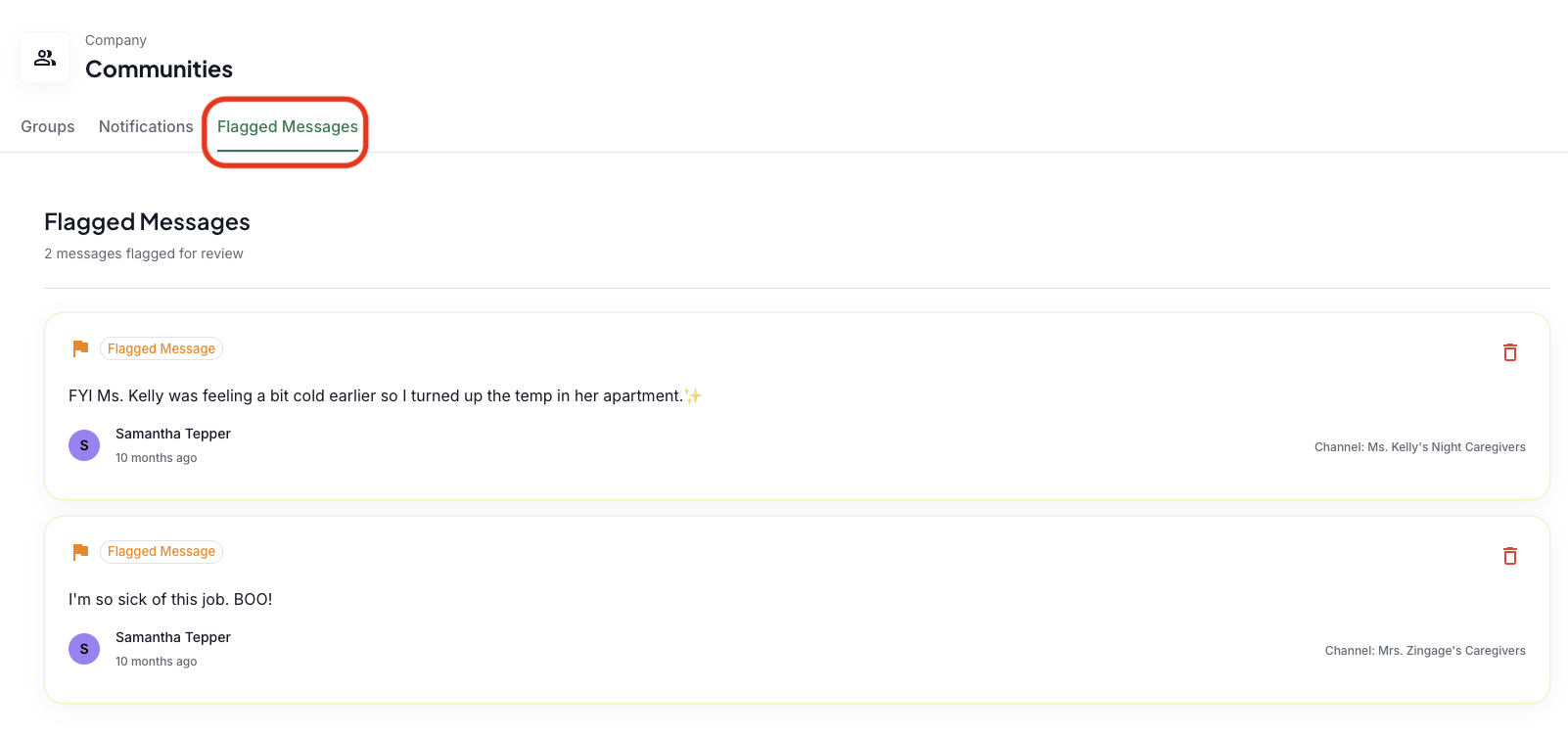
From here, you can review flagged content and decide whether to delete it permanently or un-flag it.
Monitor Notifications
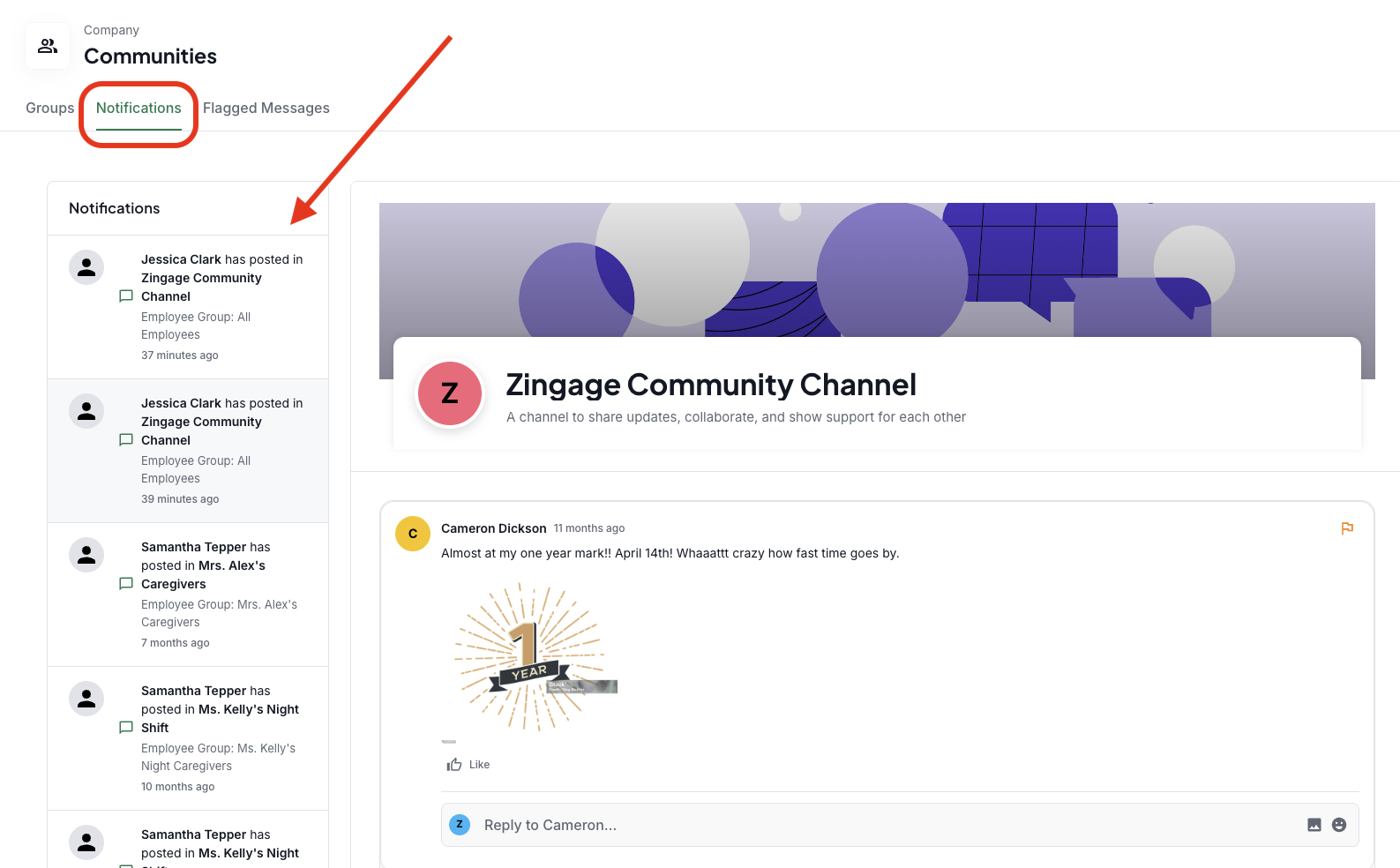
The Notifications column within Communities gives you a running view of activity happening across your community groups — new posts, comments, and flags. Use this to stay on top of engagement and quickly catch anything that needs your attention.