Survey Results: Time Range Filters & Auto-Emails
Last updated: February 24, 2026
Zingage has released two new features for the Surveys workflow: a time range filter for viewing responses and an auto-email feature that lets you send survey results to specific team members either manually or on a schedule.
Part 1: Filtering Survey Results by Time Range
Previously, the survey dashboard displayed all responses across 'all time'. You can now filter by a specific date range.
Navigate to the Surveys dashboard via Workflows > Surveys
Click on the name of survey you want to review (e.g., First 30 Days Check-In).
You'll see all submitted answers. Then locate the new Time Range Filter at the top of the responses view (screenshot below).
Select your desired time range: Today, This Week, This Month, or Custom Range (pick any start and end date).
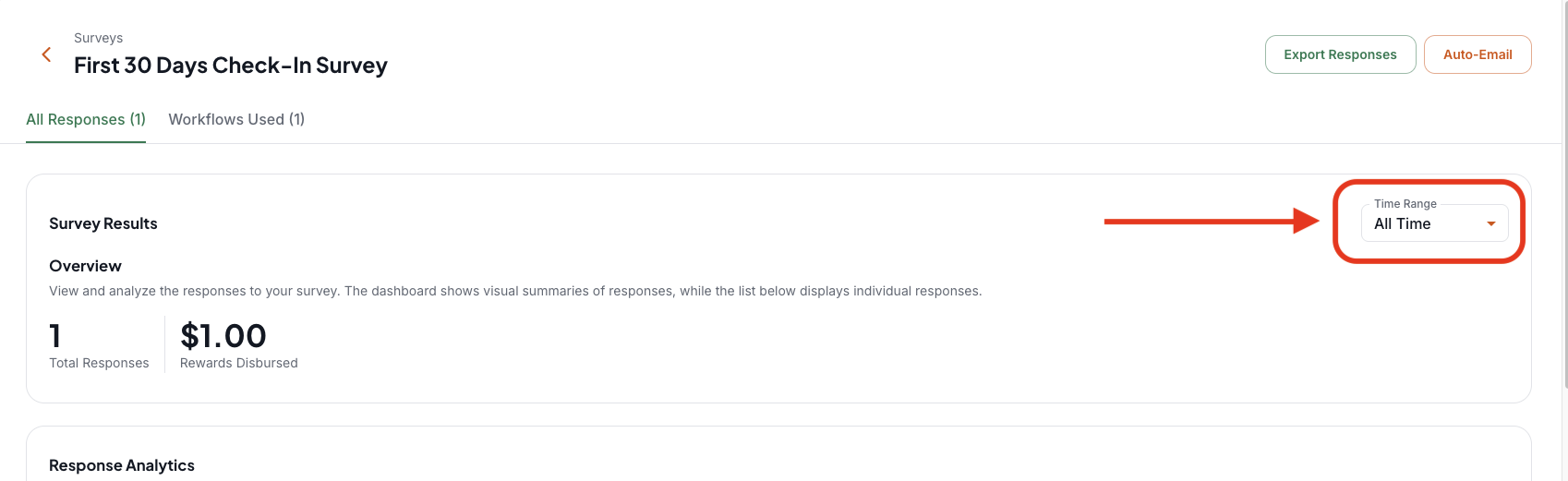
The results will update to show only responses submitted within the selected timeframe. The active filter also determines what gets included when you send results via email.
Part 2: Setting Up Auto-Email for Survey Results
The Auto-Email feature lets you send survey results to specific team members — such as a recruiter, HR coordinator, or onboarding specialist — either on demand or on a recurring schedule.
From the survey's results page, click the Auto-Email button in the top-right corner.

Enter the email address(es) of the team members who should receive results, then click Add. You can add multiple recipients.
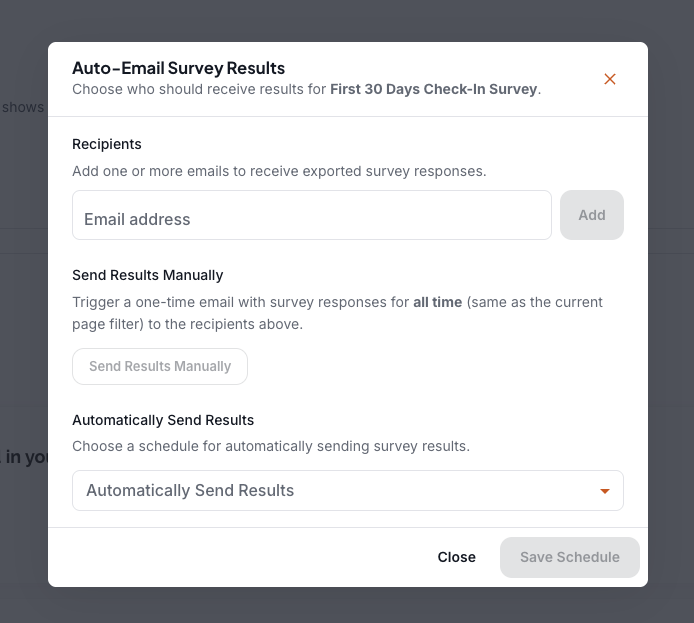
Choose how you want to send the results:
Send Manually — Click Send Manually to immediately send a one-time email with responses from the currently active time range filter.
Weekly — Best for recurring surveys (e.g., a weekly pulse survey). Results are emailed to recipients every week.
Monthly — Best for surveys that run over a longer period.
When the Survey Closes — Best for one-off surveys with a defined end date. Results are sent automatically once the survey closes.
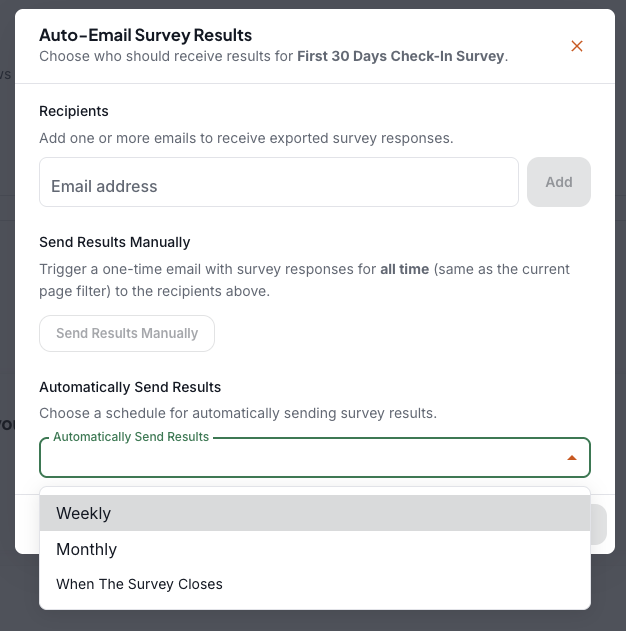
Click Save Schedule. The system will continue sending on the selected schedule going forward.
Tips & Best Practices
The time range filter you have active on the results page determines what data is included in a manual send.
You can set different recipients and schedules for each individual survey — useful for routing onboarding surveys to your onboarding team and pulse surveys to management.
Auto-Email settings are saved per survey, so changes on one survey won't affect others.