Invite Your Administrative Team
Last updated: July 28, 2026
Caregivers sync from your EMR, but administrative users must be invited manually. This article explains how to invite team members, select their roles, and assign spot-reward budgets.
🎥 Walkthrough: Connect Your Team, Send Admin Invites
Related Articles and Resources:
Invite an administrator
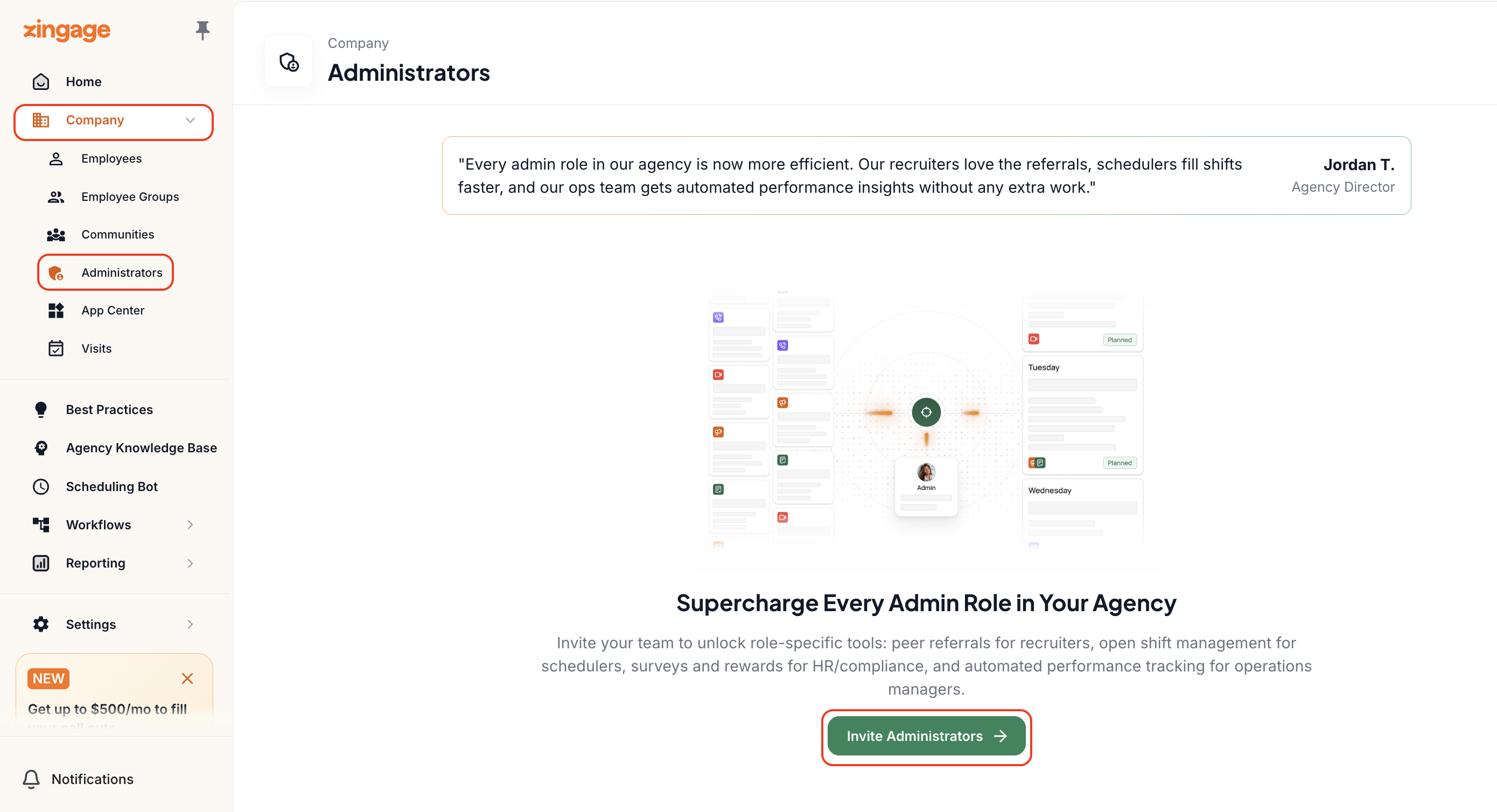
Go to Company > Administrators, or select Connect Your Team from the Getting Started checklist.
Select Send Invite.
Choose the appropriate role. For more information on the roles, check out our User Roles and Permissions on Zingage article
Account Owner: Full platform access, including financial visibility and unrestricted rewarding capabilities.
Admin: Broad platform access with some financial limitations.
Announcement and Rewards: Can create and send announcements and has reward access.
Announcements Only and other limited roles: Provide narrower visibility based on the responsibilities of the user.
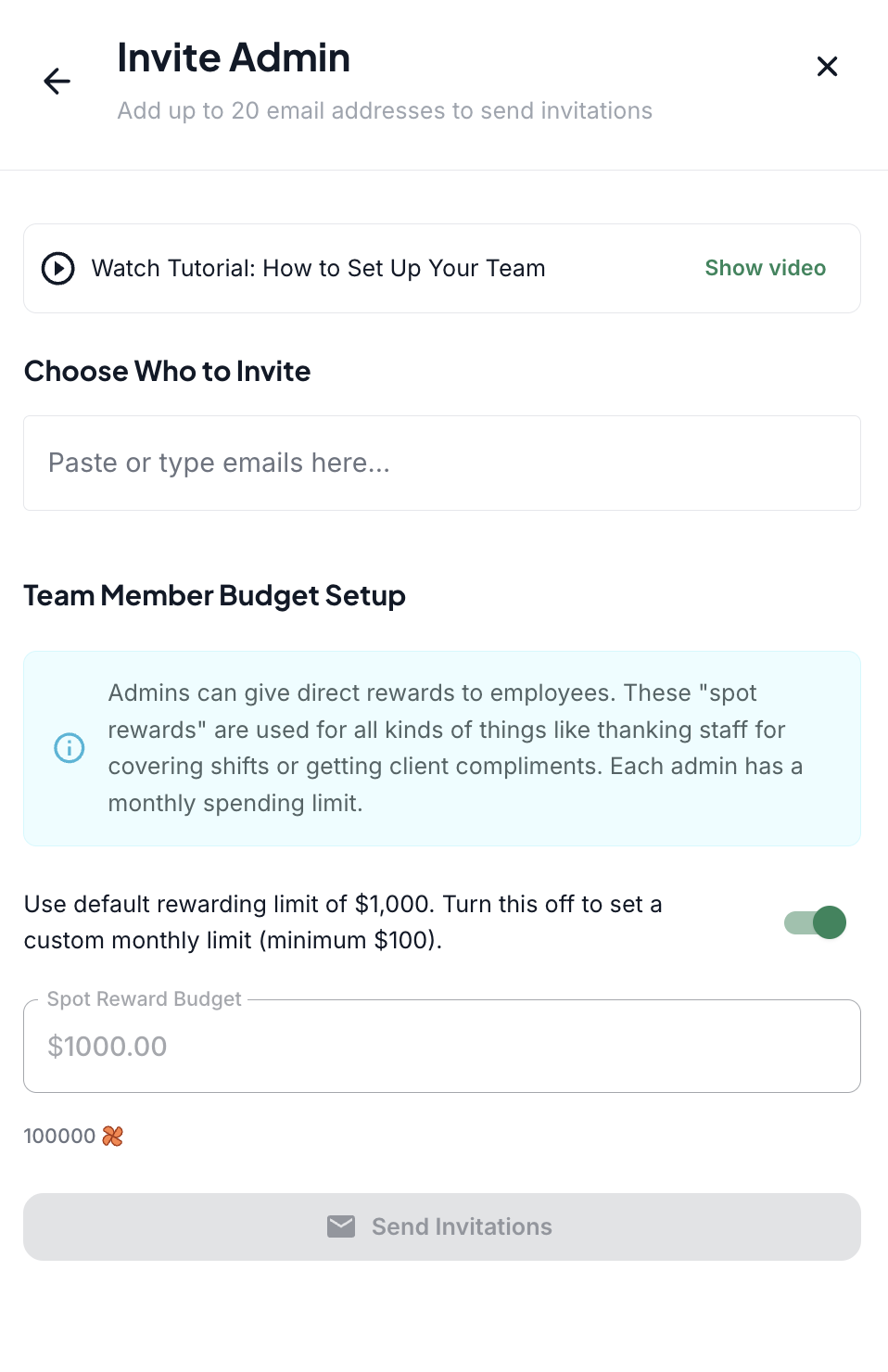
Enter one or more email addresses.
Set the monthly spot-reward budget when applicable.
For roles that can send rewards, use the default monthly budget or enter a custom amount.
The assigned amount is the maximum that the administrator can send in spot rewards each month.
Roles without rewarding permissions do not require a budget.
Select Send Invitation.
Check invitation status
Onboarded means the user accepted the invitation and completed their profile.
Pending or Invited means the invitation was sent, but the user has not completed onboarding.