Build and Export Caregiver Reports
Last updated: July 28, 2026
Report Builder lets administrators create customized reports using caregiver activity, engagement, and reward data.
🎥Walkthrough: How to Use Report Builder
Related Articles and Resources:
Create a report
Go to Reporting > Report Builder.
Select Create New Report.
Choose the employee group to include, such as All Employees, New Hires, or a custom group.
Select Next.
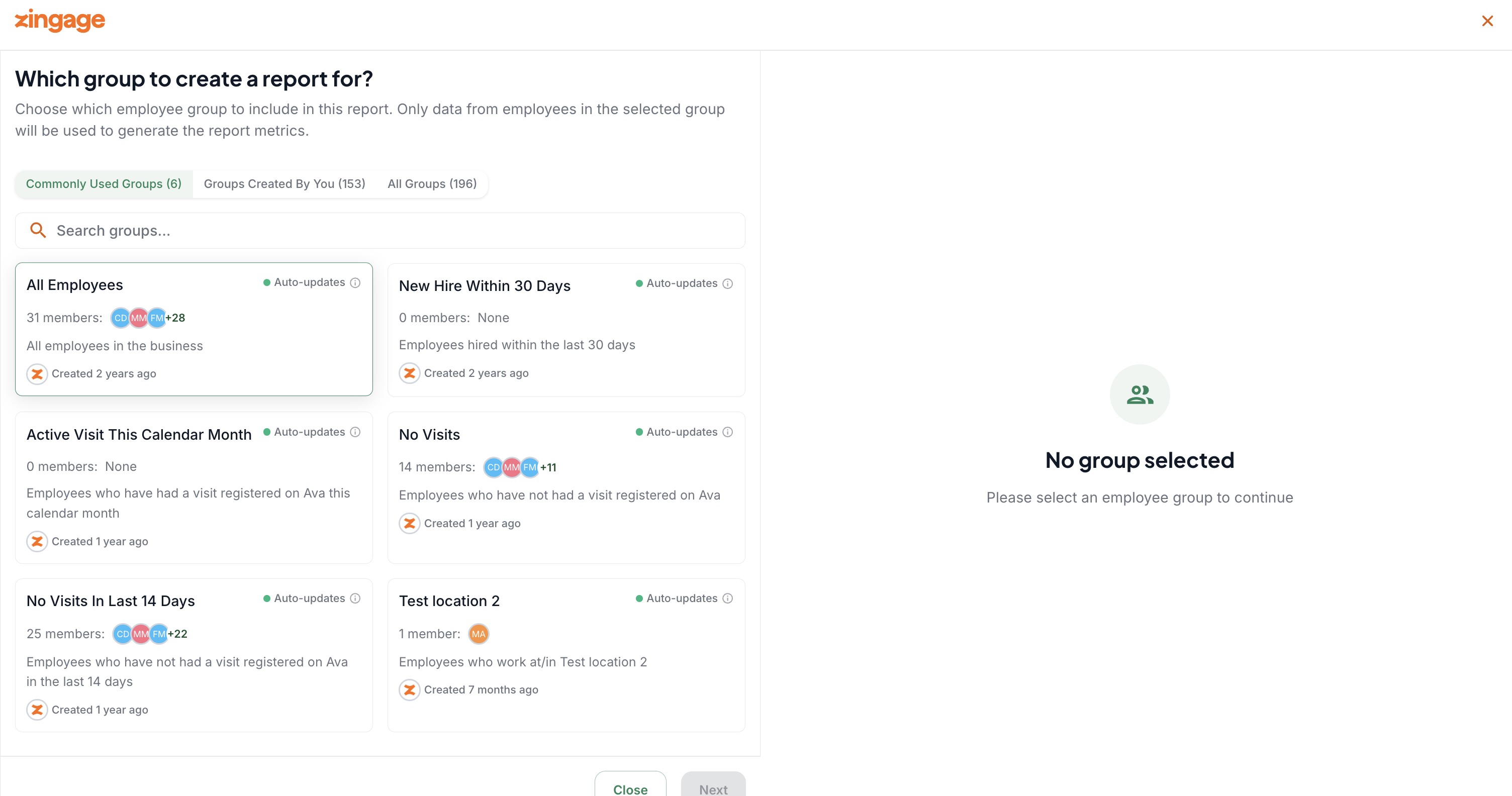
Select the metrics and fields you want to include.
Available data depends on the information that has synced to your account and the features your agency uses.
Choose a date range when the metric requires one.
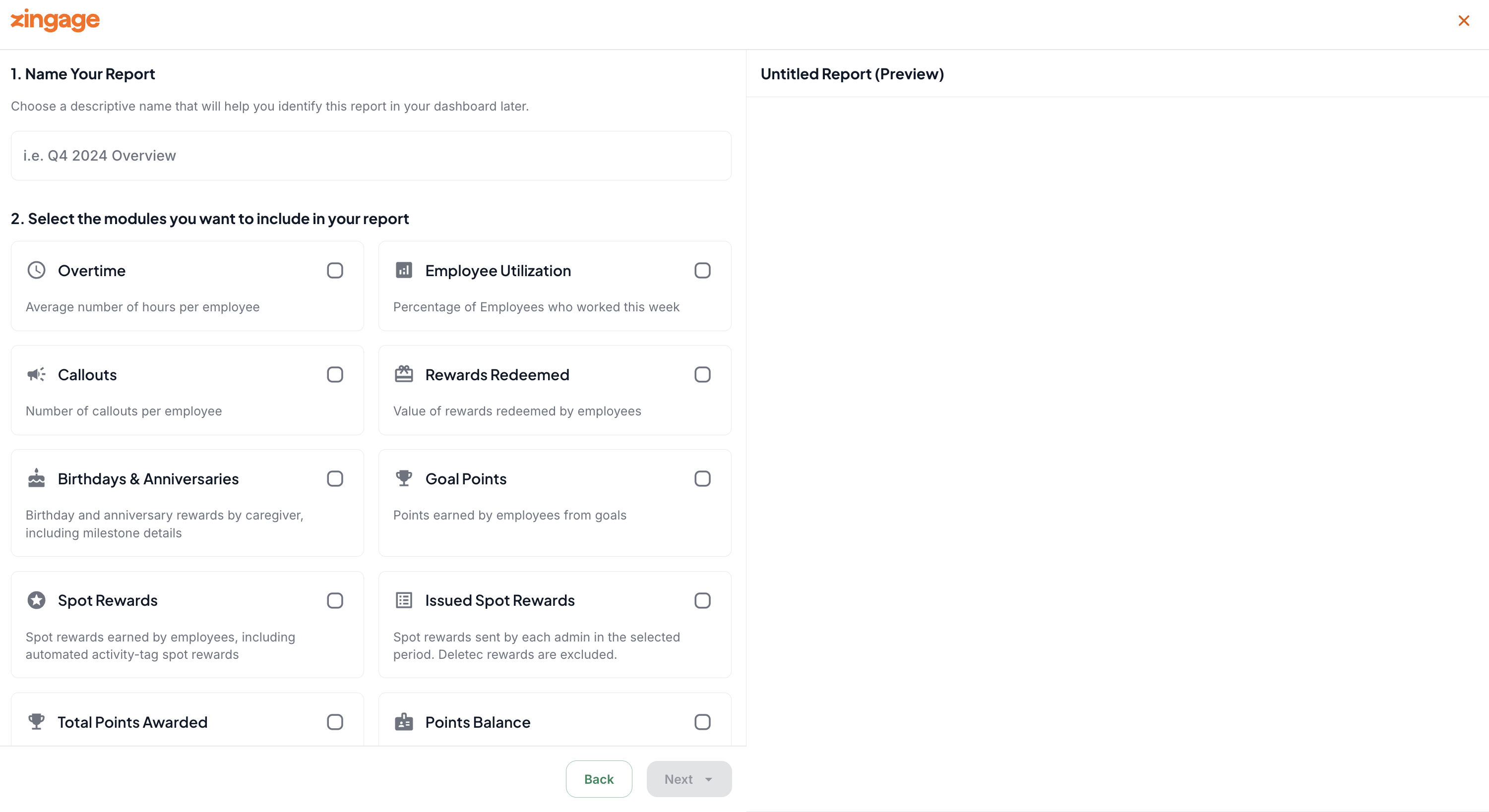
Customize the report
Add a clear report name.
Review the selected columns and arrange them in a useful order.
Remove fields that are not needed.
Generate and export
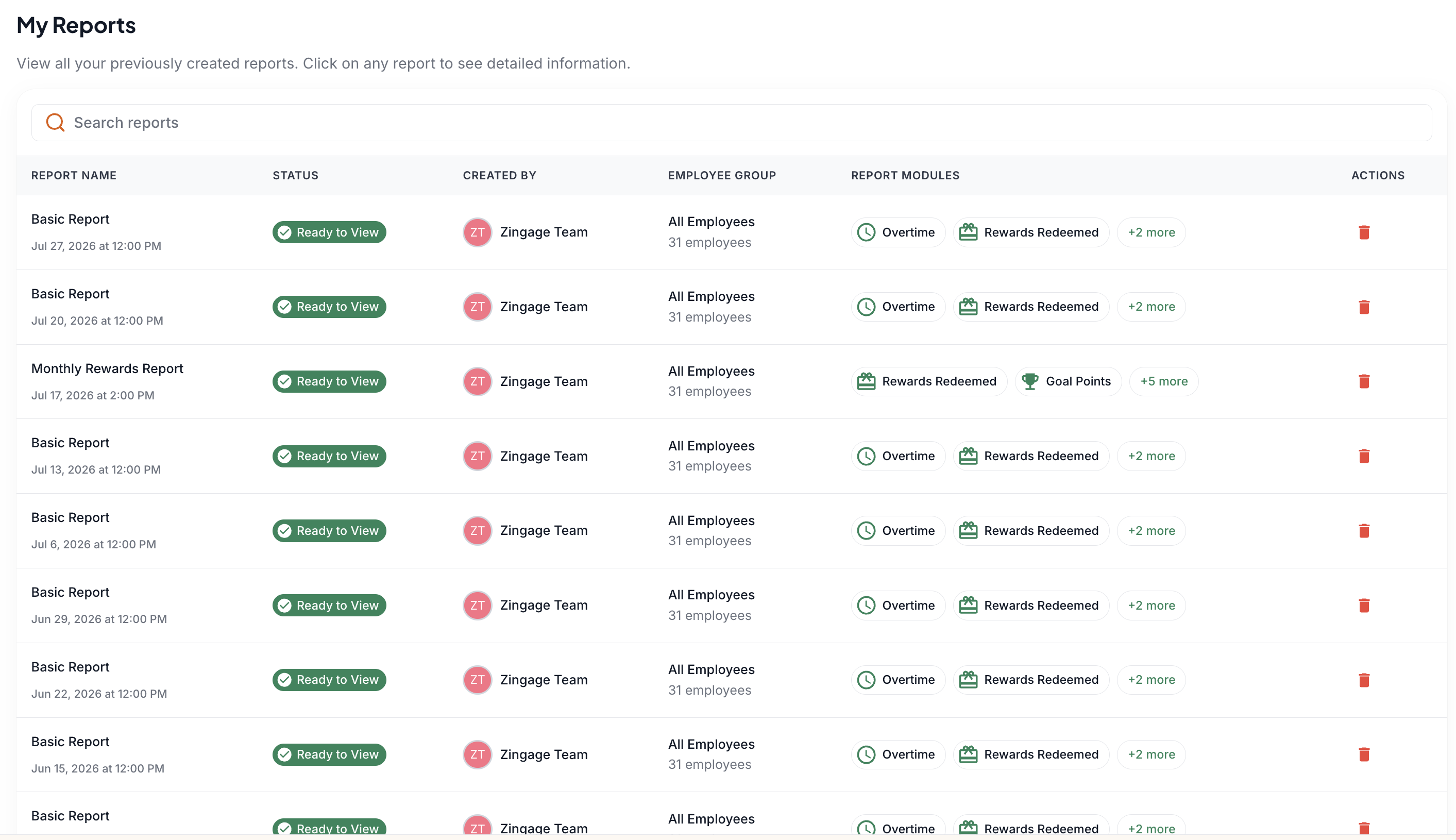
Run the report.
Review the results for completeness.
Export the report when you need to share or analyze it outside Zingage.
Tips
Allow enough time for caregiver activity to accumulate before expecting a detailed report.
Use employee groups to create focused reports for new hires, specific branches, or other segments.
Confirm that EMR data is current when a report appears incomplete.