Auto Emails Within Peer Referrals
Last updated: May 13, 2026
Video Tutorial: Time Ranges & Auto-Emails in Peer Referrals
How to Access Peer Referrals
Go to Workflows in your admin dashboard and click Peer Referrals. This will bring you to the main referral homepage, where you can see an overview of all your referral data.
Auto Email Notifications
You can now set up automatic email notifications per referral job, so that the right people on your team are notified when a new referral comes in — without everyone receiving every submission.
Step 1: From within a specific referral job page, click Auto Email in the top right, the below pop-up will appear.
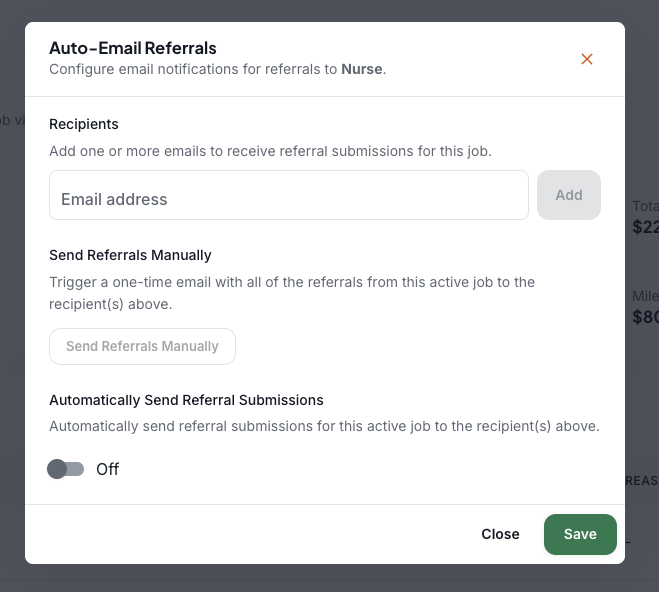
Step 2: Enter the email address of the team member you want to receive notifications for that job, then click Add.
Step 3: Choose how you'd like them to be notified:
Toggle on automatic notifications so they receive an email every time a new referral is submitted, or
Leave it off to do a manual one-time send of all referrals at once.
Step 4: Repeat this process for other jobs as needed. Each job can have different people assigned to it.
This is especially helpful if you have different team members managing referrals for different roles or locations.
Other Helpful Reminders
You can still export all referrals for a specific job directly from the job page. And if you ever want to see all of your referral data in one place, just navigate back to the main Peer Referrals homepage.