How the Zingage Auto-Invite Feature Works
Last updated: August 7, 2025
📍Where are the Auto Invite Settings Located?
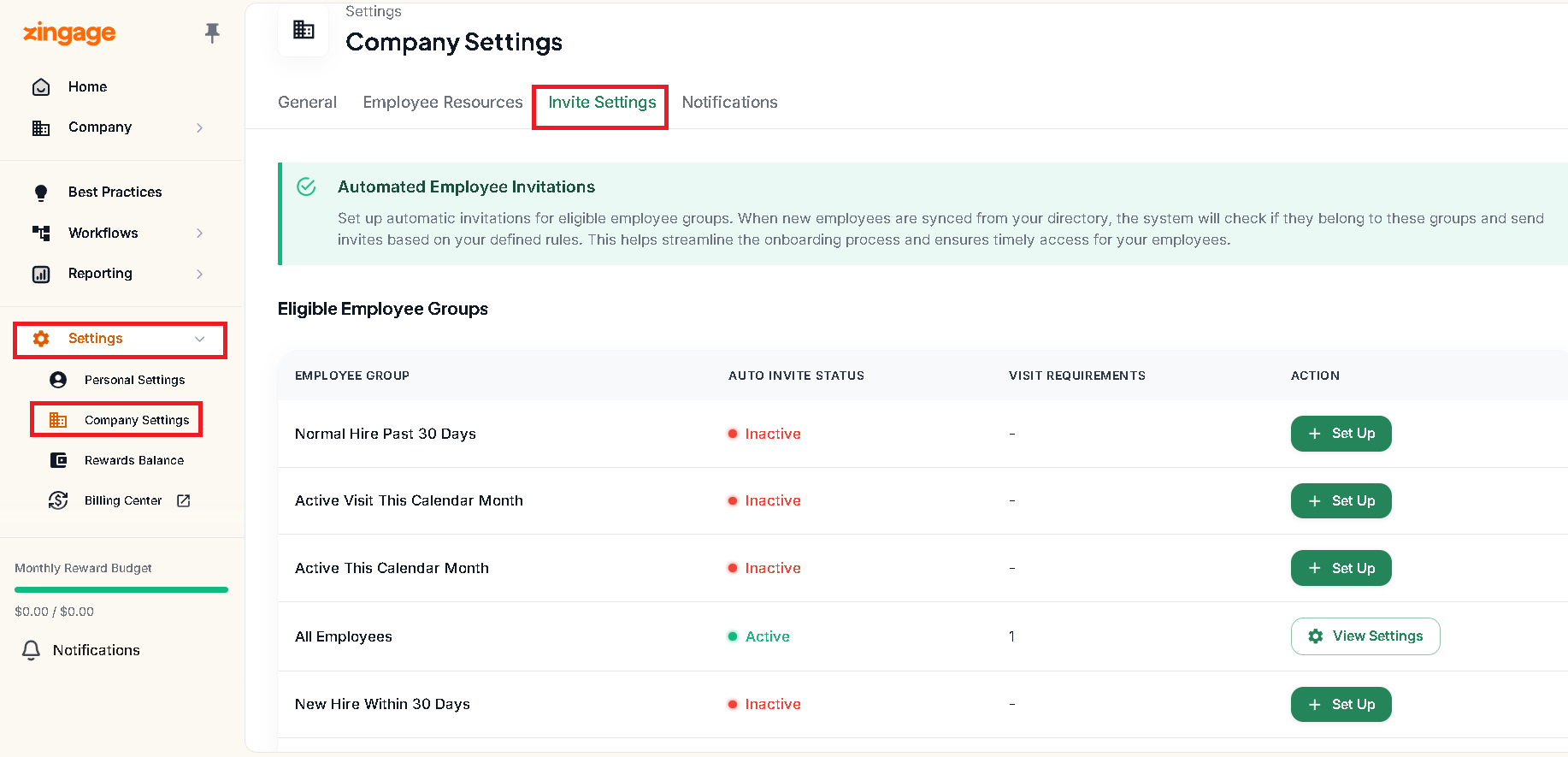
In the left Navigation pane, go to Settings > Click Company Settings > Click Invite Settings:
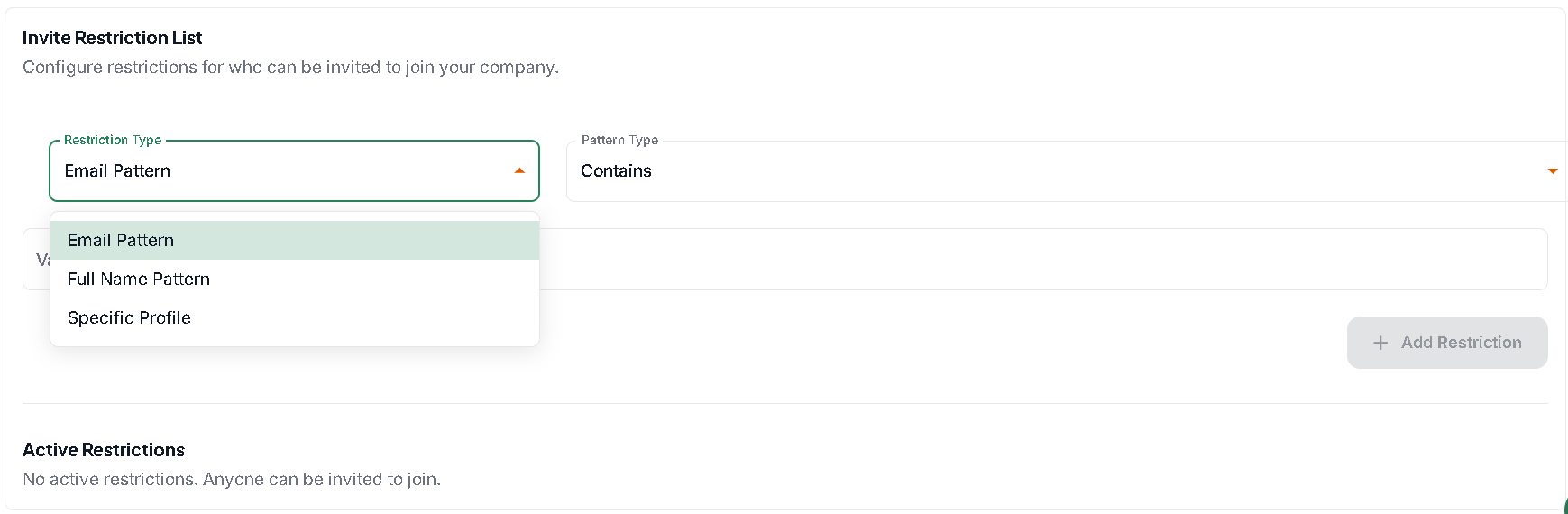
You can also scroll down this section to add restricted email addresses, names, and profiles that will prevent Zingage from inviting the people you do not want on Zingage:
When new caregivers are added to the EHR (WellSky, AlayaCare, AxisCare, etc.), Zingage automatically begins the process of creating their accounts—however, invitations are not sent immediately. Here’s a breakdown of how it works:
✨ What Happens Behind the Scenes:
Caregiver is added to the the EHR
Within 24–48 hours, Zingage automatically generates their profile
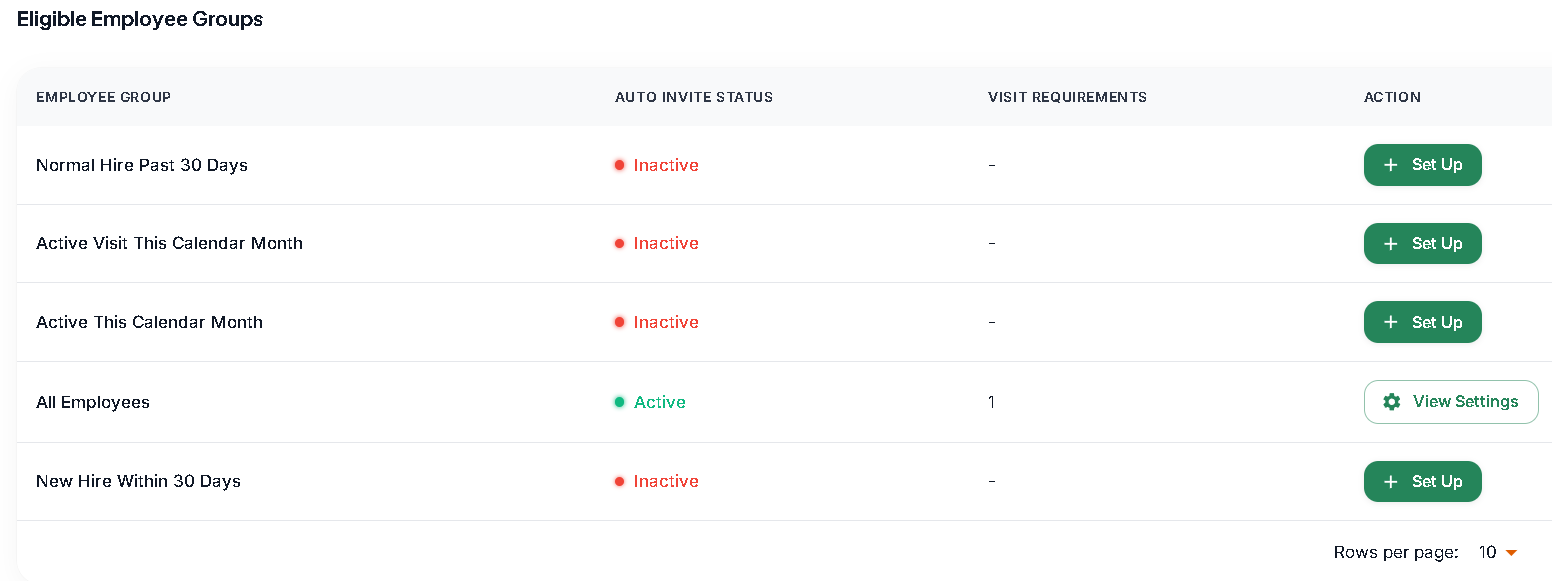
If your agency’s auto-invite settings are enabled for their employee group, Zingage will automatically send an invitation—but only after the caregiver meets the requirement. For example: this photo shows that auto invites are on for All Employees with invites being sent after the caregiver completed their first visit:
If auto-invite is not enabled, their profile will remain in the Not Invited section of the Employees tab, and a staff level user will need to manually invite them
Important Note:
Even if auto-invite is enabled, admins can still manually invite users before Zingage sends the automatic invite. This is done by clicking the Invite button in the Not Invited section of the Employee table.
Currently, this option cannot be disabled, as it's a system-wide feature across all partnered agencies.
✅ Our Recommendation
To ensure everything flows smoothly and avoid inviting caregivers before they’ve met the required criteria (like completing a visit), we recommend the following:
Hold off on manually inviting new users
Allow Zingage to automatically invite them once all requirements are met
This helps prevent confusion and ensures that caregivers only join the platform when their account is fully set up and ready to go.