Flagged Messages in Communities: Adding Your Own Keywords
Last updated: August 10, 2026
You now have the ability to add your own keywords that you would like flagged within your different Communities. Automated flaggings for things like curse words and/or slurs will be remain, but if you have specific things you want flagged such as phone numbers, pay, salary, etc, that can now be added by you and your team for further control and customization over your Communities. Any post containing a flagged keyword will be removed from the main community view and only be visible by the admin team under the Flagged Messages tab.
To add your own keywords, checkout this video tutorial: https://jam.dev/c/a7eb4381-c6a2-417e-a2c9-f792f6310109 or follow the steps below:
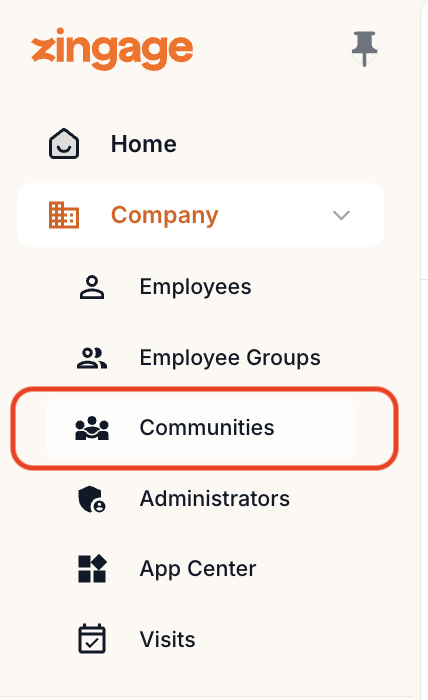
1.) Go to the Company dropdown and click Communities
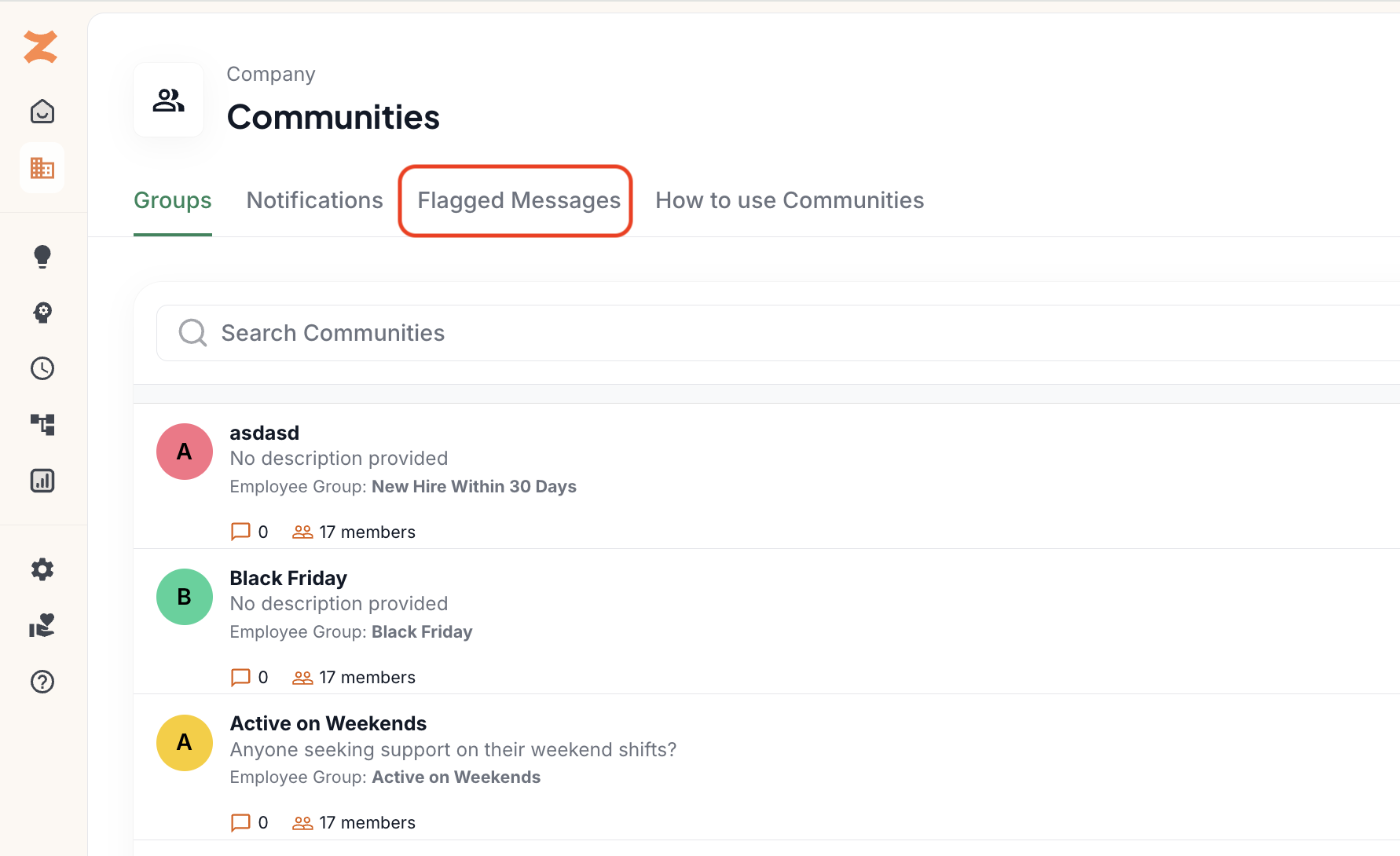
2.) Toggle over to the Flagged Messages column at the top
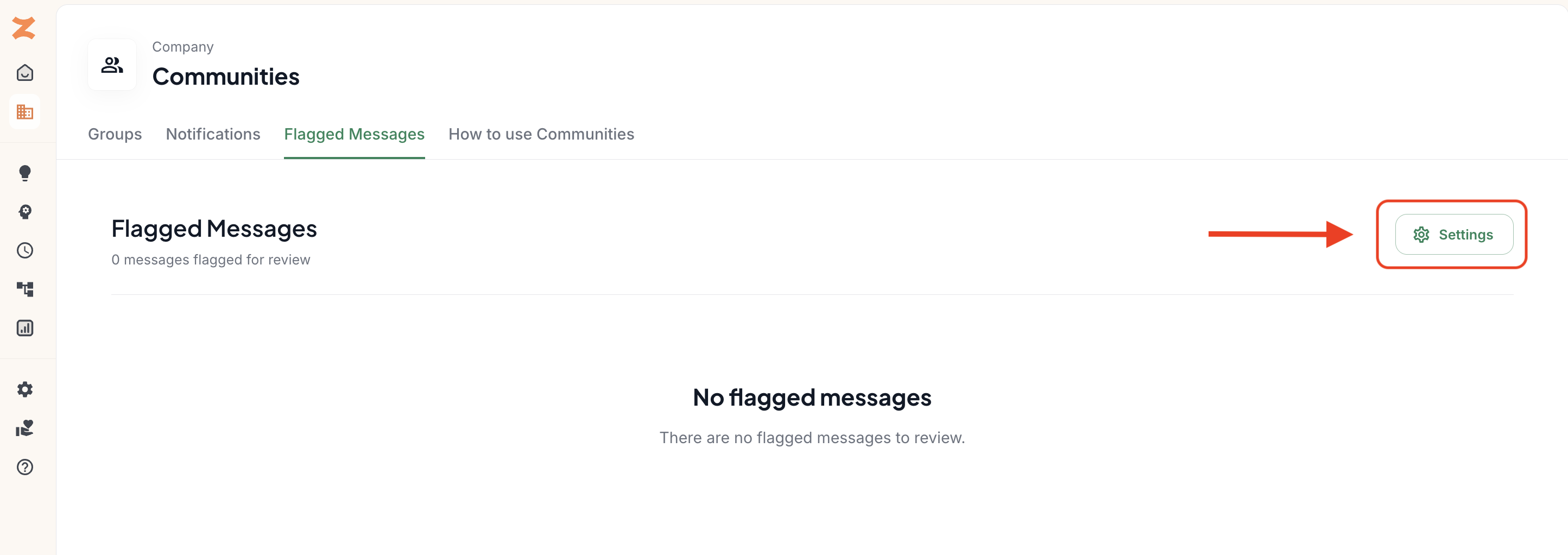
3.) Click the Settings button on the right
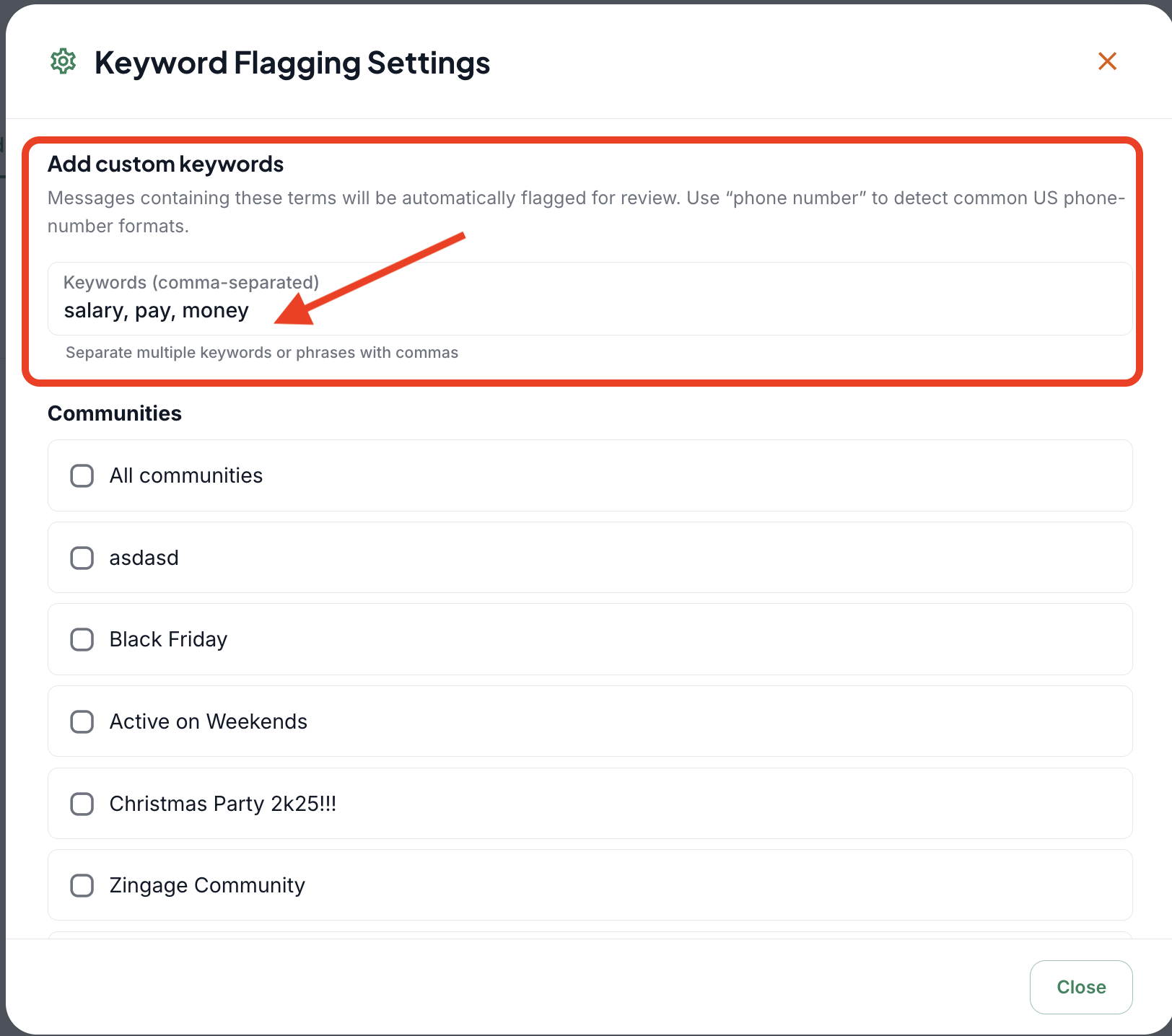
4.) Add your desired keywords to be flagged. If there is more than one, separate them with a comma.
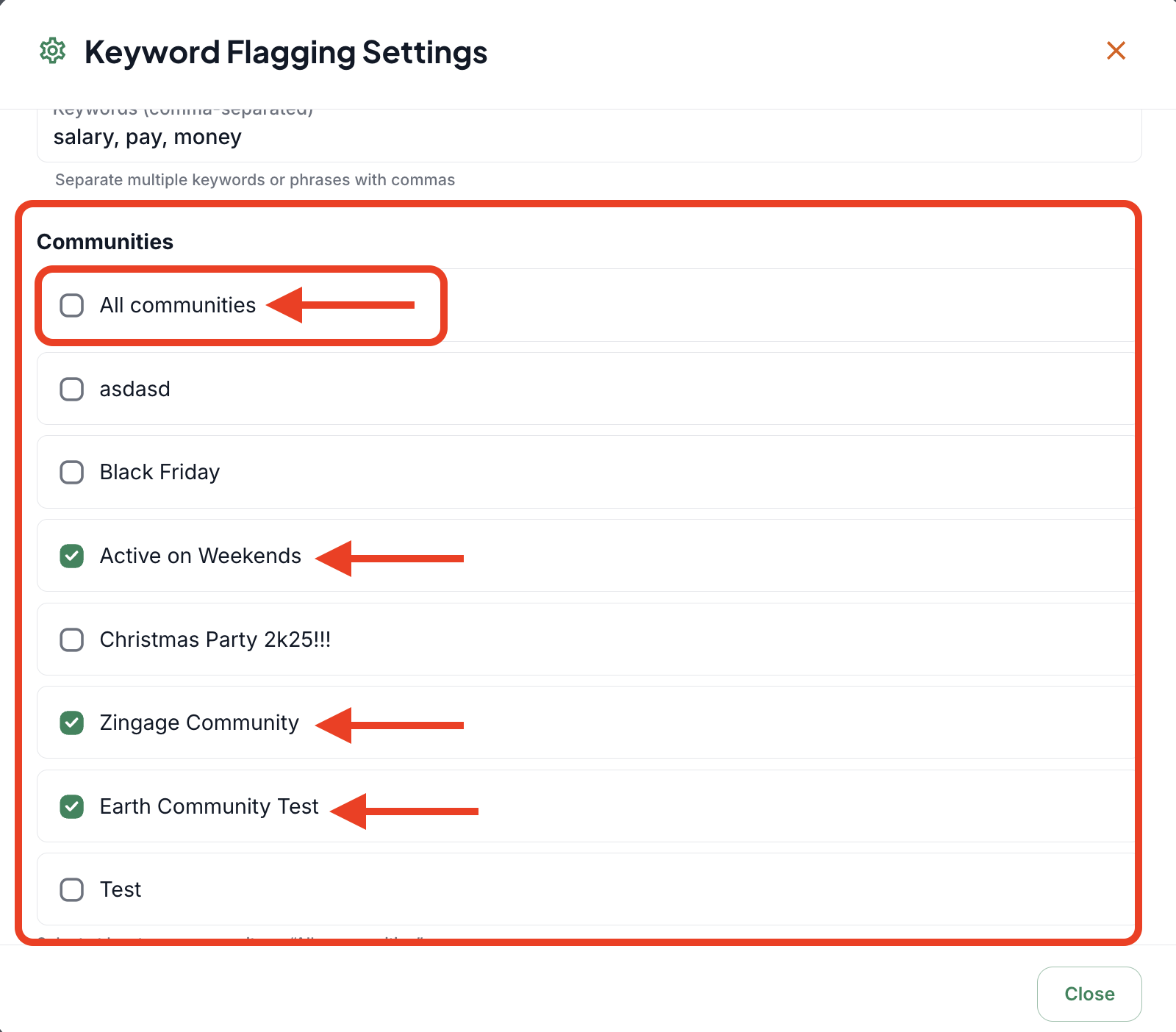
5.) Select which Communities you'd like these words to be flagged in. If you want it to be flagged in all of your Communities, select 'All Communities'
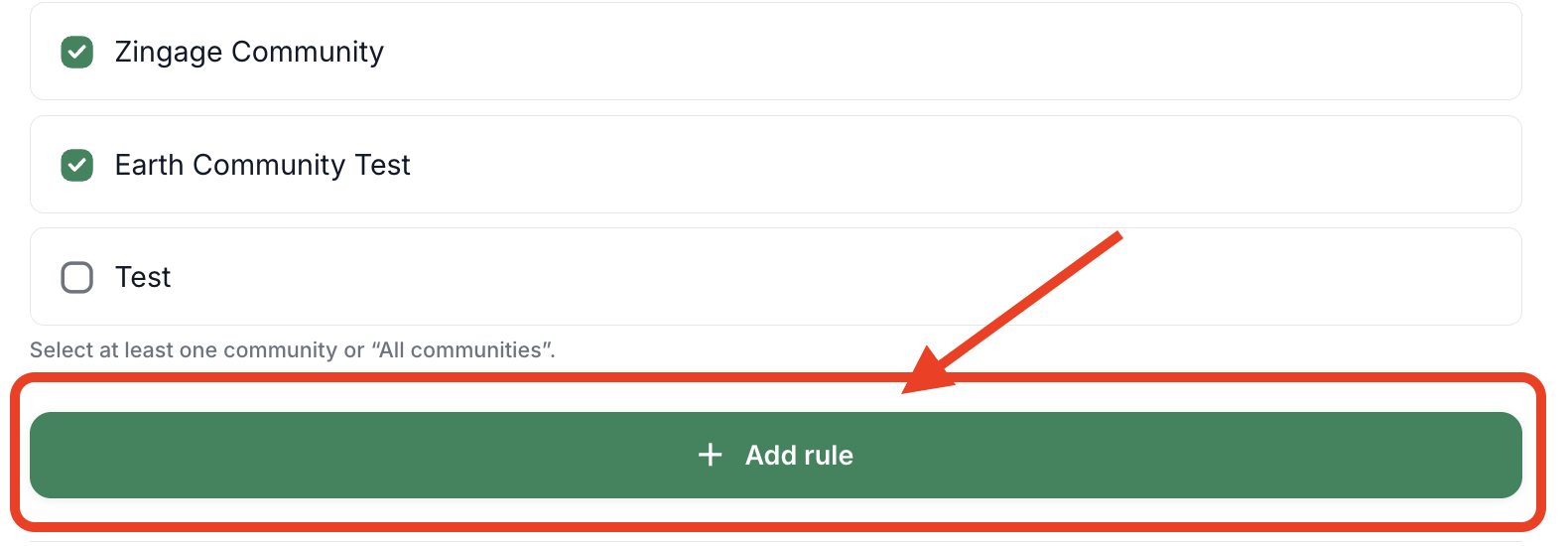
6.) Click 'Add Rule' at the bottom to confirm these keywords for your Community
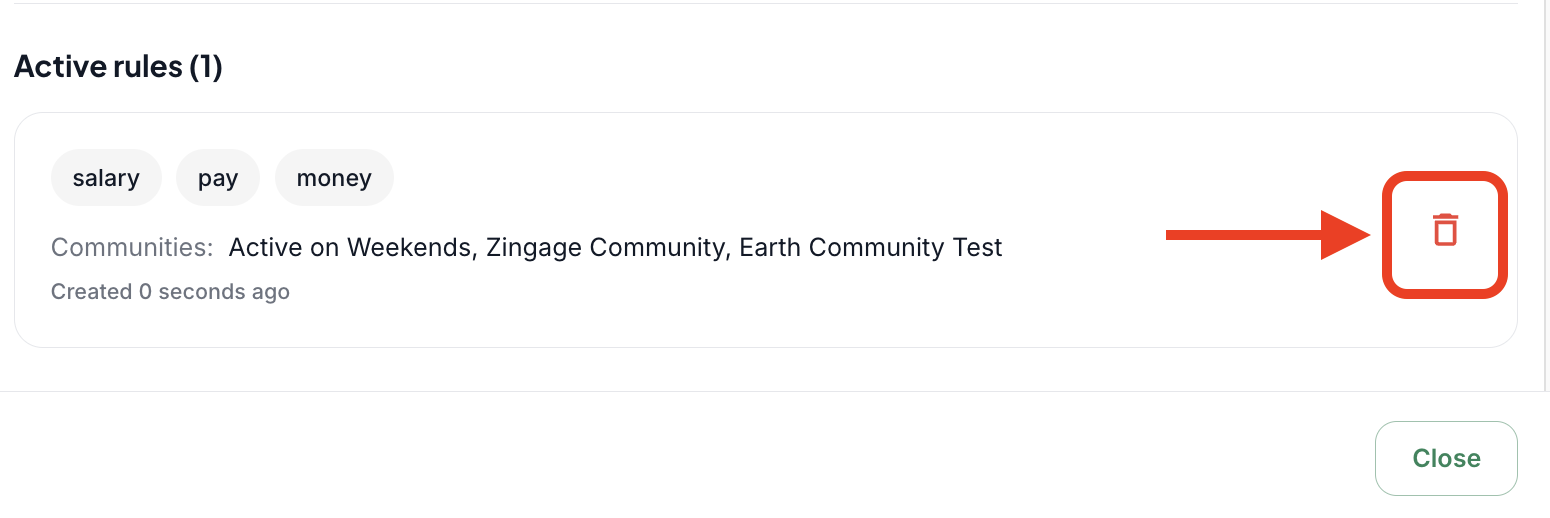
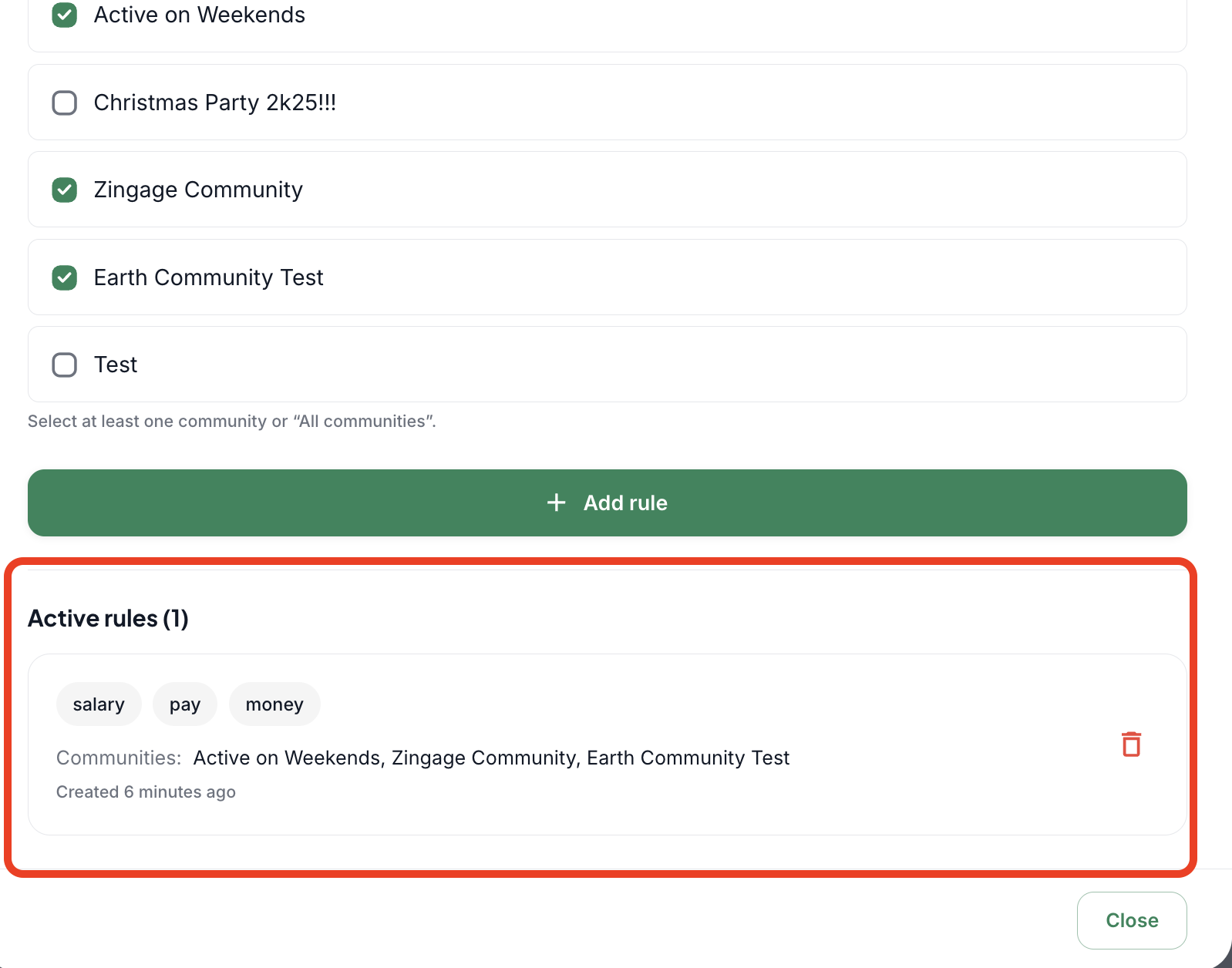
From there, the keywords will appear under the 'Active Rules' section.
7.) You can click Close to return to the main page and your keywords will be saved.
If you wish to remove keywords you can click the Settings button again under the main Flagged Messages view and click the trash can icon to remove them.