How to Convert a Survey into a Quiz
Last updated: January 4, 2026
🎥 Tutorial: How to Transform a Survey into a Quiz 📝
Step 1: Navigate to Surveys
From your dashboard, hover over the left navigation menu.
Click Workflows.
Select Surveys.
Step 2: Open the Survey You Want to Change
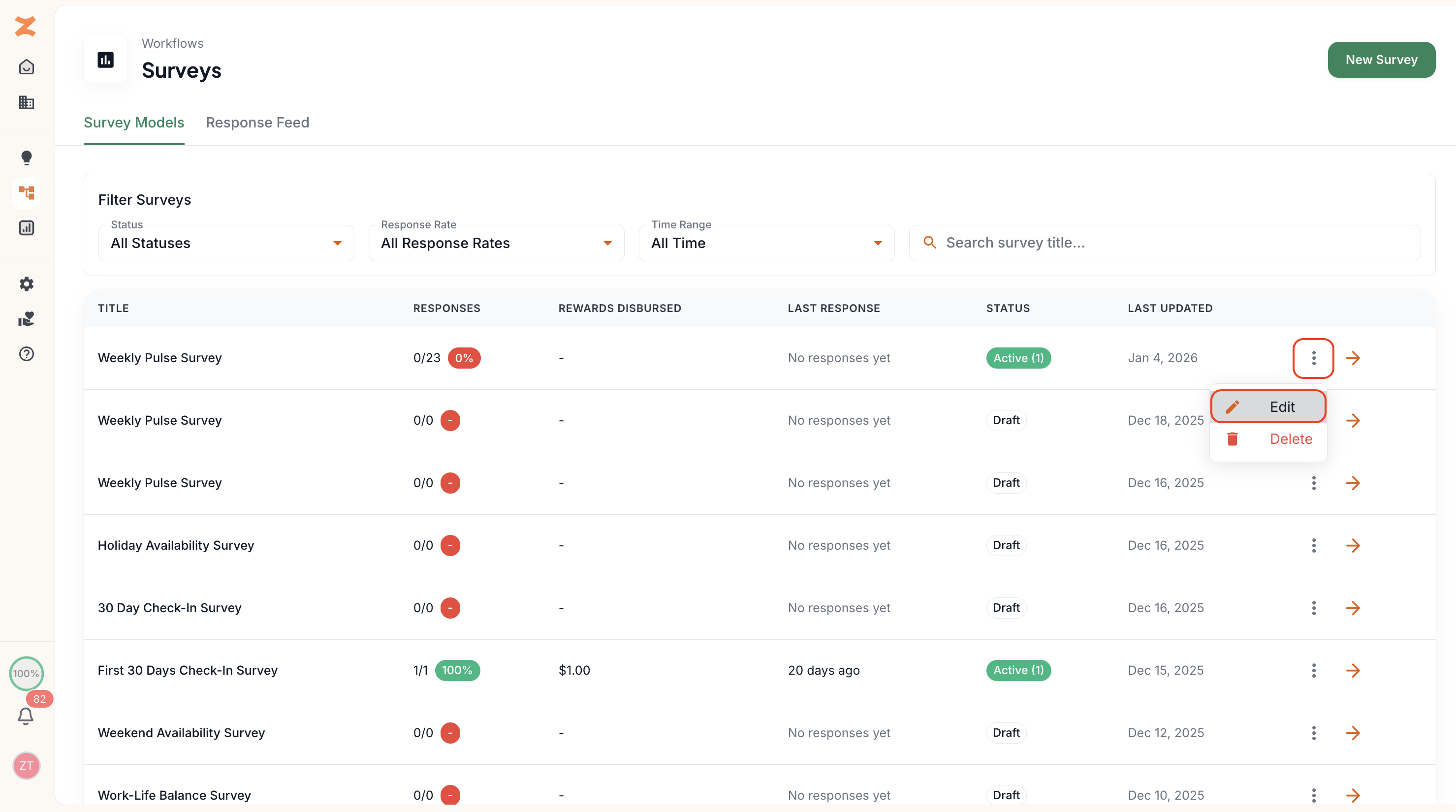
Click on the survey you’d like to convert into a quiz.
Select the three-dot menu.
Click Edit.
Step 3: Enable Quiz Mode
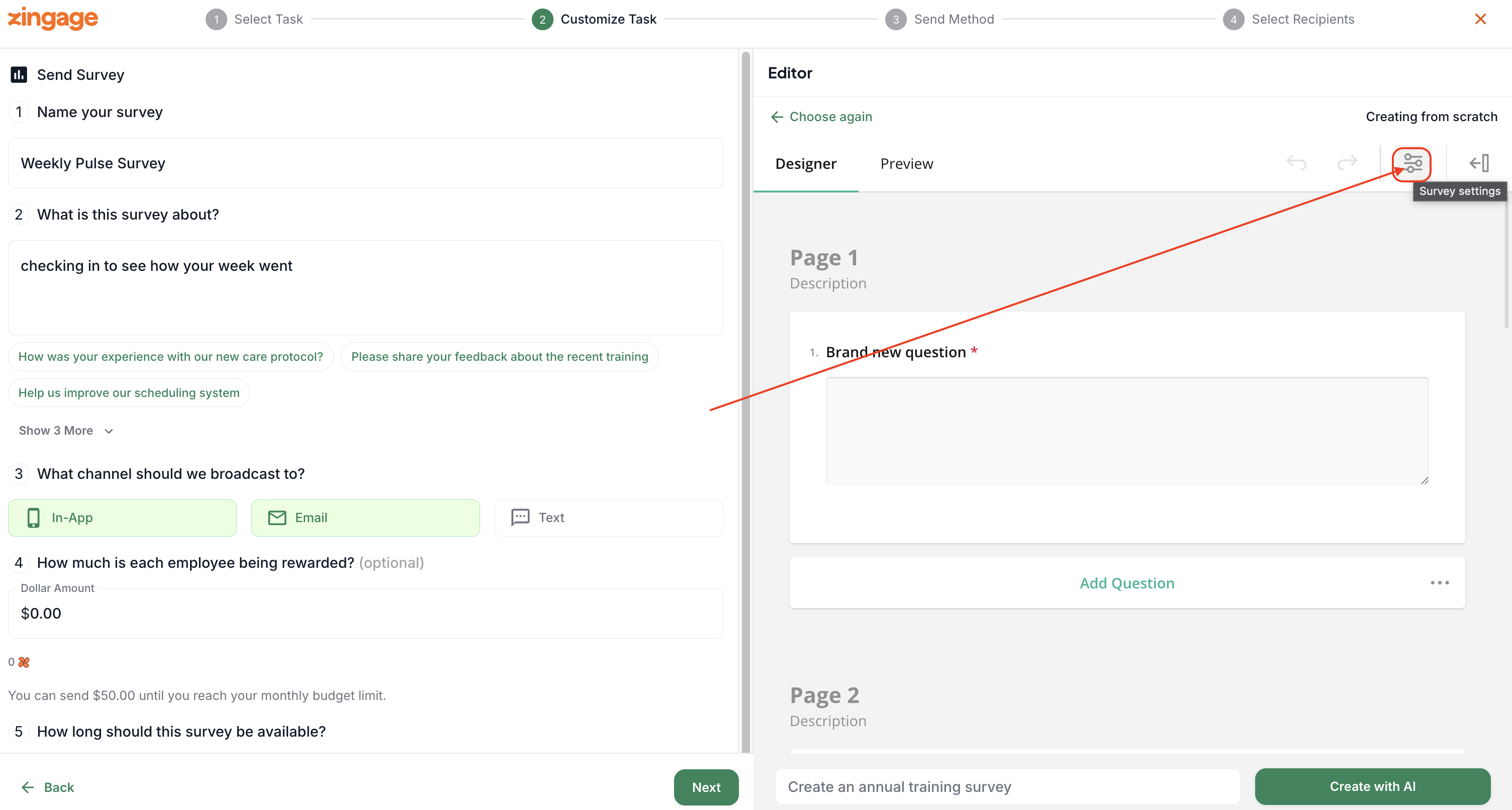
Once the survey editor loads, click Survey Settings.
Toggle Quiz Mode on.
Step 4: Configure Timer Settings
After enabling Quiz Mode, you can customize how the quiz is timed. TIME SETTINGS ARE IN SECONDS
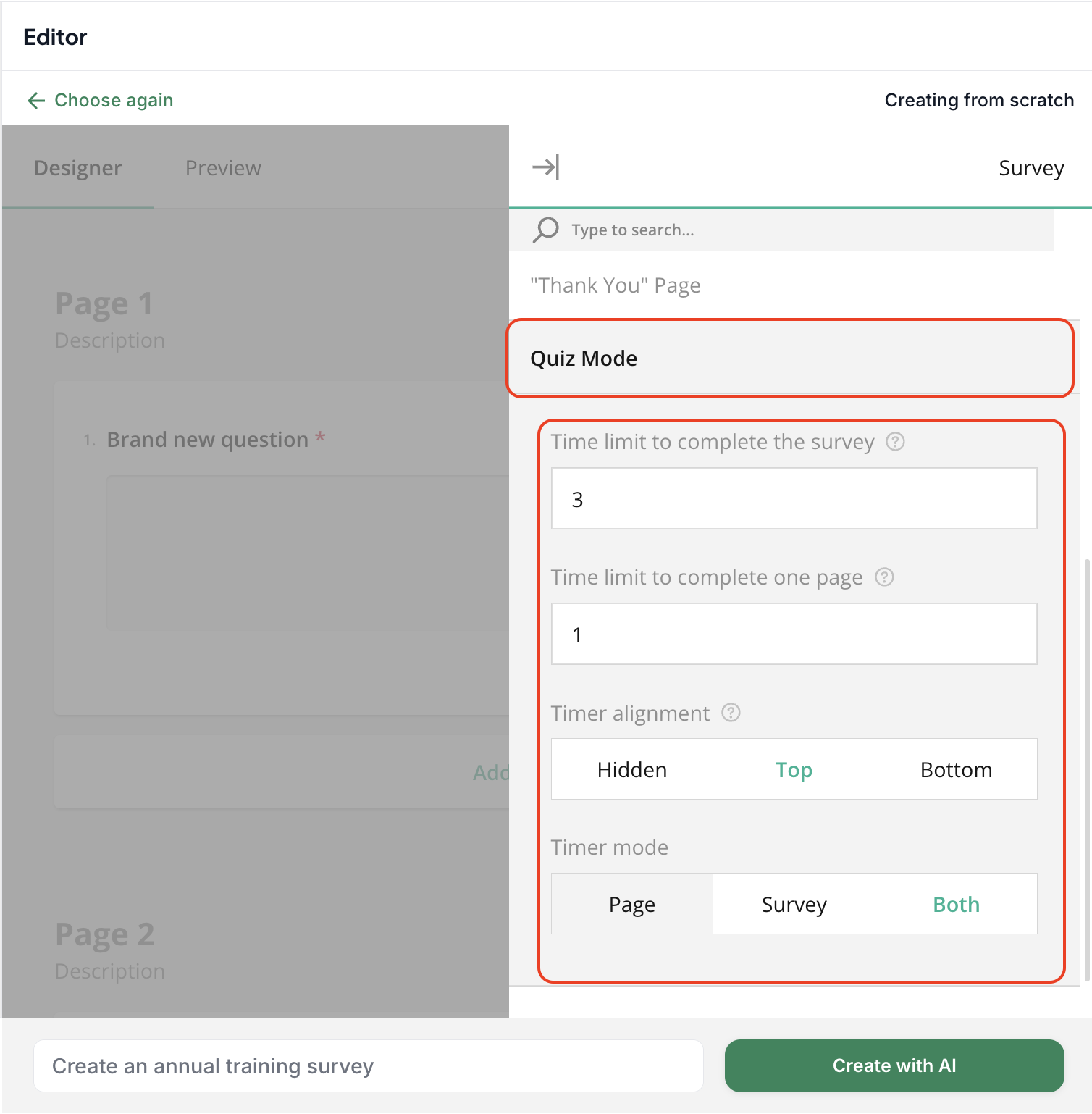
Total Time Limit
Time settings are measured in seconds.
For example:
90 seconds = 1.5 minutes
180 seconds = 3 minutes
Note: If you want a total time of 3 minutes, set the survey timer to 180 seconds.
Page Time Limit
You can also set a time limit per page (for example, 60 seconds per page).
Timer Display Options
Choose where (or if) the timer appears:
Hidden
Top of the page
Bottom of the page
Timer Mode
Select how the timer applies:
Per page
Entire survey
Both
All changes are saved automatically.
Step 5: Preview the Quiz
Click Preview to see how the timer behaves.
You’ll see the countdown in action and how much time users have to complete each page and the full quiz.
Step 6: Apply or Duplicate the Quiz
Once saved, the quiz settings will apply to the next distribution of the survey.
If You Want to Keep the Original Survey
If you don’t want to overwrite the original survey:
Open the survey.
Go to Workflows Used.
Create a new distribution.
Apply Quiz Mode settings to the new workflow.
Save — this creates a separate quiz workflow while leaving the original survey unchanged.
Pause the Original Survey (Optional)
If you only want the quiz version to go out:
Open the original survey workflow.
Click Pause Workflow.
Only the new quiz distribution will continue going forward.