How to Use Zingage: How to Navigate the App
Last updated: June 19, 2026
The Zingage app is packed with ways to earn and redeem rewards — and we’re always making improvements! Here's how to find what you need and fix common problems if they come up.
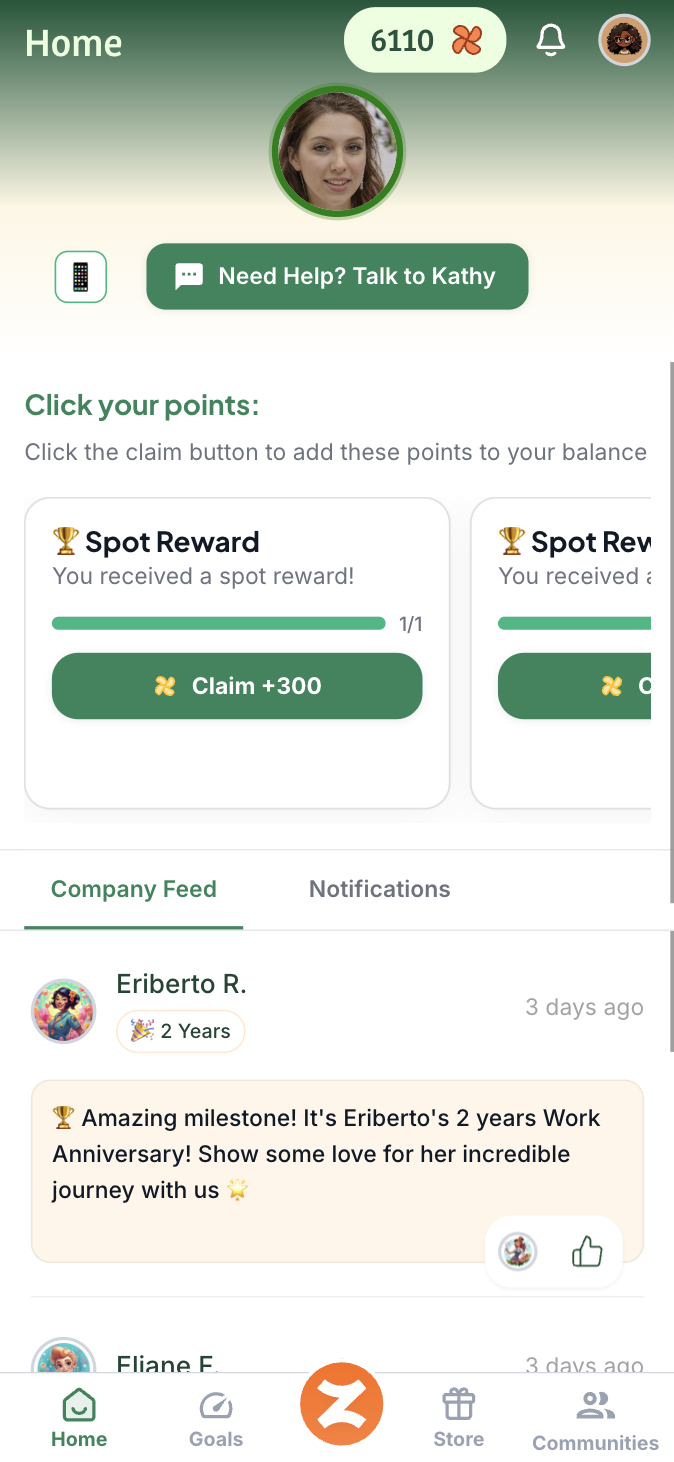
The Home Tab is where you see your company feed and any updates and announcements your company has sent out. You can also claim any available points on your acocunt from the Home tab:
🔍 Finding Surveys and Bonus Opportunities
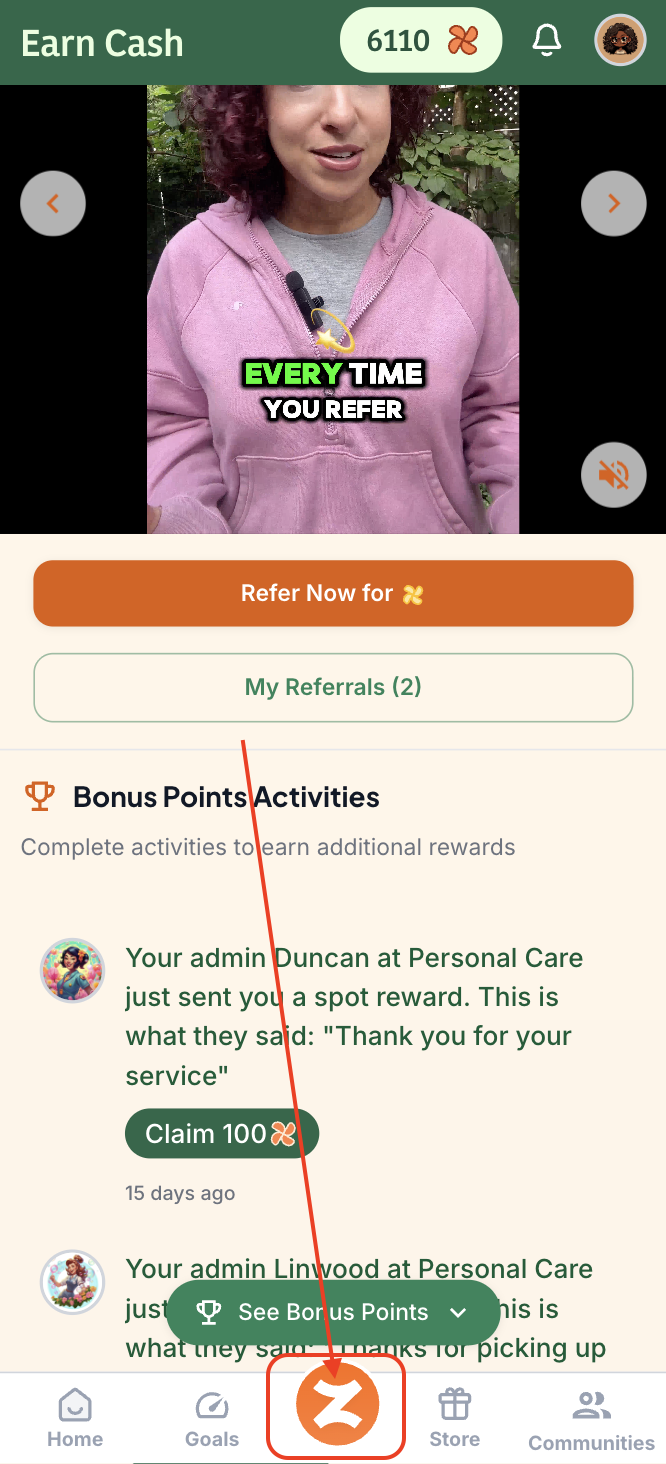
To complete surveys or check for bonuses:
Tap the orange Z icon at the bottom to access the Referrals section. (Depending on your agency, it might be your agency's logo at the bottom of the page between the Goals and Store tabs)
Scroll to the Bonus Points area.
Tap the green 'Complete' button to complete the survey.
🔍 Finding Your Completed Goals
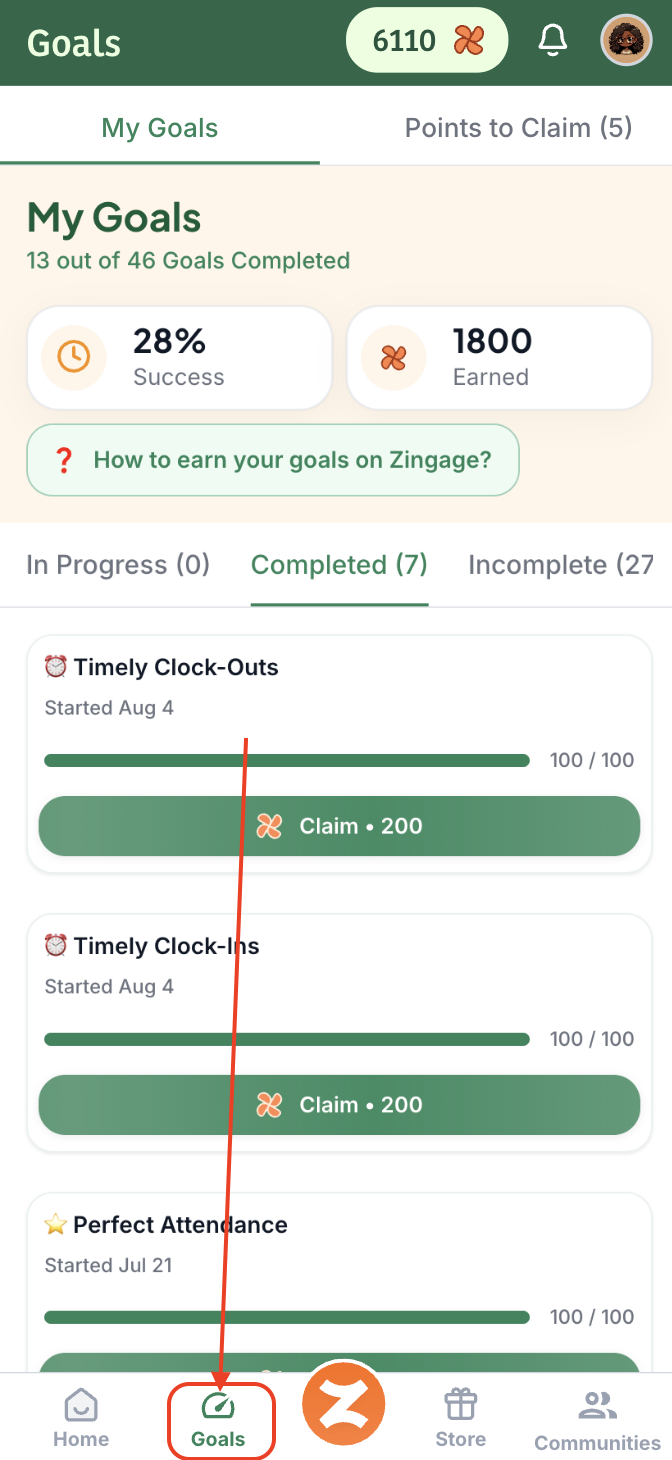
You can claim any completed goal points on the Home Tab, but you can also find out more on your goals, like those that were completed and those that were incomplete, but going to the goals tab.
Go to the Goals tab and click between the sub-tabs:
In Progress: these are the goals that your visits are currently tracking toward.
Completed: these are the goals you have successfully completed and can claim the points for.
Incomplete: these are the goals you did not pass and have failed. Click the 'Dismiss Incomplete' button to keep on track on a weekly or monthly basis.
🔍 How to Redeem Gift Cards
For the full, step-by-step article, see our How to Claim and Redeem Points for Gift Cards, and Use Gift Cards article, or 🎥 Watch Video Tutorial Here: How to Claim Points & Redeem Gift Cards.
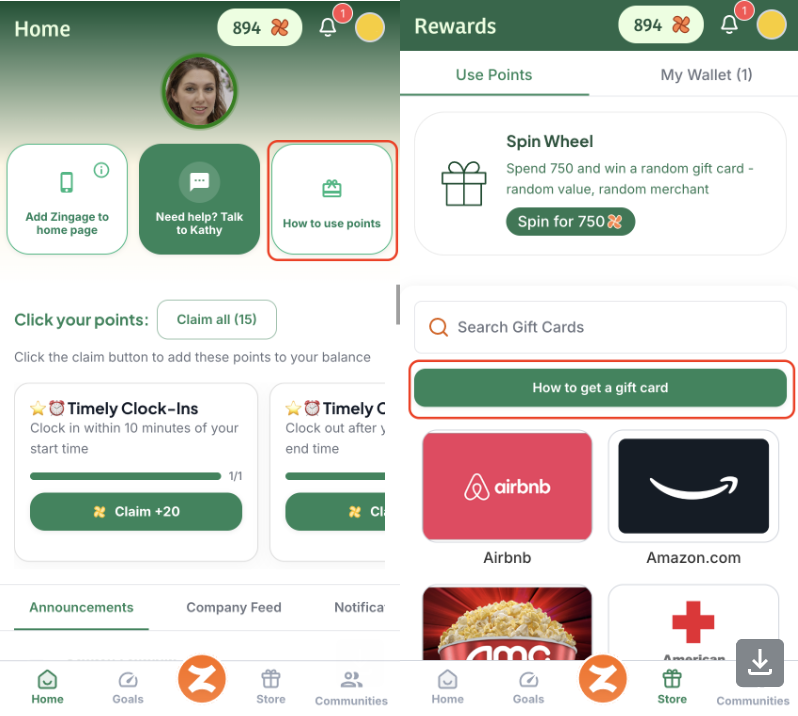
To know how to redeem a gift card, you can find a tutorial on redeeming on the Home tab by clicking the "How to use points" button. You can also find the tutorial by clicking the green "How to get a gift card" button in the Store tab.
🔍 Finding Your Gift Cards
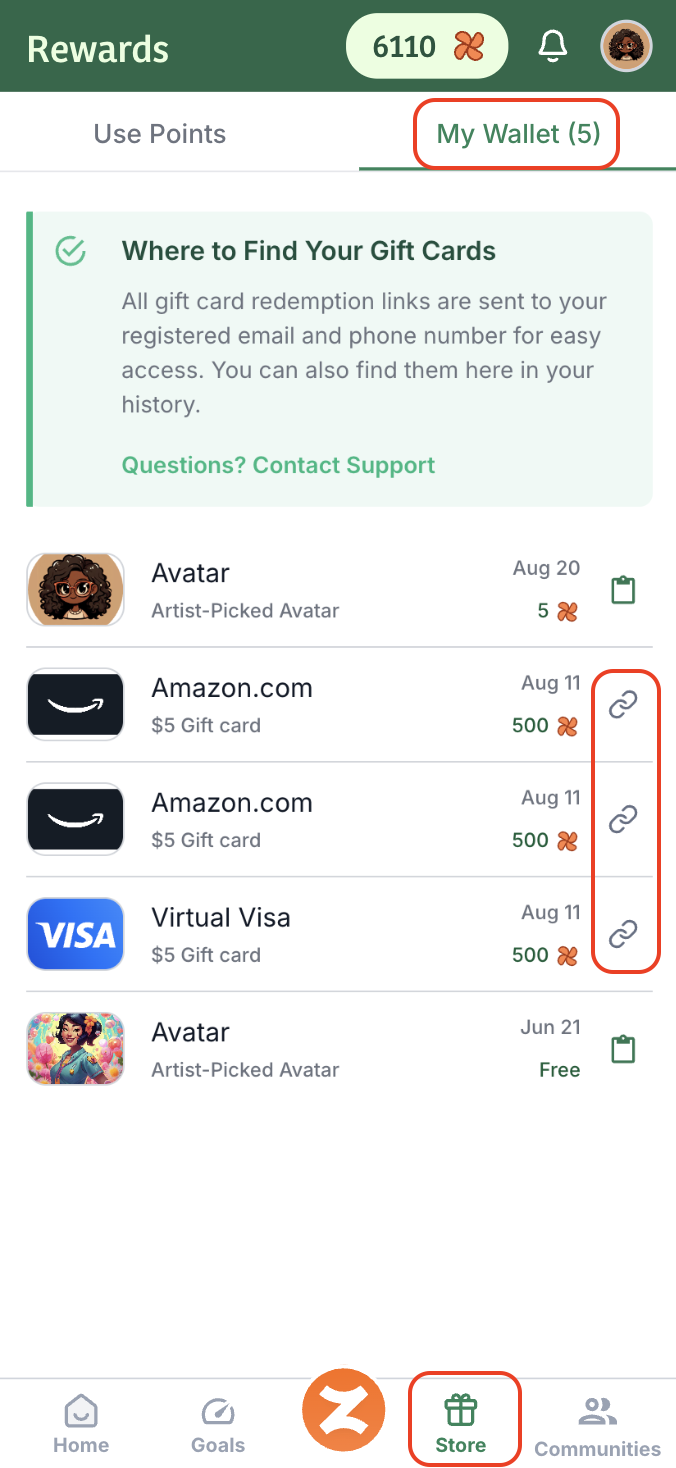
The Store tab is where you can go to purchase gift cards. Your gift cards are sent by email so be sure to check your spam, trash, and promotions folders. You can also access your gift cards on Zingage by going to Store > My Wallet and clicking the link icon next to the gift card:
Contacting Your Agency (Admin)
Go to Communities
Click the Contact Admin Button
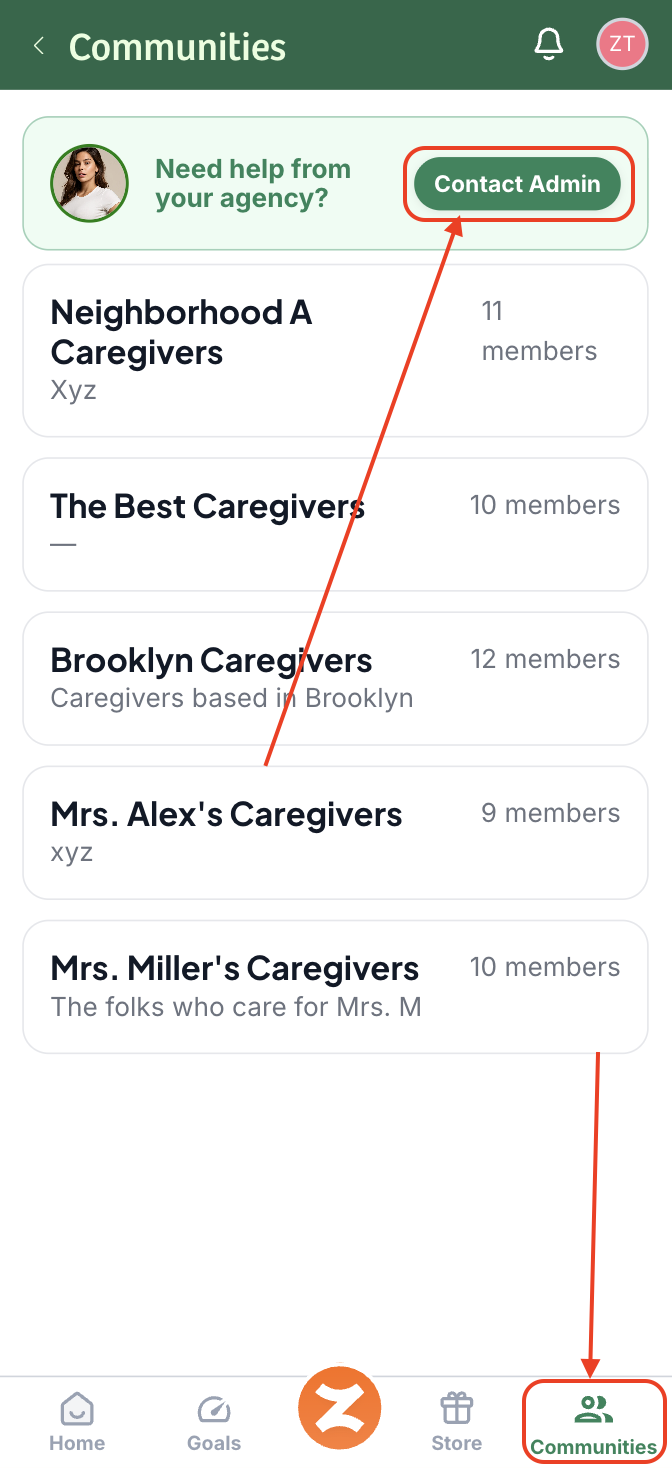
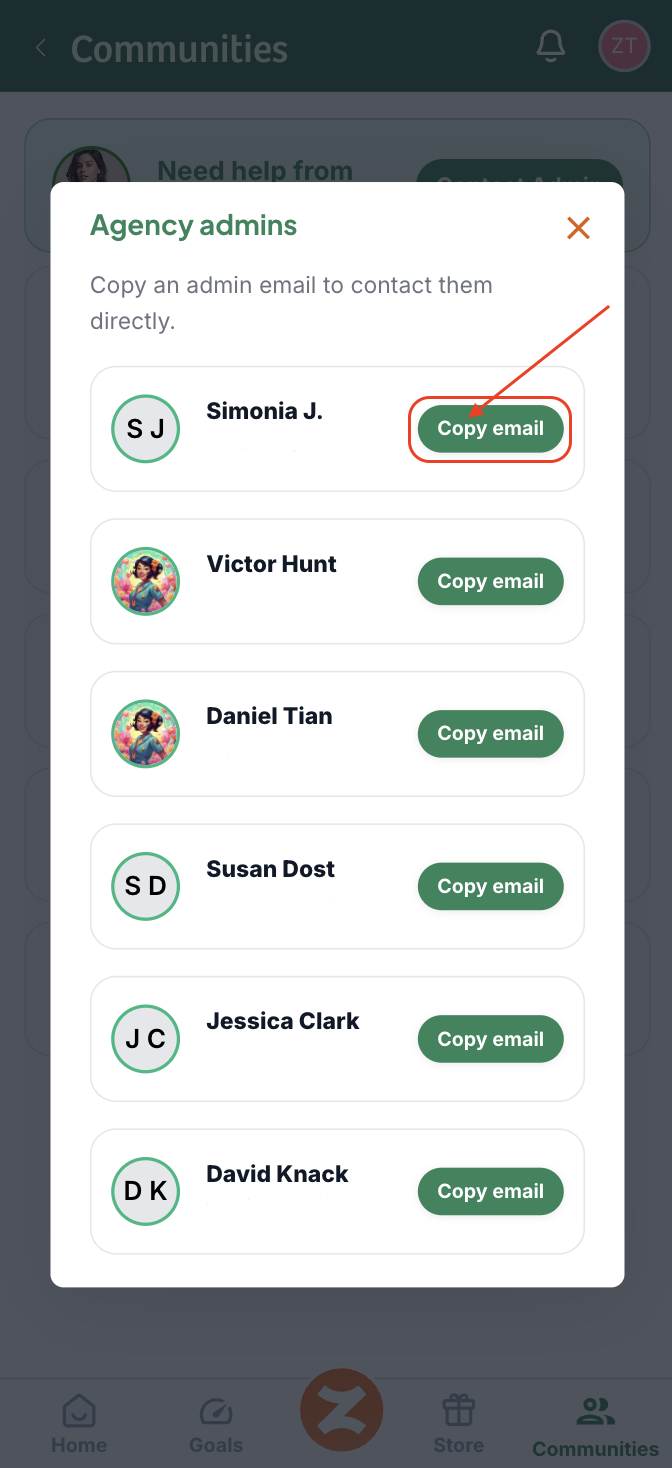
When the pop-up comes up, click the Copy Email button
Send your admin a message from your email address
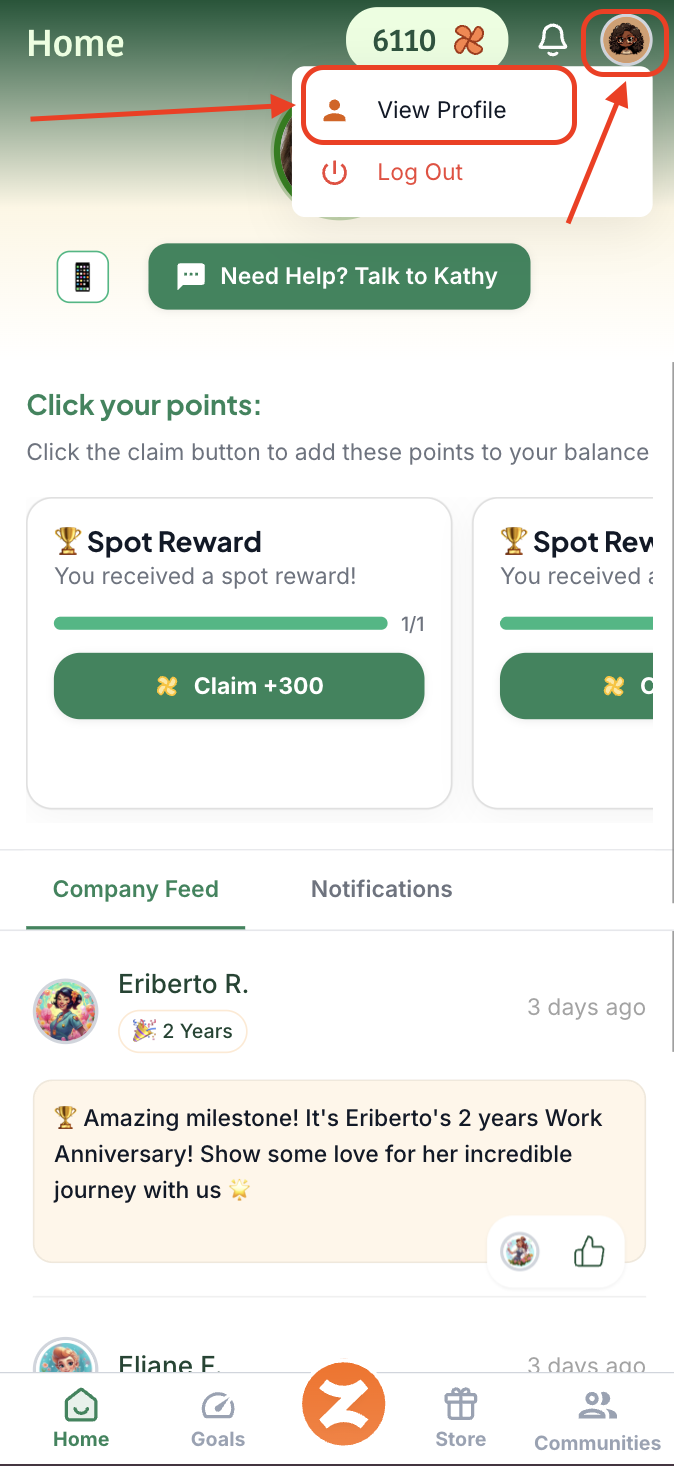
💬Changing your Language
Log in to the Zingage
Click your icon in the top right and hit "View Profile."
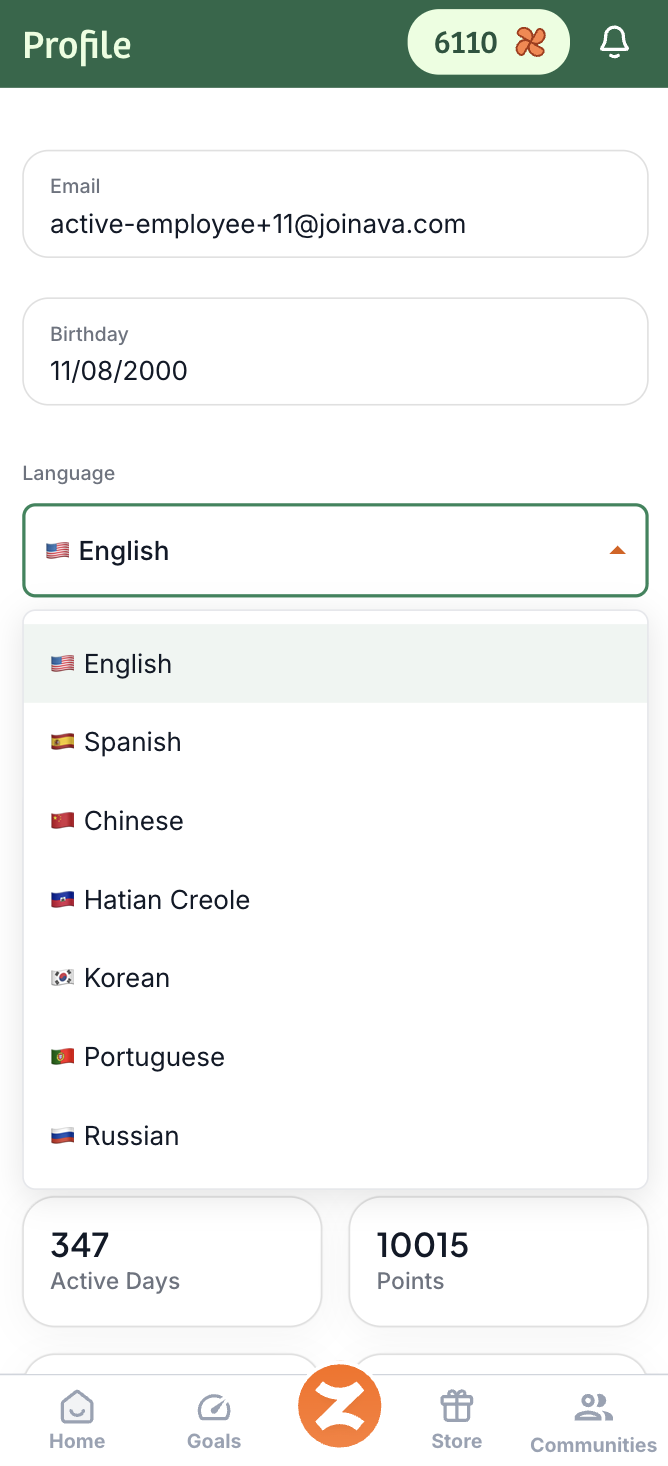
Click the Language drop-down and choose your preferred language:
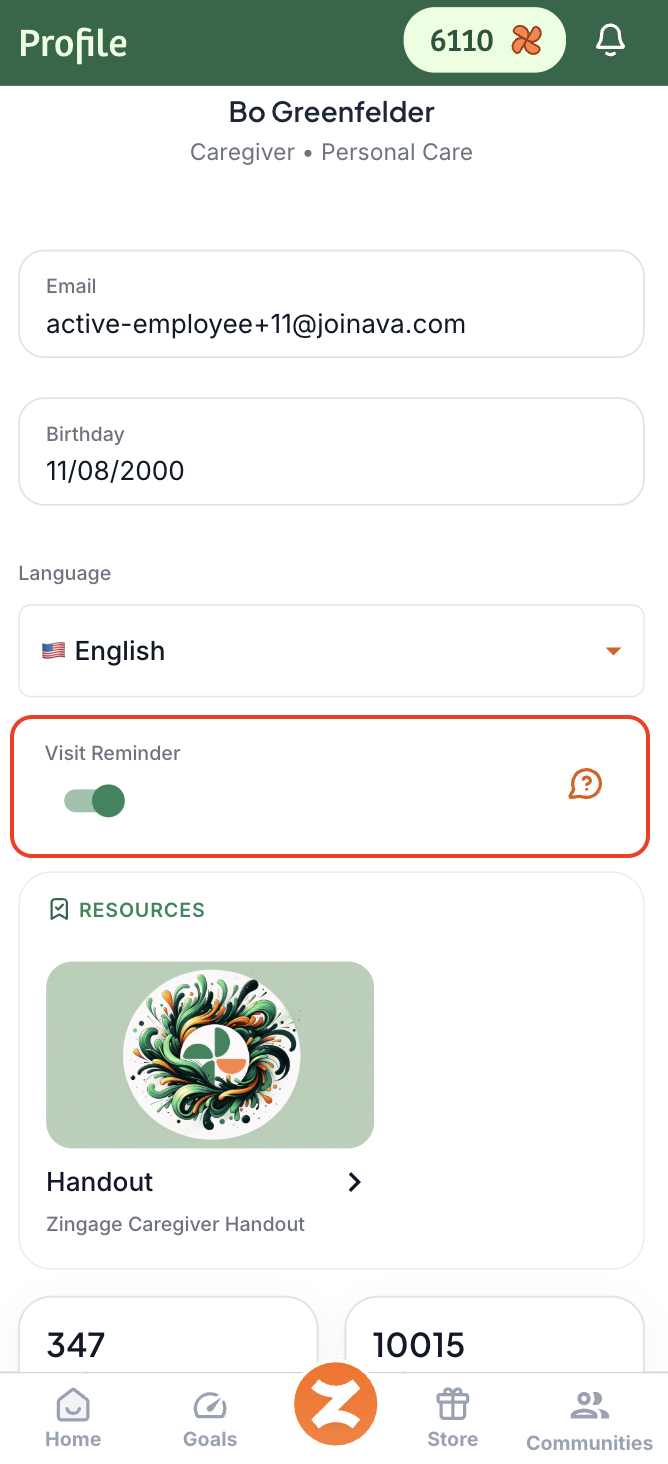
📅Toggle on/off visit reminders
Log in to the Zingage app
Click your avatar icon to the top right of the page and hit 'View Profile'
Toggle the Shift Reminders option on or off
👤Editing Personal Information
You’ll need to contact your agency admin to make updates to your personal information, like your name, email address, phone number, birthday, and gender. Once they do, the change will automatically sync with Zingage within 24 - 48 hours.
🔍 Finding Your Zingage Profile Statistics and What They Are
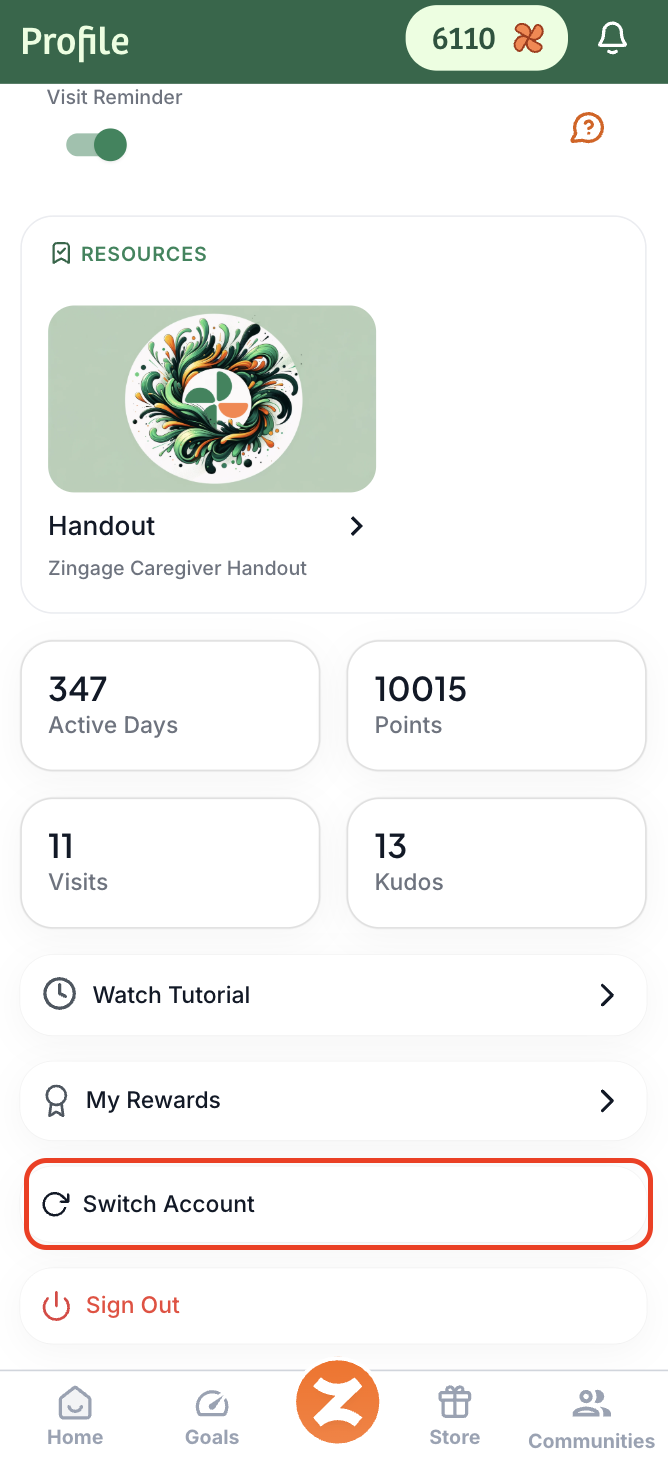
In the View Profile section of your view, you can see the statistics section. It looks like this:
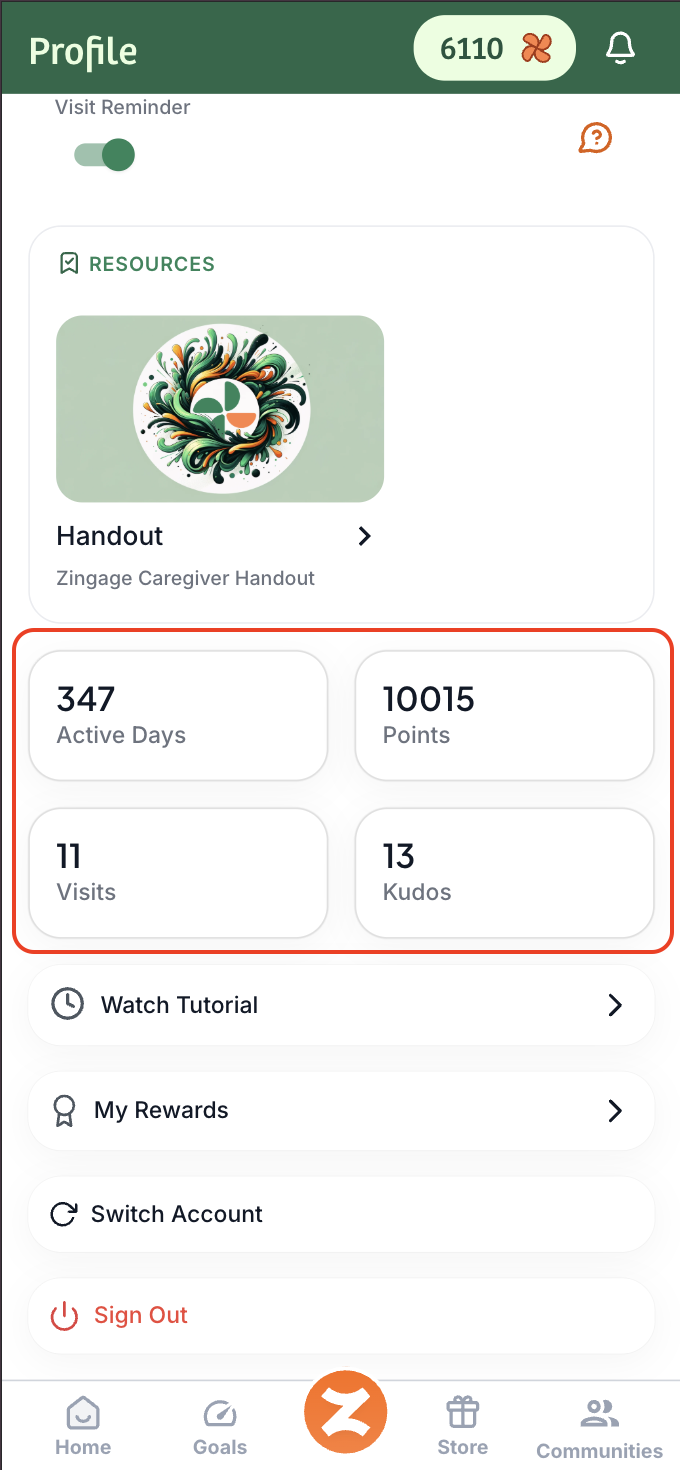
Active Days: This is the number of days you've been on Zingage NOT the number of days you've been with your agency.
Points: this is NOT the number of points in your points balance for getting gift cards. This is the number of points you've earned since onboarding on Zingage and includes your unclaimed points and points you have redeemed for gift cards on the platform.
Visits: the number of visits you have tracked on Zingage.
Kudos are described in this article. This is the number of kudos you've received since being on Zingage.
🔍 Finding/Rewatching the Caregiver Tutorial
Log in to the Zingage app
Click your avatar icon to the top right of the page and hit 'View Profile'
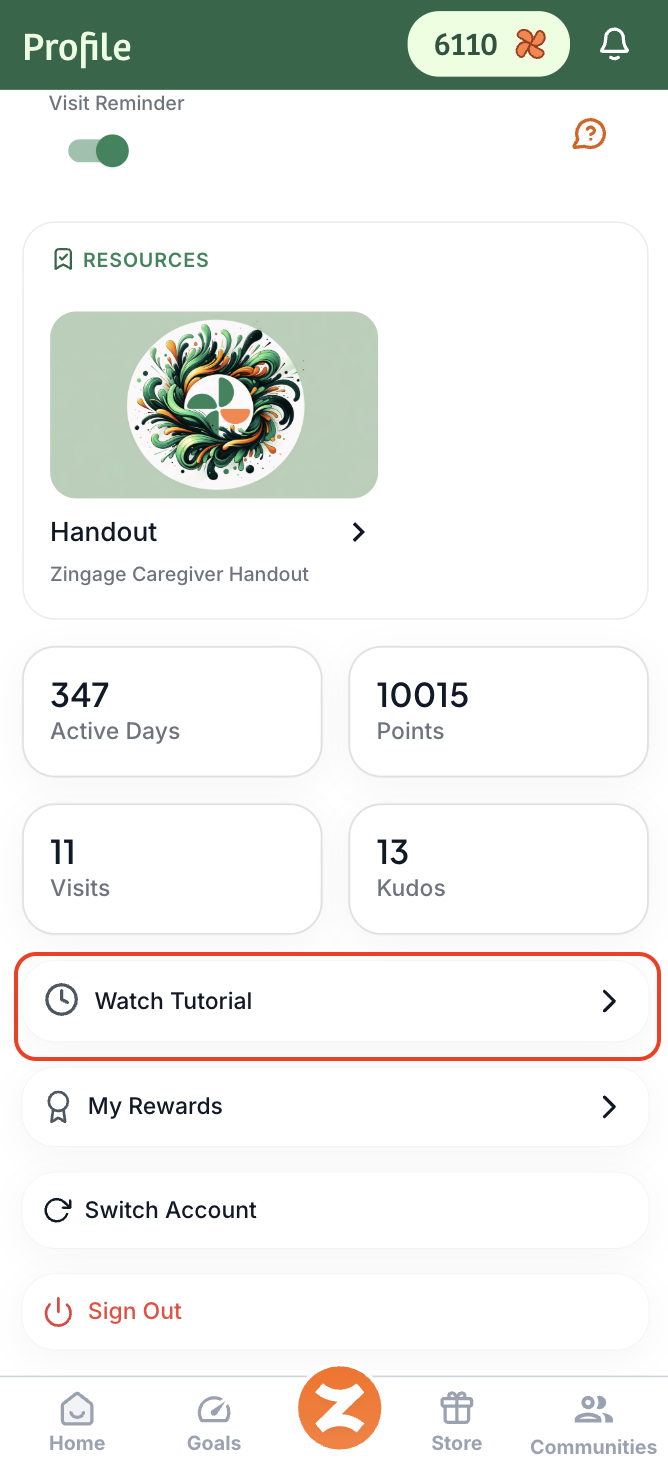
Scroll and hit the 'Watch Tutorial' button
🔁Switching your account
If you work with more than one agency that is partnered with Zingage:
Log in to Zingage
Click your avatar icon to the top right of the page and hit 'View Profile'
Scroll down and tap 'Switch Account'
Choose the other agency account you'd like to view