Your Complete Guide to Setting Up Zingage
Last updated: August 14, 2026
👋 Welcome to Zingage! This guide will walk you through everything you need to go live, from initial setup to inviting your caregivers.
What Is Zingage?
Zingage is an all-in-one platform that automatically tracks caregiver activity, sends messages and surveys, and rewards great work, without adding to your team’s workload. It connects directly to your EMR to monitor behaviors like attendance and clock-ins, then issues points when goals are met. Those points can be redeemed by caregivers for gift cards to 100+ brands, including Amazon, Walmart, Target, and Visa — with no markups or hidden fees. Everything runs quietly in the background, so your team can focus on care, not admin.
Feel free to review the help article below for individual video walkthroughs of all the key areas of the platform to help you get started.
📄 Video Walkthroughs: Getting Started on Zingage Perform
Log In To Your Account
➡ If You Are Using WellSky...
Start by opening WellSky and clicking “Caregivers” in the top navigation bar. Then select “TeamEngage” from the dropdown. "TeamEngage" is the name of our partnership with WellSky. That will take you directly into the Zingage setup flow. If you don’t see “TeamEngage” yet, don’t worry — your connection is still activating. It typically takes 2–3 business days, and you’ll be able to access it soon.
➡ If You Are Not Using WellSky, you should have received an email from us with a unique setup link
Step 1: Connect Your Data
The first part of setup involves connecting your EMR, your internal team, and your rewards wallet. These foundational steps ensure that Zingage is pulling in the right data and has the right permissions to work automatically.
1. Connect Your EMR
Zingage connects directly with your scheduling and visit system to track caregiver behavior and power rewards. If you’re using WellSky, this connection is already active. The only thing you need to do is confirm how your system tags canceled visits. Click “Configure WellSky” and make sure any activity tags for employee-cancelled shifts — like “no show” — are properly mapped (see knowledge base article and video tutorial).
If you’re using AxisCare or AlayaCare, you’ll need to follow the integration steps in our help video on the website (start at 2:10). Once this step is complete, you’ll see a green checkmark on your setup screen. You can also review this help article for more details on how to get connected.
AlayaCare users may also need to Provision an API Key so we can obtain the necessary employee data. Find how to do that HERE.
2. Connect Your Administrative Team
🎥 Video Tutorial: How To Set Up Your Administrative Team
Next, you’ll add internal users to the platform, such as your office staff, schedulers, HR team, or leadership. Each team member will be assigned a role with different permissions:
Account Owners can do everything, including adding or removing other users.
Admins can manage caregivers, send rewards, and configure settings.
Announcements and Rewards users can send messages and videos as well as issue spot rewards.
Announcements Only users can only send announcement messages and videos on the platform
Read-Only users can view reporting but can’t make any changes.
We recommend assigning at least one Admin — the default Admin reward budget is $1,000/month — which allows them to quickly recognize caregivers with one-off gspot rewards for gift cards for great work.
To set this up, click “Connect Your Team,” choose the appropriate roles, paste in their email addresses, and if relevant, set their reward budget. Once saved, the team members will be invited to the platform.
When this step is complete, you’ll see a green checkmark confirming your team has been connected.
3. Connect Your Wallet
🎥 Video Tutorial: How To Connect Your Wallet
Zingage runs on a simple points-based system: 1 point = 1 cent, so 100 points = $1.
You can issue as many points as you’d like, but you only spend money when caregivers redeem those points for gift cards. That means you’re only paying when real value is delivered.
To manage your budget, start by setting a spending cap:
Shared Cap (Recommended): Set a single monthly limit for your entire team (e.g., $500/month total).
Individual Cap: Set a monthly max per caregiver (e.g., $10/month per person).
Next, set up your maximum gift card value. This value is the maximum your caregivers can redeem in one redemption and goes in increments of $5, with the minimum and maximum being $5 and $300, respectively.
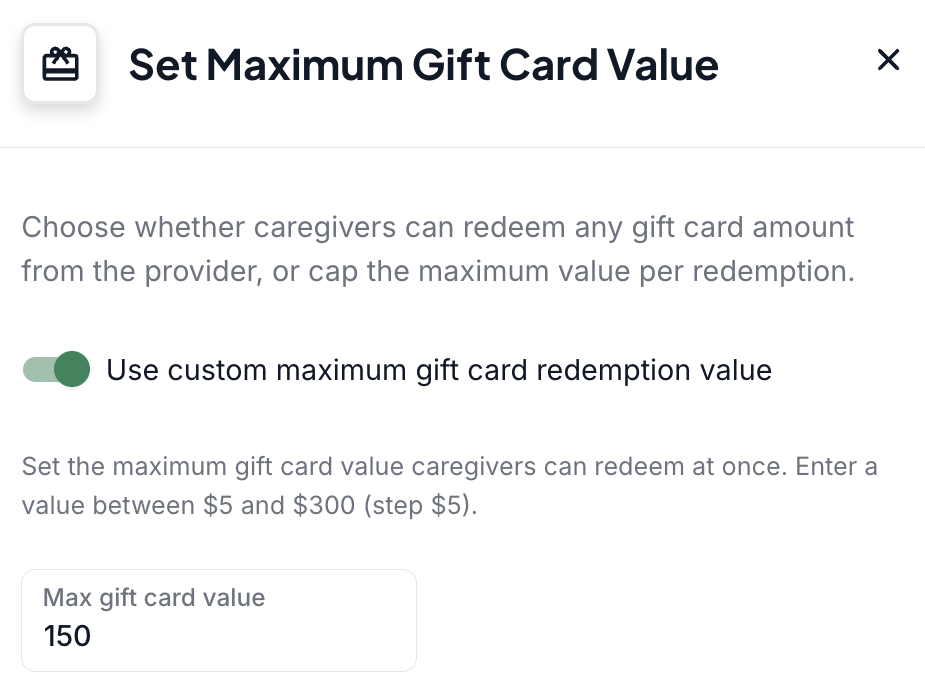
Once your caps are in place, you’ll connect a prepaid wallet, the funding source for caregiver redemptions.
Why a prepaid wallet? It allows you to load funds in advance so your credit card or bank account isn’t charged every time someone redeems a reward. This gives you more predictability and control over your budget — you can track, plan, and cap spending without surprise charges.
To complete your wallet setup:
Enter your initial top-up amount (minimum $50) - we suggest matching your shared budget amount (or if you do an individual cap, that number multiplied by your # of employees)
Set your auto-reload rules:
Choose a reload threshold — the balance at which you want funds added (e.g., $100)
Choose a reload amount — how much to add when that threshold is hit (e.g., $300)
💡 For example: if your balance drops from $110 to $90, Zingage will automatically add $210 to bring your balance back up to $300.
Step 2: Configure Your Platform
Now that your foundation is in place, it’s time to activate the two core engines of the Zingage platform: the Goal Center and Workflows.
"The Goal Center" is where you define the behaviors and milestones you want to reward - things like perfect attendance or mobile clock-outs, and birthdays and anniversaries - and Zingage will automatically track and reward those behaviors based on your system and caregiver visit data.
"Workflows" are your communications and engagement engine. You can send announcements, rewards, and surveys to your caregivers.
Once you complete this step, your platform will be live and running.
1. Configure the Goal Center
🎥 Video Tutorial: How To Configure Goal Center
🎯 What Is the Goal Center?
The Goal Center is the heart of Zingage's automated reward system. It lets you define specific caregiver behaviors you want to encourage — like showing up on time, clocking in correctly, or staying with your agency long-term — and automatically rewards them when those behaviors happen. Once it's set up, Zingage does the rest: It tracks activity in the background, calculates progress, and delivers points — no manual work needed from your team.
🛠 How to Set It Up
To begin, go to the Setup page or click "Goal Center" from the left-hand menu under "Workflows."
Each goal includes:
A Success Rule (what behavior triggers the reward)
A Reward Amount
A Monthly Cap (optional, to manage your budget)
You can turn goals on or off, adjust the amounts, or create new ones from scratch.
Editing Existing Goals
Click the pencil icon next to any goal to modify the reward amount, success rule, or monthly cap. You can also toggle goals on/off using the status switches.

Adding New Goals
To create a new goal, click the "New Goal" button and select from available categories like attendance, work anniversaries, or clocking in on time.
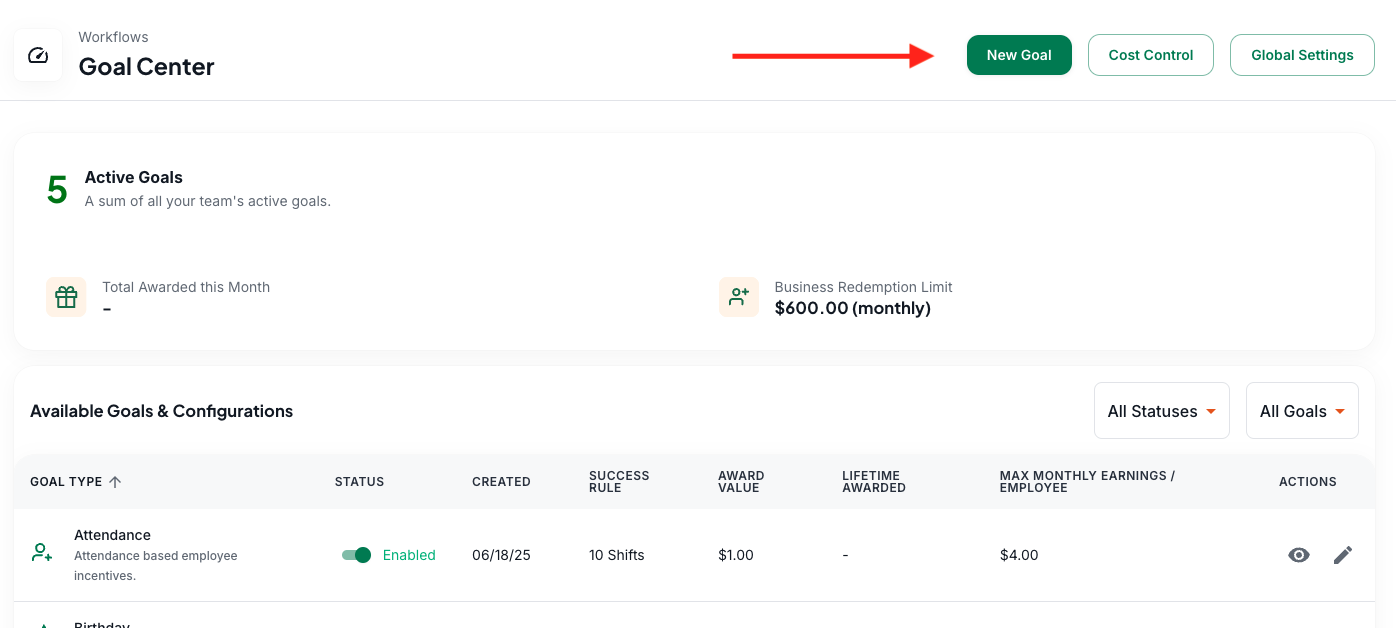
✅ You can adjust all of these settings anytime. Don’t worry about getting it perfect on day one — most teams revisit their goals every few months as they learn what works best.
Not sure where to start? Here are our recommendations.
📈 What Caregivers See
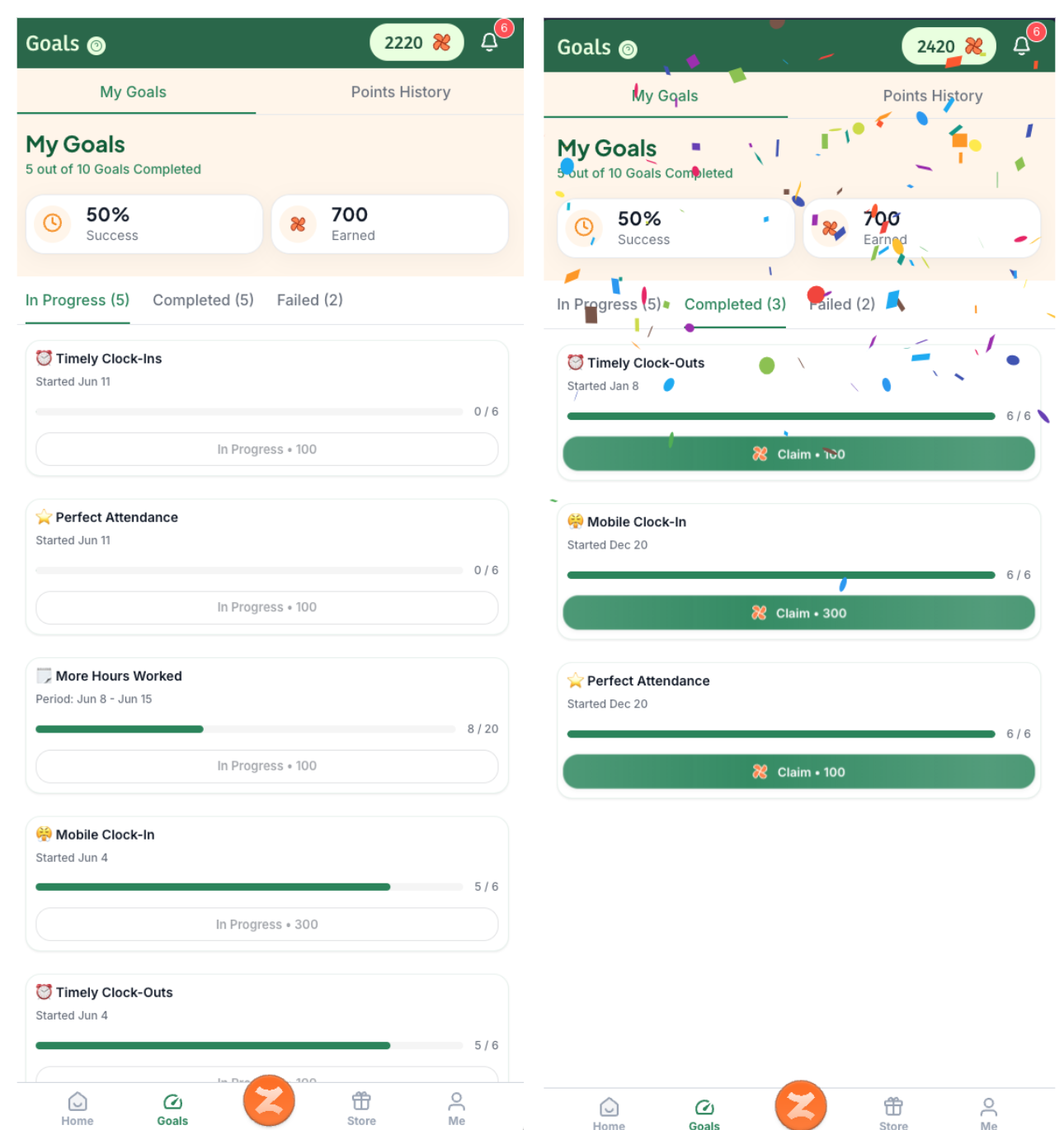
Once live, caregivers will see their progress directly in the Zingage app, as pictured below. Caregivers need to manually claim their points in the app once they complete a goal — this extra step helps reinforce the behavior and builds a habit of engagement.
This visibility keeps them engaged and motivated, and helps you build a culture of recognition without the admin lift.
2. Workflows
👉🏻 🎥 'Video: What Are Workflows?'
📣 What Are These Tools? These communication tools let you send announcements, surveys, and rewards to your caregivers. There's minimal setup required here — it's more about knowing how to use these tools so you can start communicating effectively from day one.
🔧 How They Work: You can send communications in four ways:
Send now: You send it immediately when you're ready
Schedule: Schedule it to go out later (like tomorrow morning at 9 am)
Autopilot: Set it to go out at a specific time on repeat (like every Monday morning)
Event-based: The system automatically sends when caregivers hit milestones (new hire, birthday, work anniversary)
🎯 Key Tools to Master Right Away
📢 Announcements: Send messages to keep everyone informed and connected.
👉🏻 🎥 'Video Tutorial: Setting Up Announcement Workflows'
Examples:
Policy updates ("New timesheet deadline is Friday at 3 PM")
Shift coverage requests ("We need someone for Saturday morning — who's available?")
Company news ("We're expanding to serve more families!")
Holiday schedules ("Office closed Monday for Labor Day")
Recognition shout-outs ("Sarah went above and beyond this week!")
💰 Spot Rewards Instantly recognize great work with points caregivers can redeem for gift cards. These are manually sent rewards.
👉🏻 🎥 'Video Tutorial: Setting Up Spot Rewards Workflows'
Examples:
Picking up a last-minute shift ("Thanks for covering last night's open shift — here's $5!")
Going above and beyond ("Mrs. Johnson's family called to thank you — you earned it!")
Working holidays ("Thank you for working Memorial Day — here's a little extra!")
Training completion ("Congrats on finishing your CPR certification!")
📊 Surveys: Gather feedback to improve your operations and catch issues early.
👉🏻 🎥 'Video Tutorial: Setting Up Survey Workflows'
Examples:
30-day check-ins ("How's your first month going? Any questions?")
Weekly pulse surveys ("How was your week? Any challenges we should know about?")
Training feedback ("How helpful was the new orientation program?")
Event planning ("Who's interested in our summer barbecue?")
💡 Pro Tips for Success
Start Simple: Begin with welcome messages for new hires and weekly announcements. Add more tools as you get comfortable.
Make it Personal: Use names and specific details in your messages. "Thanks for covering the Johnson family, Maria!" hits different than "Thanks for the shift coverage."
Be Consistent: Regular communication builds trust. Even a quick weekly check-in keeps everyone connected.
Add Small Rewards: A $0.50 survey incentive can double your response rate. A $5 spot reward for extra effort shows you notice.
Use Events: Set up automatic birthday messages and work anniversary rewards so you never miss celebrating someone.
Step 3: Invite Your Caregivers
Before inviting your caregivers, take time to prepare your team for a successful launch.
Give Caregivers a Heads-Up: Use your existing communication channels to let caregivers know Zingage is coming. We provide email templates and sample messaging to help announce the program and build excitement.
Train Your Office Staff: Make sure your administrators, schedulers, and HR team understand how to use the Zingage platform. Consider hosting a brief team meeting to walk through the key features and answer any questions.
Use Our Supporting Materials
Overview Deck - A presentation explaining how Zingage works
Caregiver Handout - A one-page reference guide
Email Templates - Ready-to-use messaging for announcements
💡 Pro Tip: Introduce Zingage during your orientation process and make it part of the first conversation with new caregivers. This sets the tone that recognition and rewards are a priority at your agency.
🎥 Video Tutorial: Inviting Your Caregivers
Your final step is to invite caregivers to activate their accounts.
Zingage’s Auto-Invite feature takes care of this for you. To enable it, click “Schedule Auto-Invite.” You’ll be asked how many visits a caregiver should complete before they get invited. We recommend setting this to 0, so every new caregiver receives an invite right away.
Next, review the invite message — Zingage will send it via email and text, explaining the platform and linking them to their account. Once this is enabled, every eligible caregiver will be automatically invited moving forward — no manual list needed.
You’re now ready to launch!
What Happens Next
Once your platform is live, Zingage will take care of most tasks automatically. But you’ll always have the option to jump in and take quick actions, such as:
Running a survey to gather feedback
Need Help?
If you have any questions or would like us to review your setup or walk you through a recommended configuration, just fill out this form or contact us at kathy@zingage.com. If you're contacting us on behalf of a caregiver, kindly have them reach out to us directly by filling this form or emailing us at help@zingage.com.
We’re here to make sure your caregivers are engaged, your admins feel supported, and your platform is running smoothly.