FAQ: How to Update Your Company Branding
Last updated: May 7, 2025
Overview
This guide explains how to customize your company branding settings, including updating your notebook background and email sender name.
Accessing Branding Settings
Navigate to Settings on the left hand navigation bar
Select Company Settings
Under the General section, locate Branding
Customizing Your Brand
Changing Your Logo
Click "Edit Branding"
Select "Upload Logo" to upload your logo
Select "Upload Background" to upload your background
Updating Email Sender Name
You can customize the name that appears when communications are sent from your system:
By default, emails may come from a generic address (Kathy at Zingage)
Consider changing it to your specific email sender identity for better brand recognition
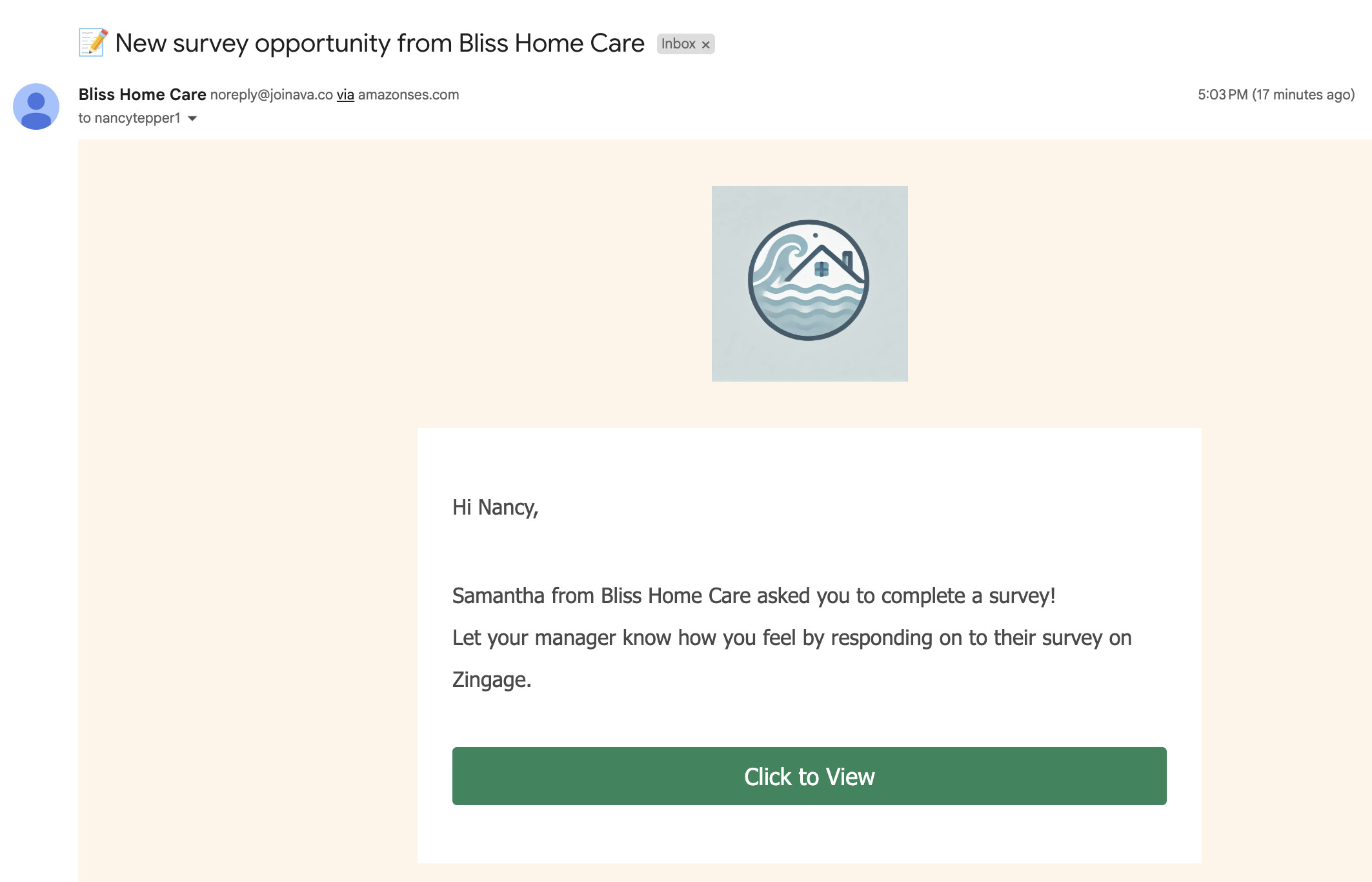
Your unique brand will show up in email communications. The email sender is the name of your agency (in this case, "Bliss Home Care") and your logo appears at the top of the email.
Conclusion
These simple customization options allow you to personalize your company's appearance and make your communications more consistent with your brand identity.