How to Claim and Apply Your Avatar on Zingage?
Last updated: March 13, 2026
Avatars are a fun way to personalize your profile in the Zingage app, but they are different from profile photos. This guide walks you through how to claim, purchase, and apply an avatar — along with important updates about the feature's current availability.
You may be able to apply a profile photo
If your agency has this setting, you may be able to add a profile photo from your gallery for 5 points.
For more information, check out our How do I apply a profile photo article. To confirm, this feature IS NOT available for all agencies
🆓 Claiming Your First Avatar
If you haven’t claimed an avatar before, your first one is completely free.
To claim an avatar:
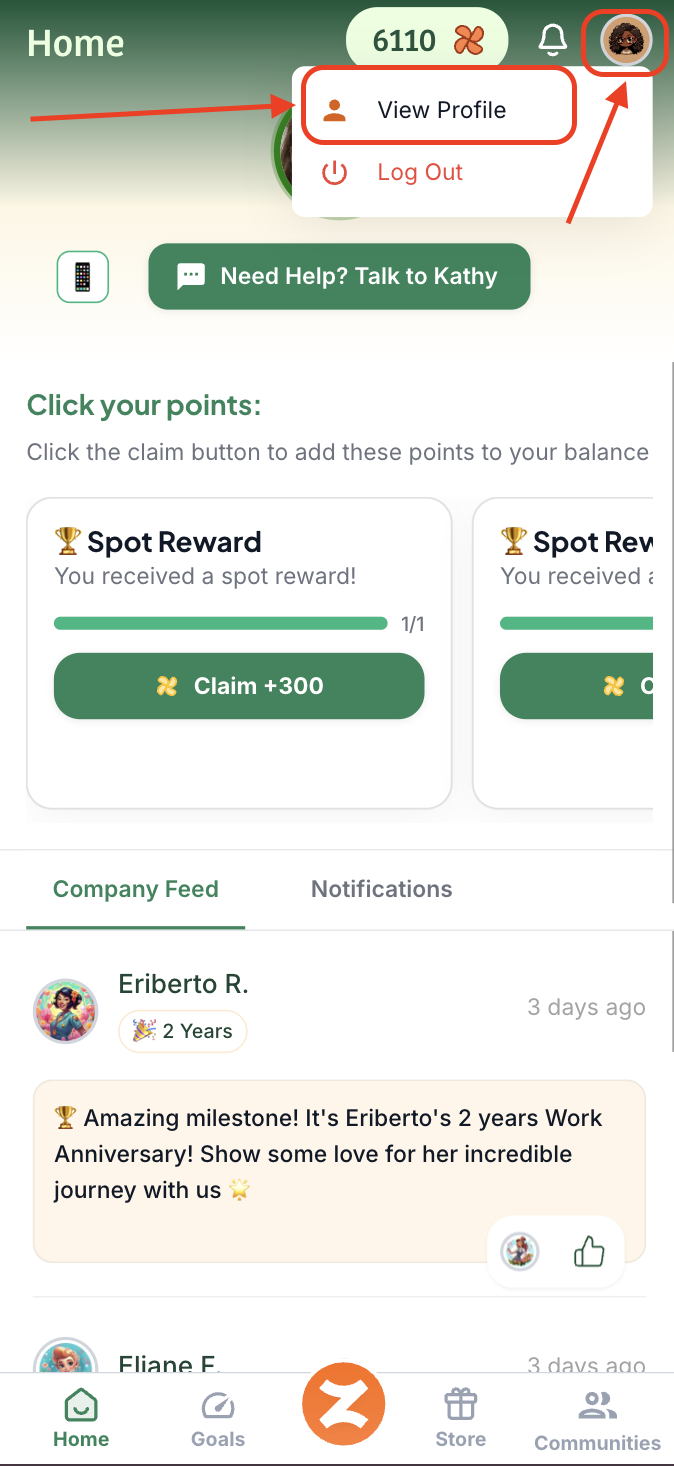
Click your avatar icon at the top of the page and hit "View Profile"
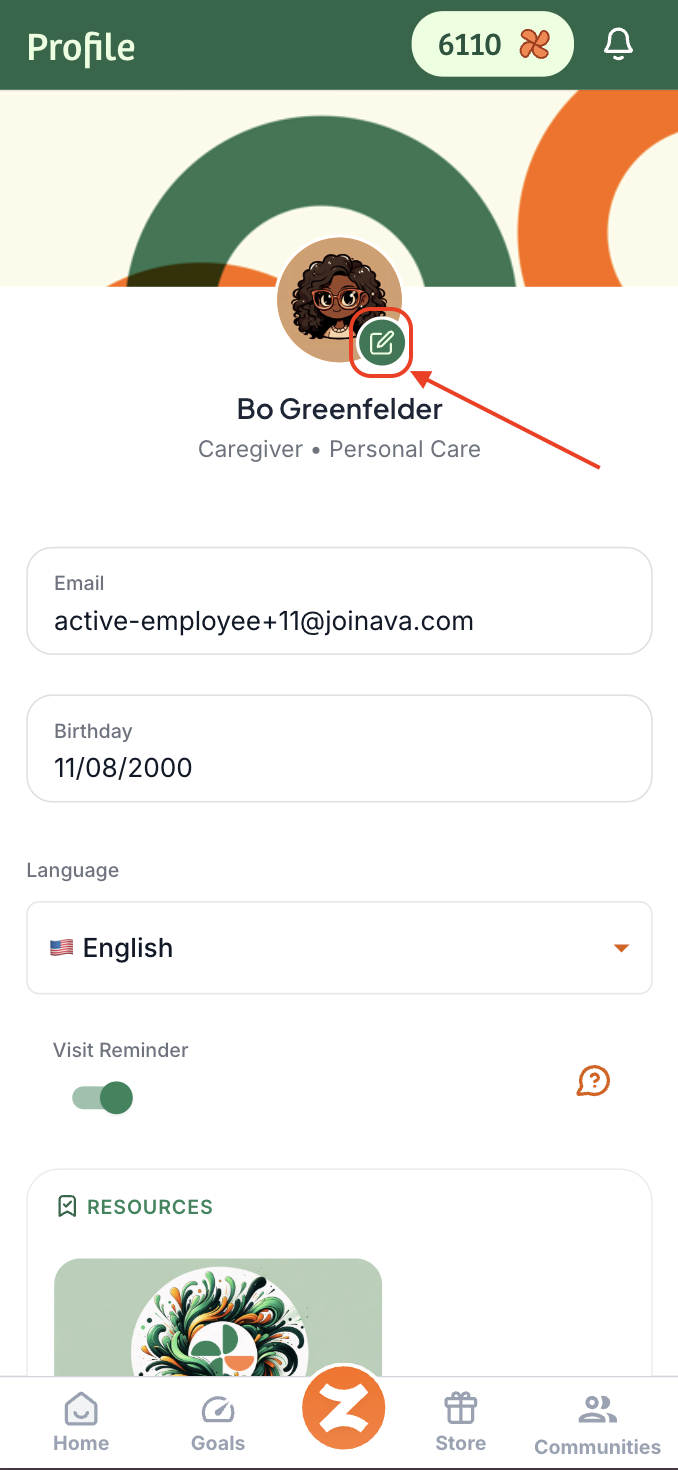
Tap the ✏ Edit icon on your profile initials or on your avatar.
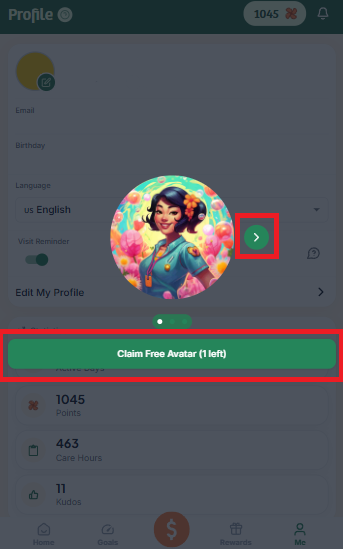
Use the arrows to browse through available avatars.
Tap Claim to select your free avatar.
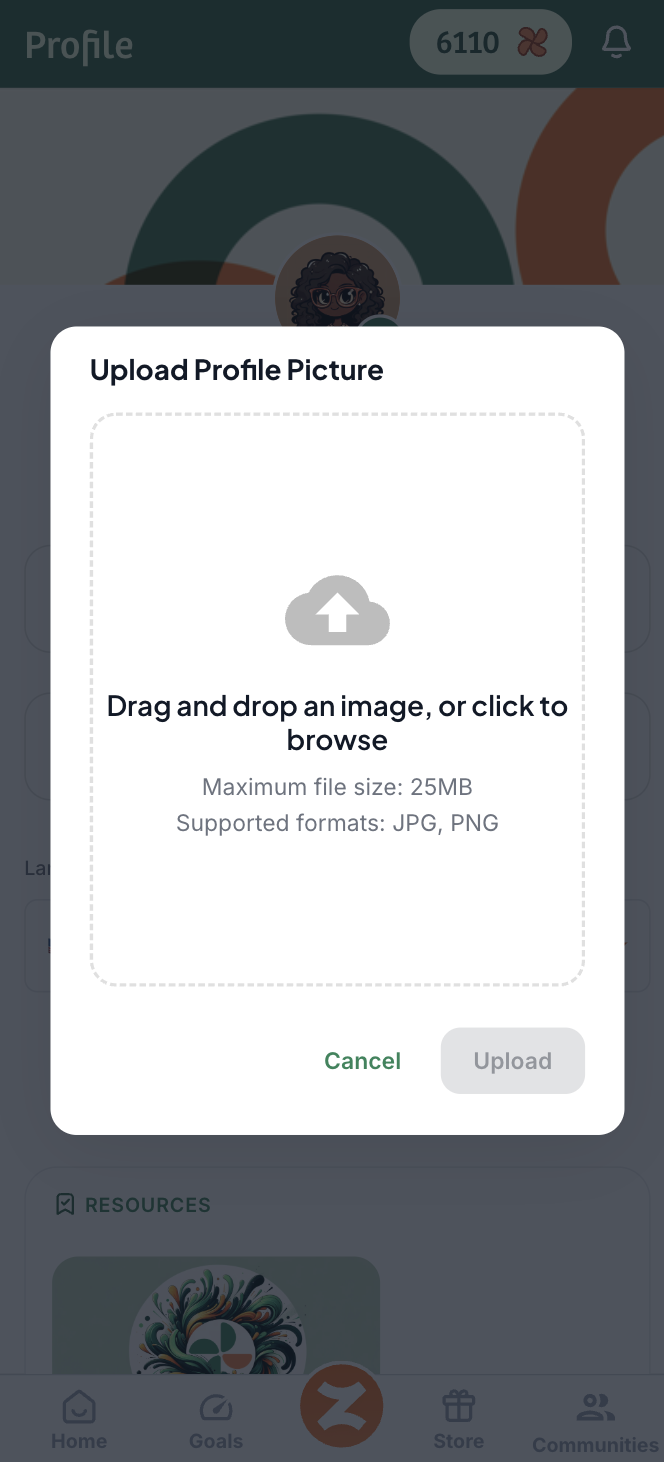
You might be able to add a profile photo if this feature is turned on for your agency. Just choose a respectable photo from your file and save:
💳 Purchasing Additional Avatars
After your first free avatar, each new avatar can be purchased for just 5 points.
To purchase:
Repeat the steps above from the View Profile section.
Choose a new avatar and tap Purchase.
🎯 Applying Your Avatar (Once Available Again)
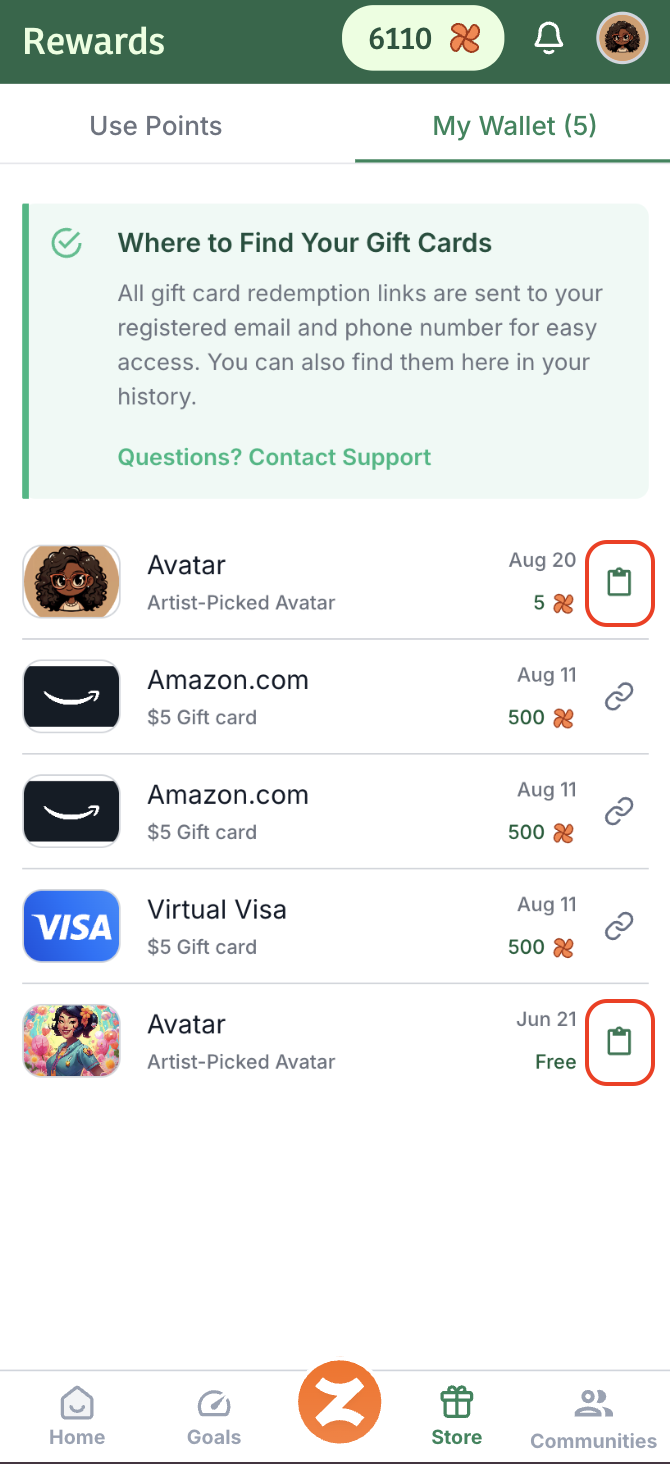
Once the avatar feature is fully restored, you’ll be able to apply your avatar from your rewards wallet.
To apply:
Go to the Store tab.
Tap My Wallet.
Click the 📋 clipboard icon next to the avatar you want to use.
🔄 Note: Avatars cannot be removed — they can only be changed by selecting a new one.