How to Use Your Gift Card In-Store
Last updated: November 19, 2025
If you’ve redeemed a gift card and want to use it at a physical store, great news—many of them can be scanned or added to your mobile wallet for tap-to-pay convenience.
Here's how to get started:
📲 Option 1: Add Your Gift Card to a Mobile Wallet
For cards like the Virtual VISA, follow these simple steps to use your card in-store via contactless payment:
Open your wallet app.
Tap the option to '+' icon to add to Apple Pay, Google Pay, or Samsung Pay.
Follow the prompts in your wallet app to finish setup.
Once the card is added, just tap your phone or smartwatch at checkout—anywhere that accepts contactless payments.
🧾 Option 2: Use the Gift Card Manually
If you don’t want to use a mobile wallet, you still have a few other options:
Print or screenshot your gift card page to show the card number at checkout.
Tap “View Code”, then click “Open Redemptions Page” to access a barcode the cashier can scan (when available - Visa gift cards do not have a barcode.):
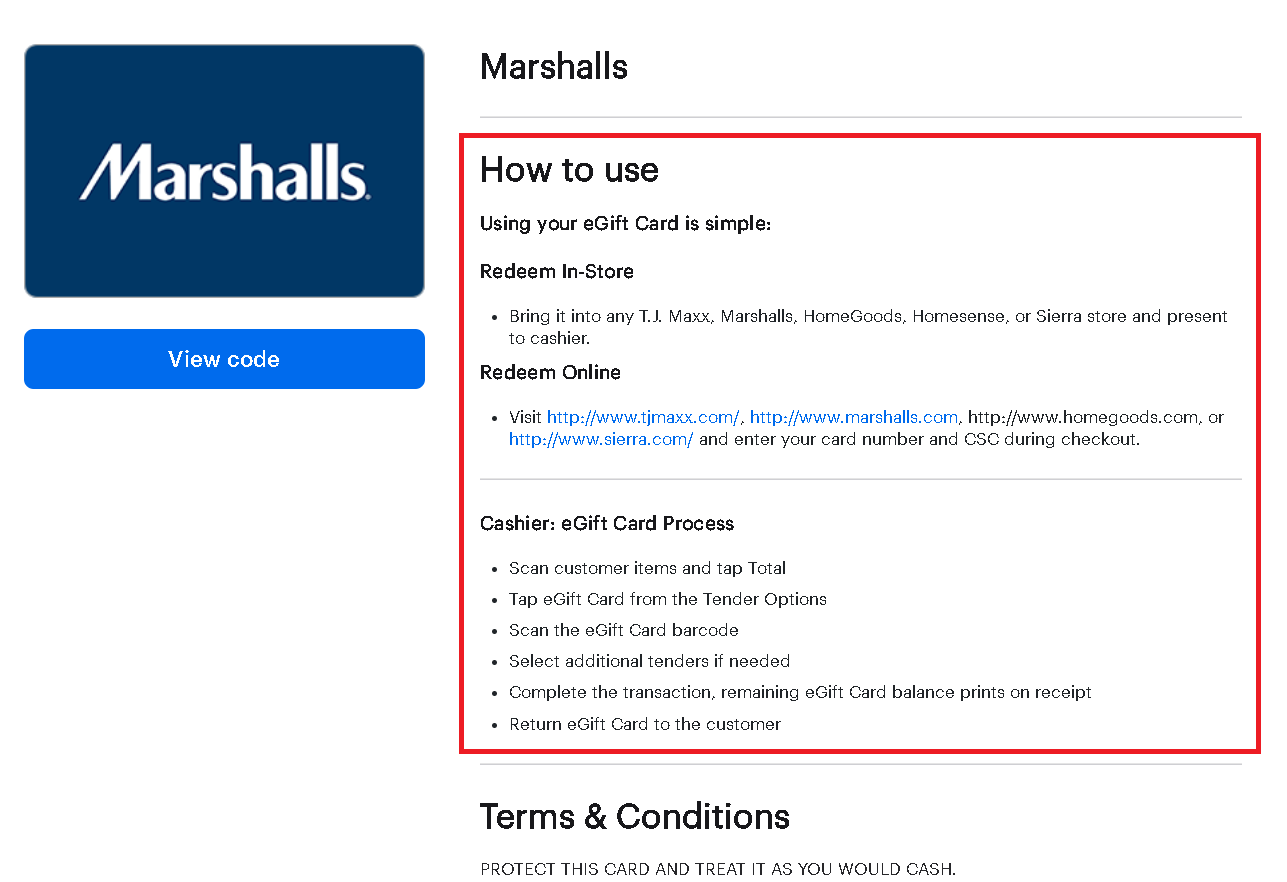
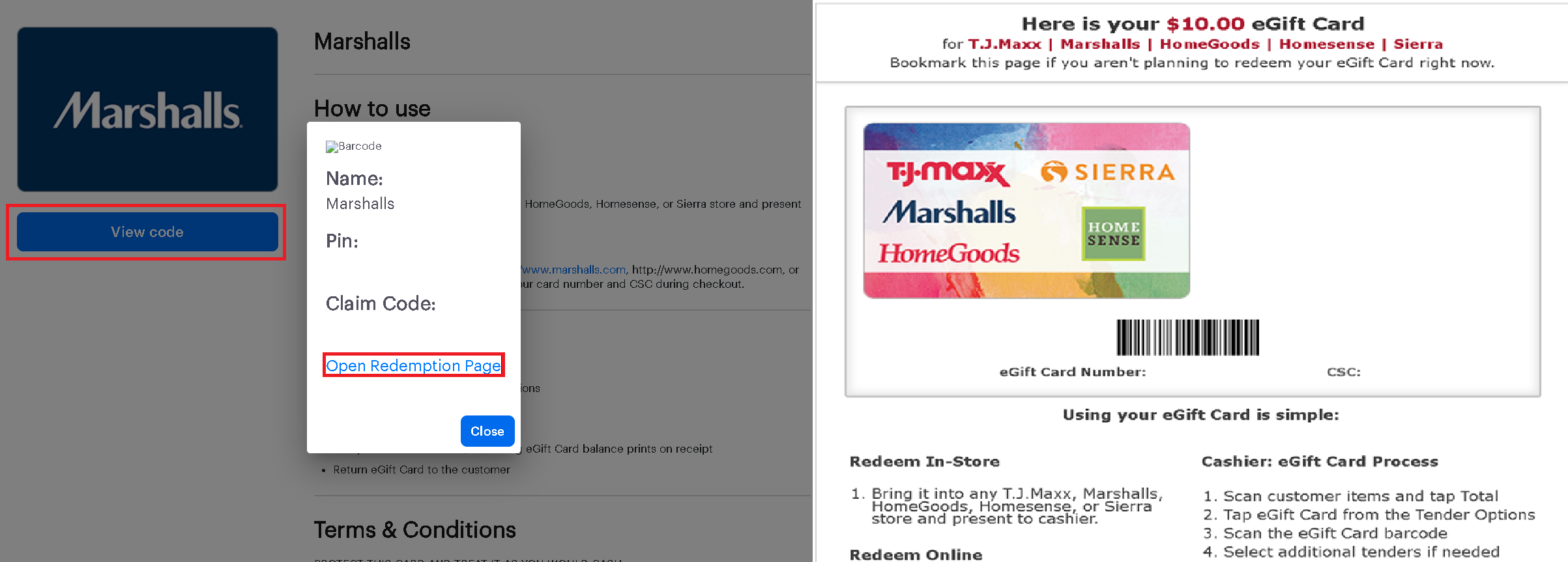
⚠ Not all gift cards have barcodes—availability depends on the merchant and card type.
The barcode has been slowly removed from virtual gift cards to encourage more online shopping. The VISA gift card has not barcode to be scanned.
Try using your gift card at the online merchant site.
Gift card balances from one gift card CANNOT be transferred to another gift card.
If no barcode is shown, you can ask the cashier to manually enter the gift card number or code, and remaining details.
🛒 Where Can I Use It?
Virtual VISA cards (and similar) can be used at most major retailers that accept credit cards or contactless payments. Just be sure to select "Credit" as the payment method—not debit. For other gift cards you can use the card at the respective merchant or online site.
Be sure to activate your gift card before trying to use it by accessing the link in the text, email, or My Wallet section of the Store tab on Zingage.
❓Need Help?
If you’re unsure how to use your gift card in-store or if something isn’t working, feel free to reach out to our support team—we’re happy to help!