How to add a gift card to your mobile wallet
Last updated: April 17, 2026
You can easily add your gift card to your mobile wallet for convenient access and use. The process varies depending on your device type:
🍎Apple Wallet (iPhone)
Note: This only works if the merchant supports Apple Wallet gift cards.
Open Wallet: Open the Apple Wallet app and tap the + button in the top right corner.
Add Card: Tap Debit or Credit Card and then select Continue.
Enter Details: Tap "Enter Card Details Manually".
Enter the gift card number and details, and click Next in the top right
Verification: Your bank or card issuer may require verification.
Note: You may receive a verification code via SMS or need to use your bank's banking app for authentication.
Activate: Once verified, the card will be activated and ready for Apple Pay.
If you don't see an "Add to Apple Wallet" button, that merchant does not support adding gift cards to Apple Wallet.
🌎Google Wallet (Android)
Most barcode or QR-code gift cards can be added.
Open the Google Wallet app
Tap the "+ Add to Wallet" button
Choose "Gift Card."
Search for the store/merchant name
Enter your gift card number and PIN (if required)
Tap "Save"
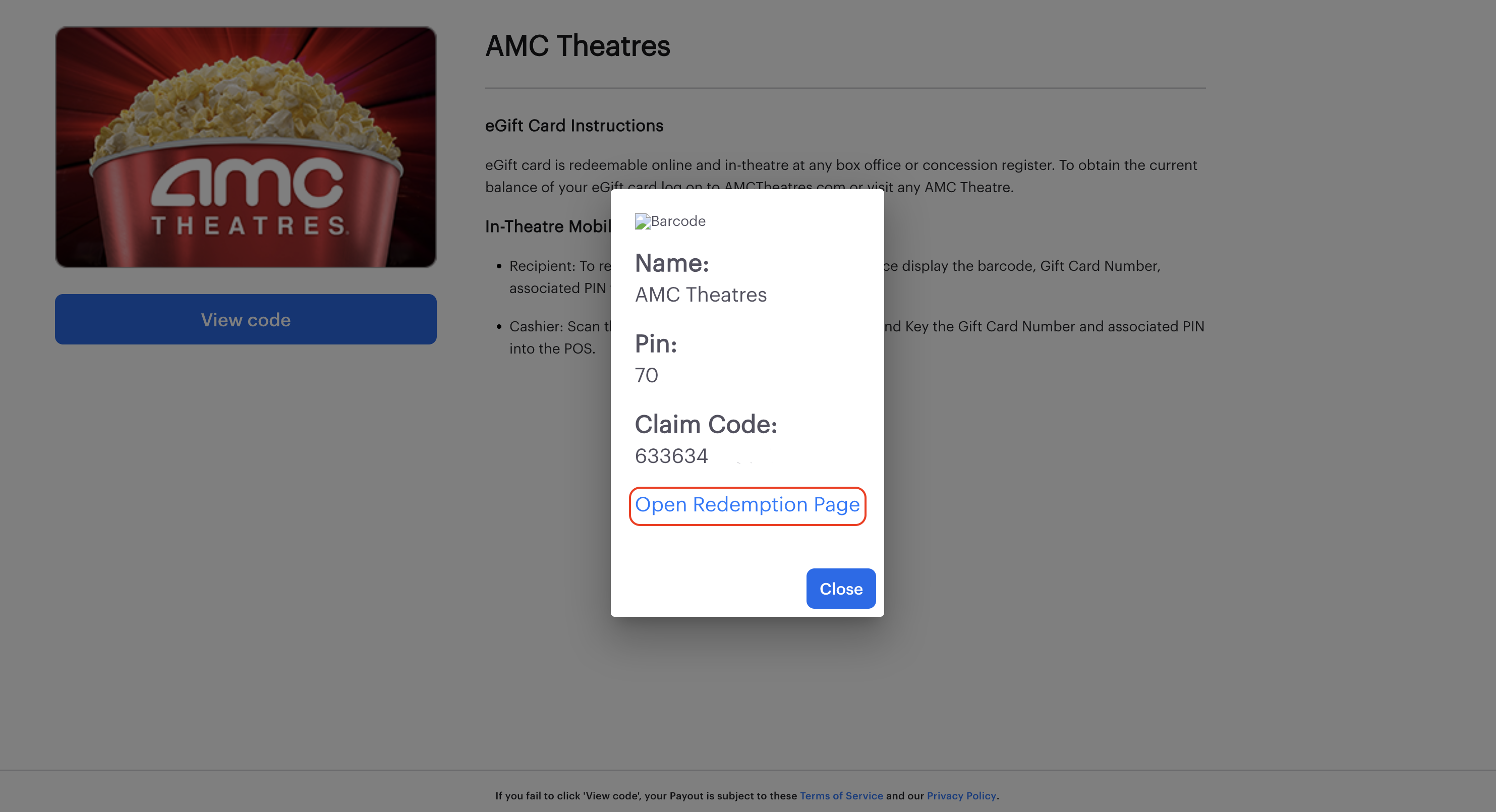
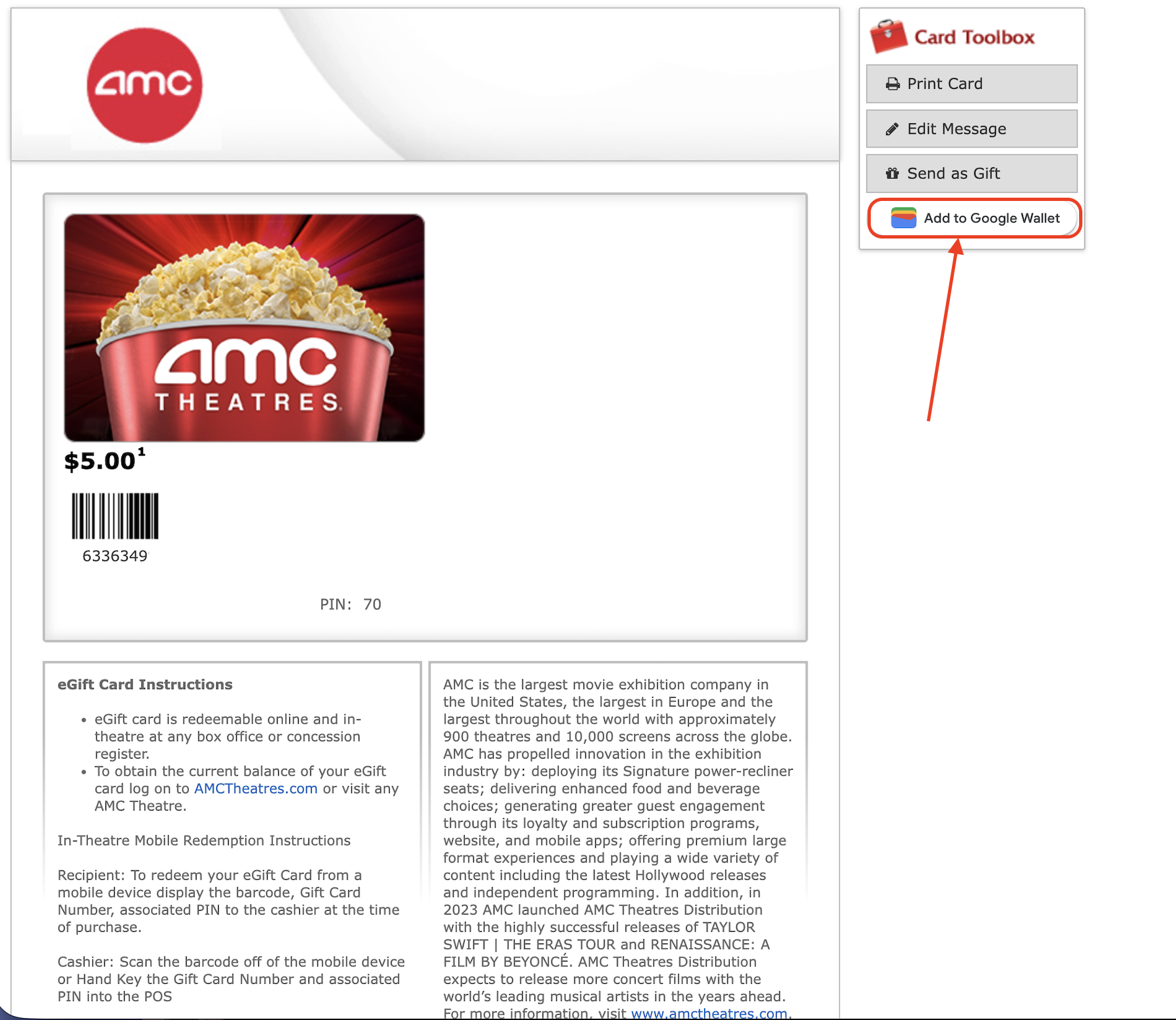
Alternative method: You can also access the gift card, hit "View Code" and "Open Redemptions Page" to add the gift card to your Google Wallet.
📱Samsung Pay (Samsung Devices)
Works for most barcode-based gift cards.
Open the Samsung Wallet (formerly Samsung Pay) app
Tap "Menu" → "Cards" → "Add Card"
Select "Add Gift Card"
Choose the merchant from the list
Enter your gift card number and PIN
Tap "Add" to finish
Once added to your wallet, you'll be able to access your gift card quickly for in-store or online purchases without needing to locate the original email or card details.