How to Use Communities as a Caregiver
Last updated: May 26, 2026
Communities is a space where you can connect with your fellow caregivers and stay in the loop with your agency. Think of it like a Facebook group — you can post updates, share photos, and chat with your team all in one place.
Video Tutorial: How To Use Communities in Zingage (Caregiver Side)
Accessing Communities
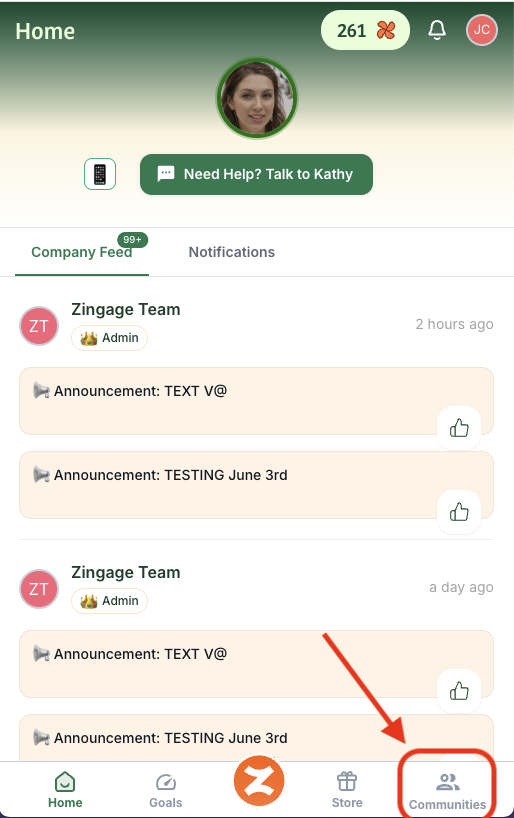
Once you're logged into Zingage, tap the Communities button in the bottom right of the screen. You'll see a list of all the community groups your agency has set up for you. You may have one or several — it depends on how your agency has organized things.
Browse Posts from Your Team, Create a Post, or Like and Reply
Once inside a community, you can scroll through and read posts from your teammates.
A few things to know:
Posts from your agency's management team will be marked with an Admin tag so you always know who's part of the leadership team.
Posts from your fellow caregivers will appear alongside admin posts in the feed.
Tap the post area at the top of the feed where it says What's on your mind?
From there you can:
Type a text message
Add photos or videos
Use emojis
When you're done, tap Send to post it to the group.
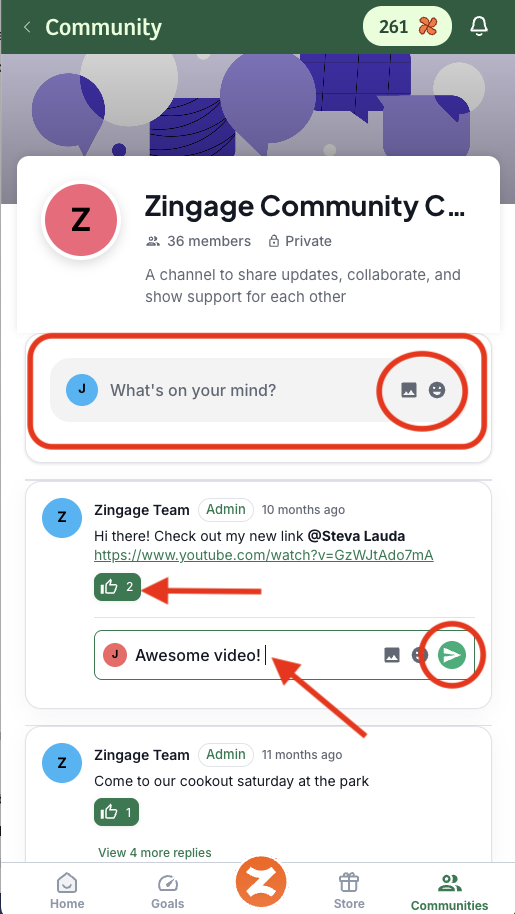
You can interact with posts from your team by:
Liking a message to show your support
Replying to a message to join the conversation — just tap the reply option, type your response, and hit Send
Delete Your Own Posts
Made a typo or want to take something back? You can delete a post you've made by tapping the trash icon in the top right corner of your message. Note that you can only delete your own posts.